
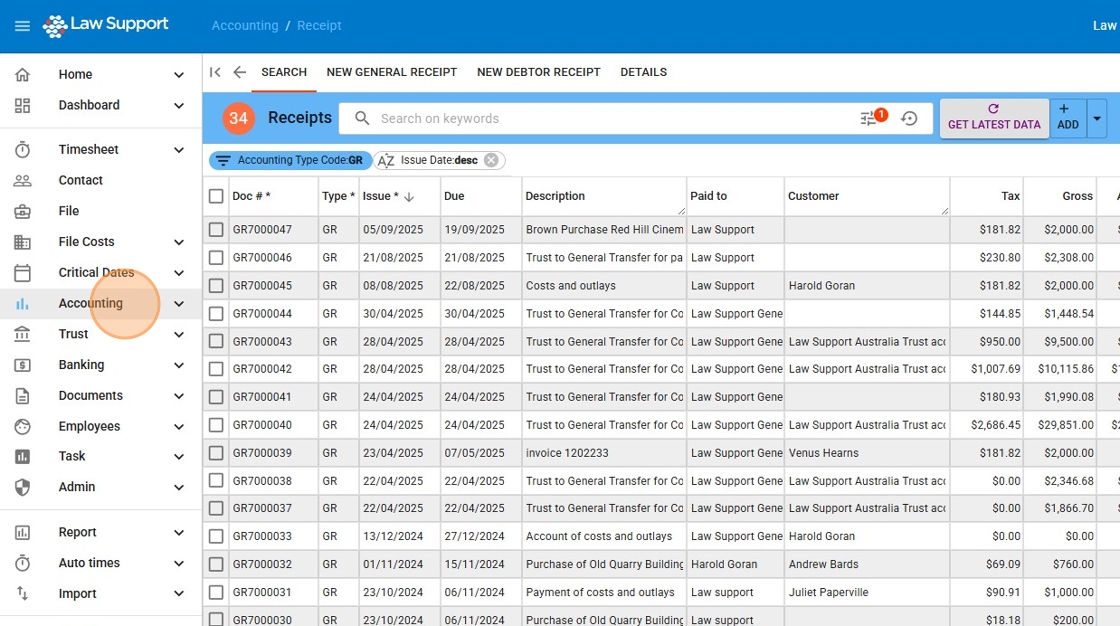
1. Navigate to https://app.lawsupport.com.au/accounting/receipt
Or Click “Accounting”
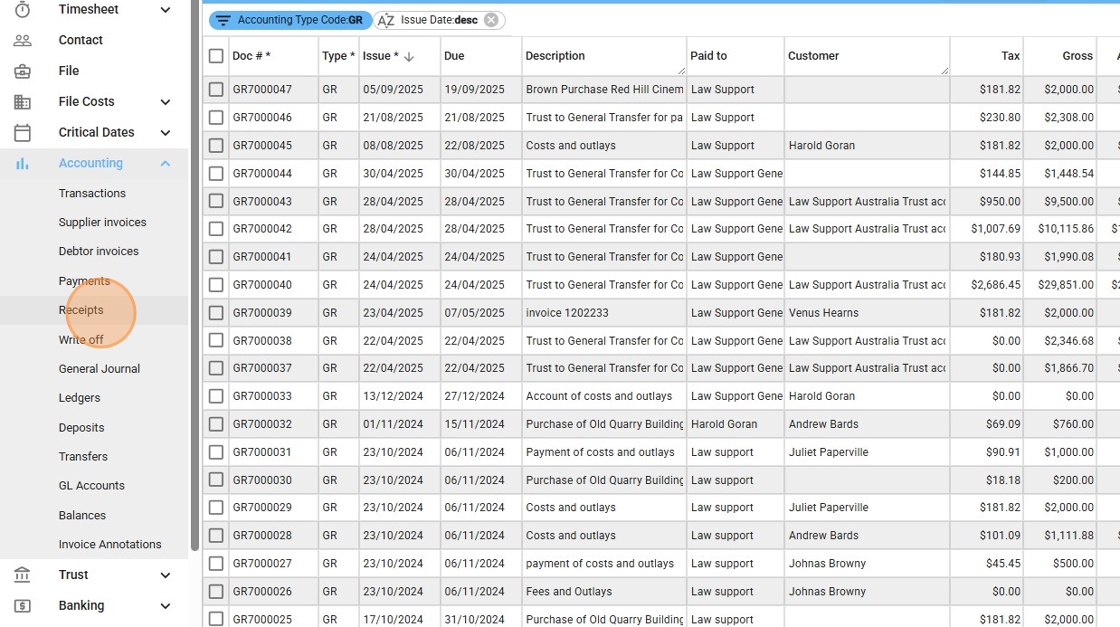
2. Choose Receipts from the Accounting Sub Menu
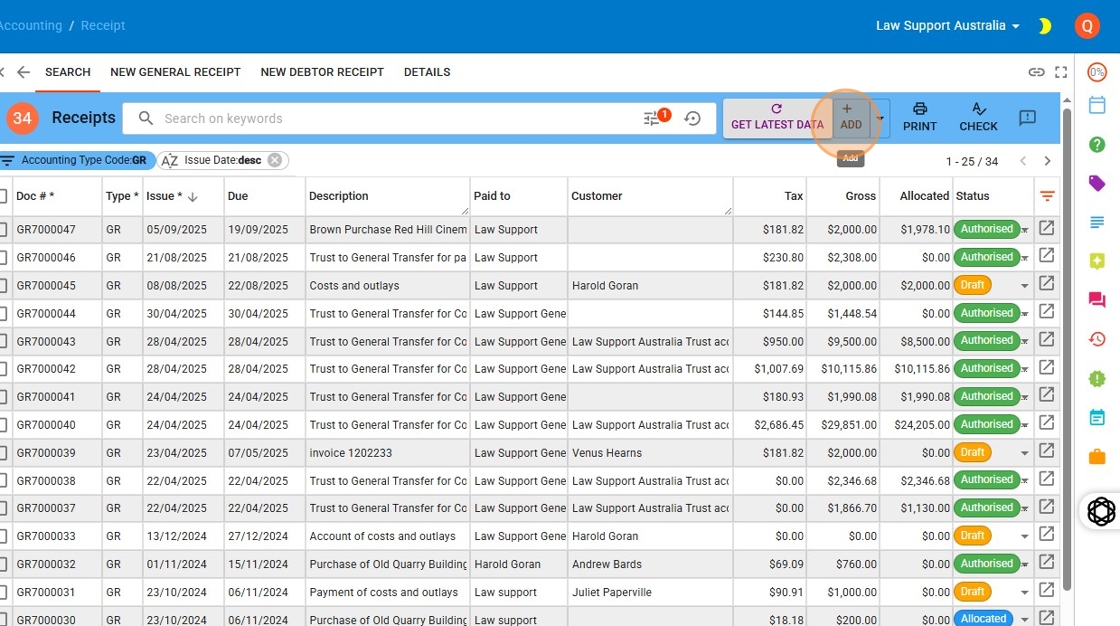
3. You will see the previous receipts that you’ve completed in your system.
Press + ADD button
4. Click the “An description for this Receipt”
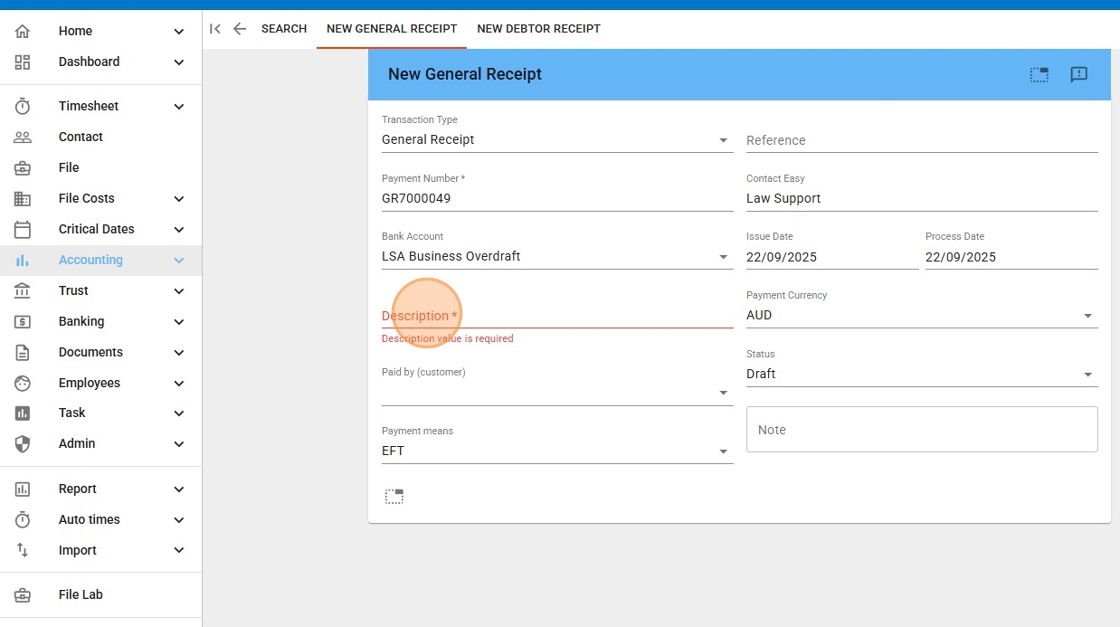
5. Start typing the name of the Customer then select the customer that is paying the invoice.
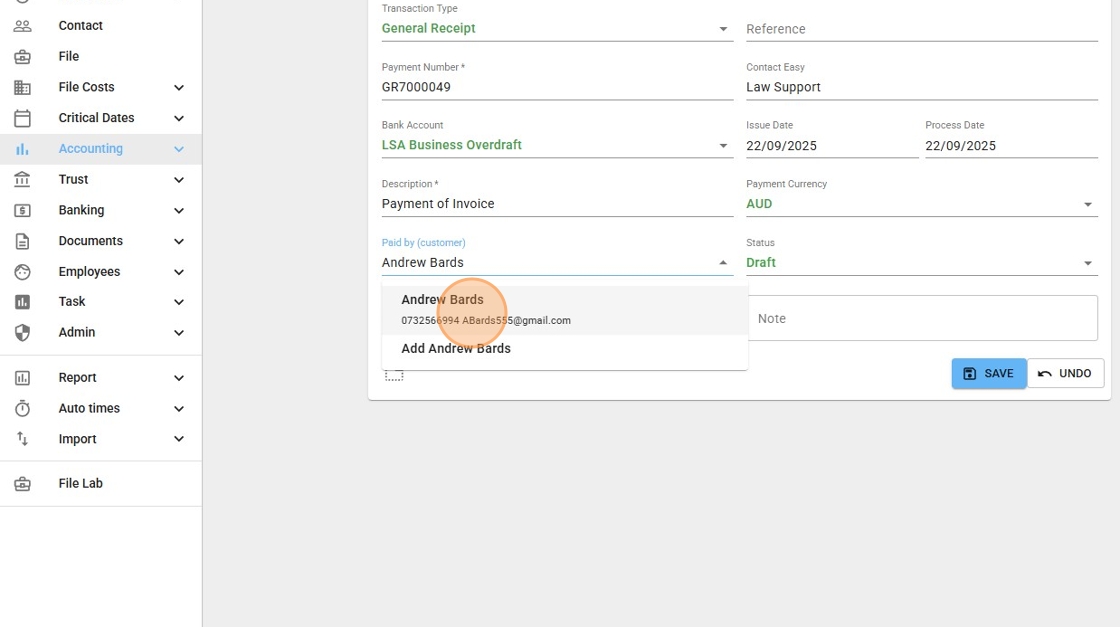
6. A reference is optional.
If the client is paying by EFT or other means, change the payment means and then press save.
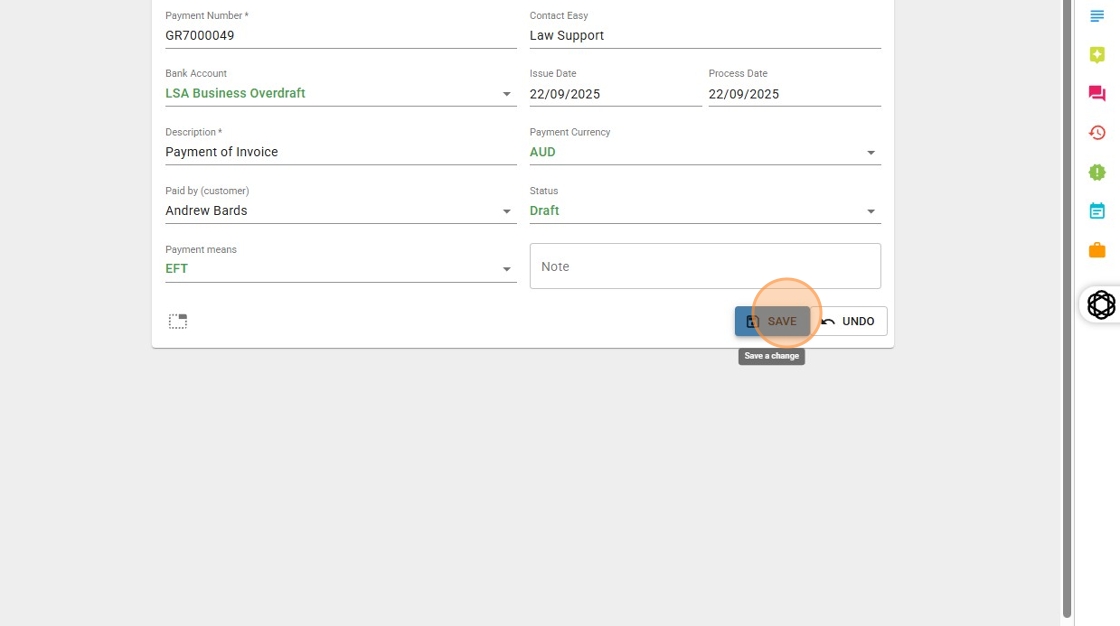
7. Now add a line for the Matter/File you wish to receive funds against.
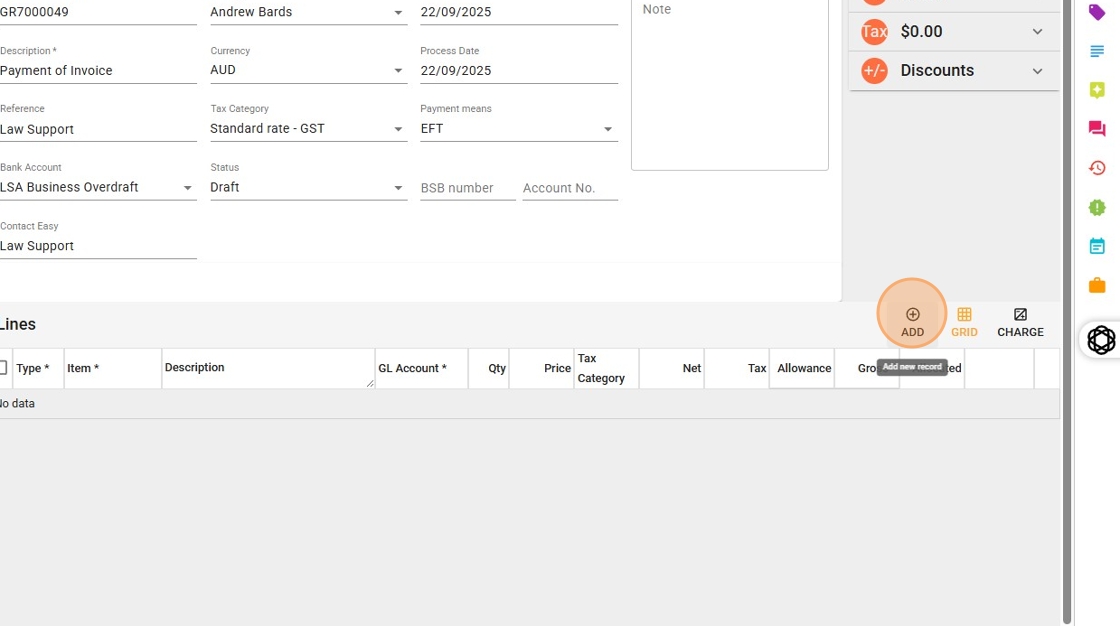
8. Click this field. Look up the name. Or the file number.
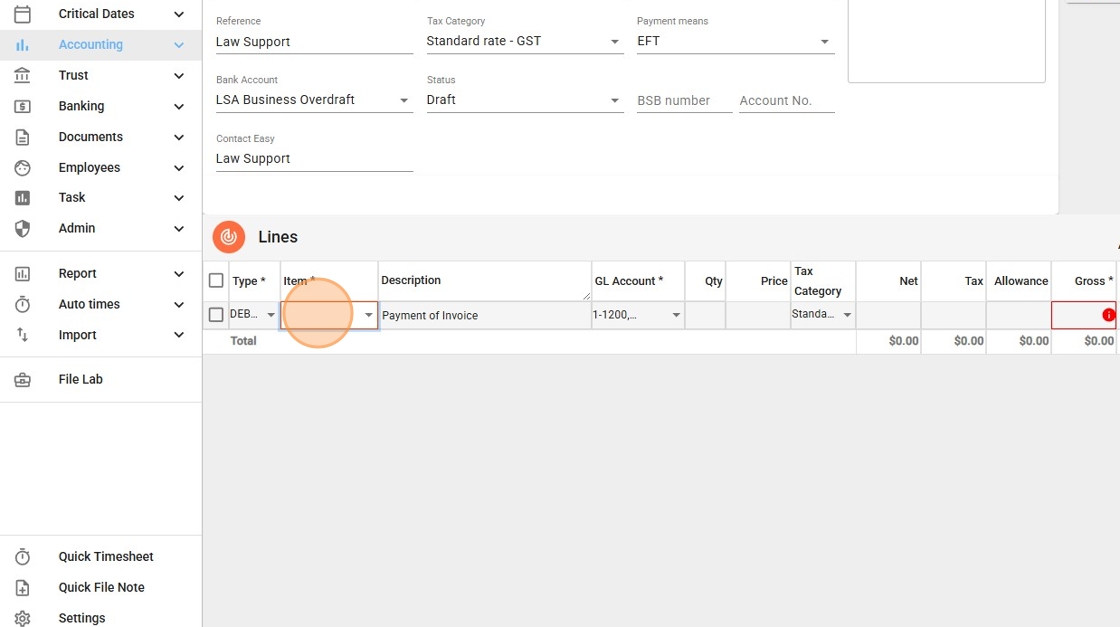
9. Click look up and select the correct Matter/File
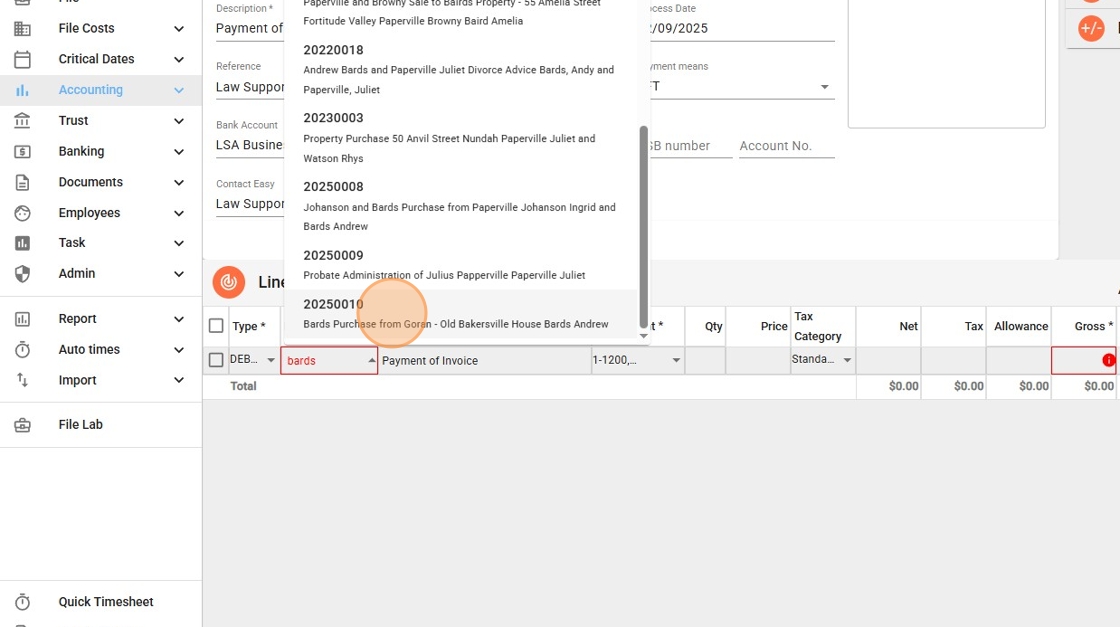
10. Alter the description for this line as you want, and click gross and enter the amount of the monies received in the Gross Amount
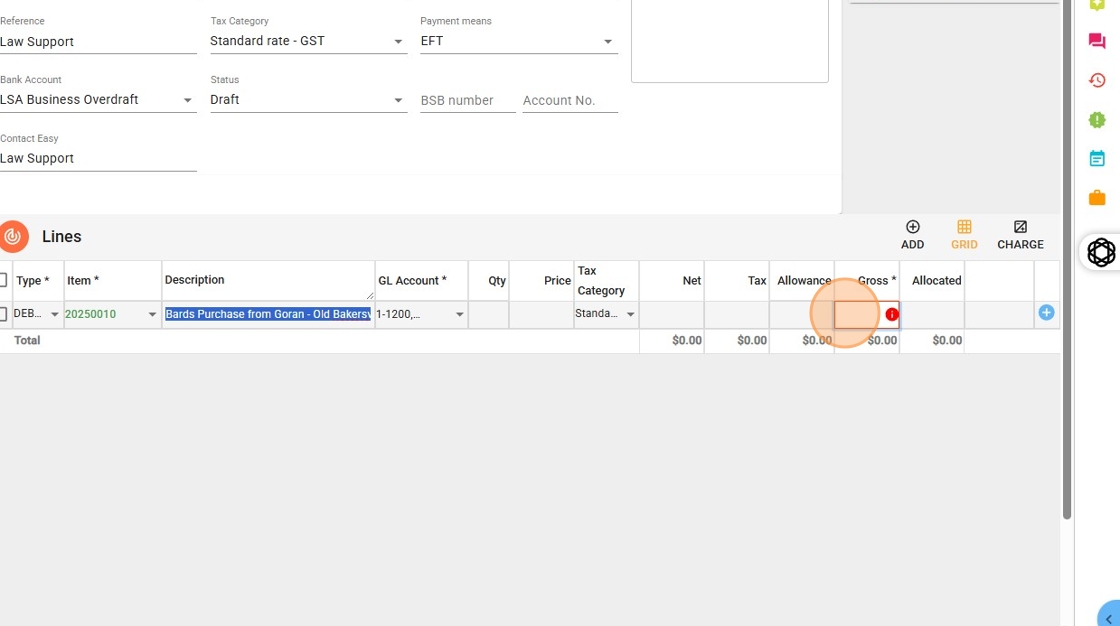
11. Then press save.
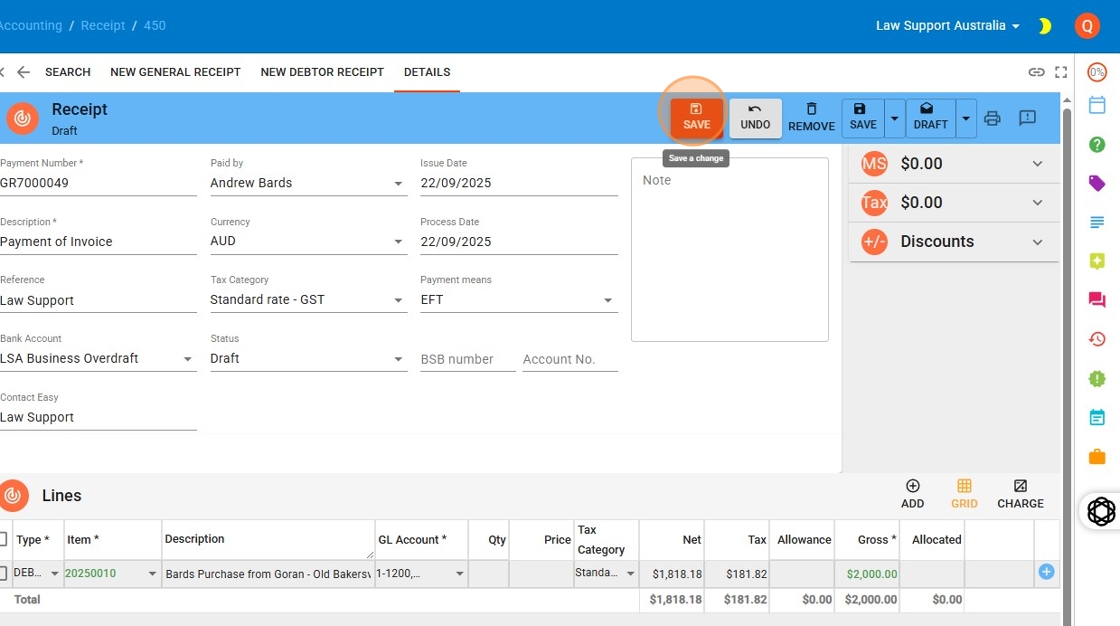
12. Once you’ve saved, the allocate button will appear.
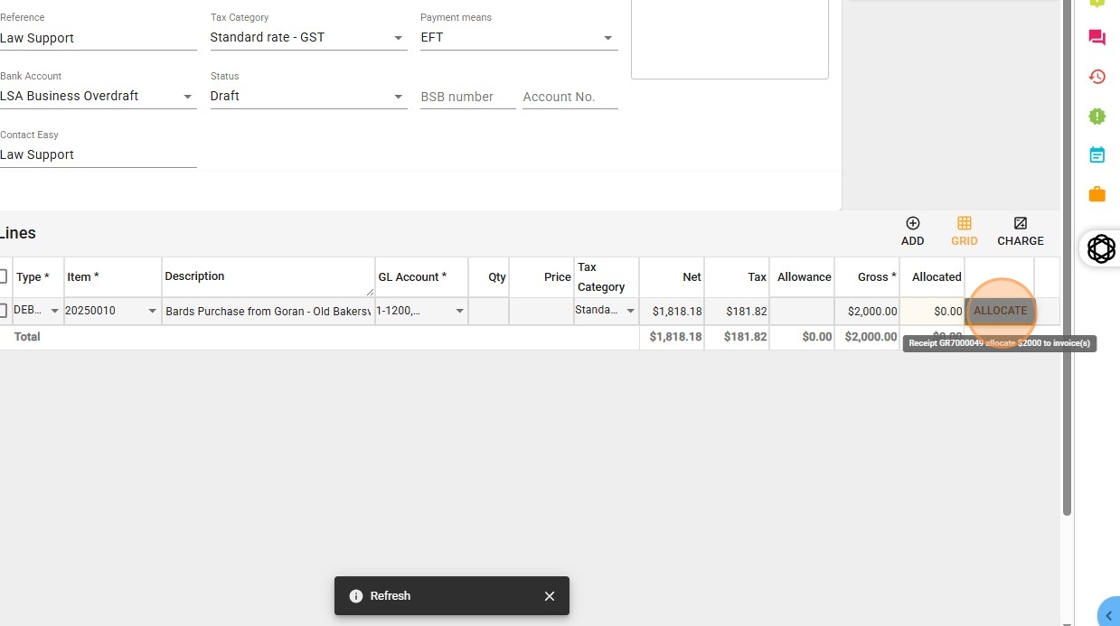
13. Now any outstanding invoice will be shown and you can flag which invoice you would like selected. If you wish to select the invoice, hit select only
If you do not press “Select Only” the oldest invoice will be allocated in lieu of a selection.
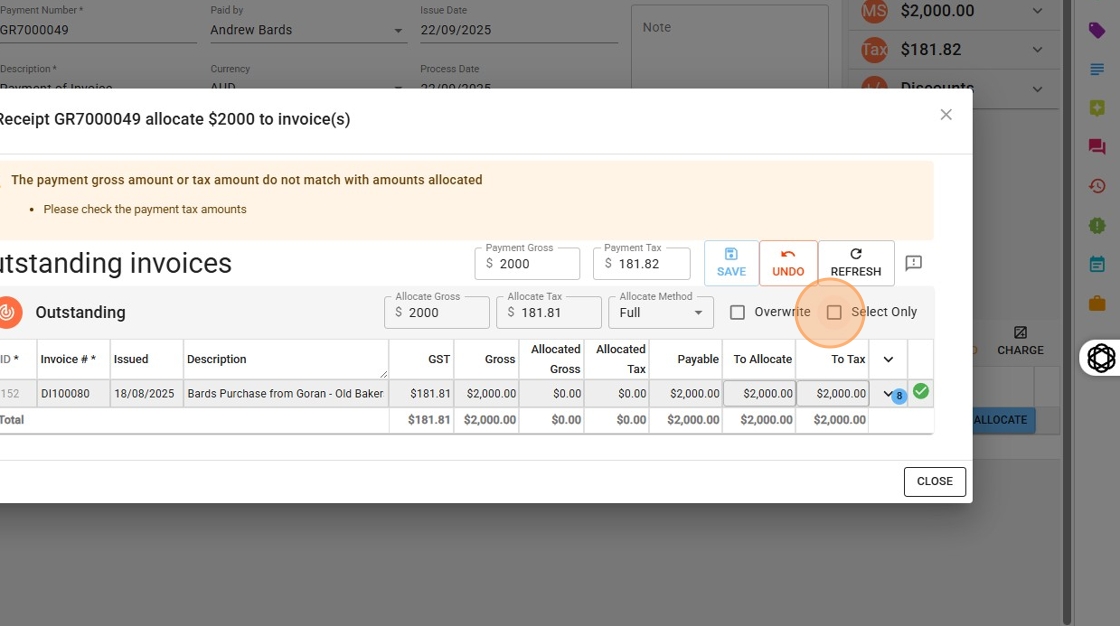
14. Otherwise it will allocate to the oldest invoice first.
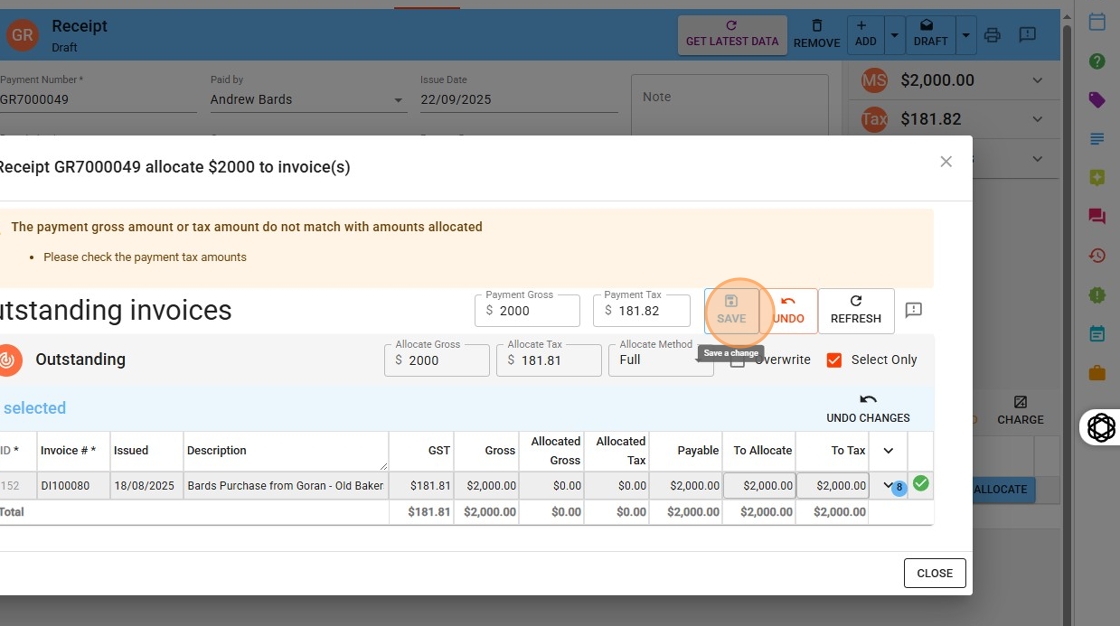
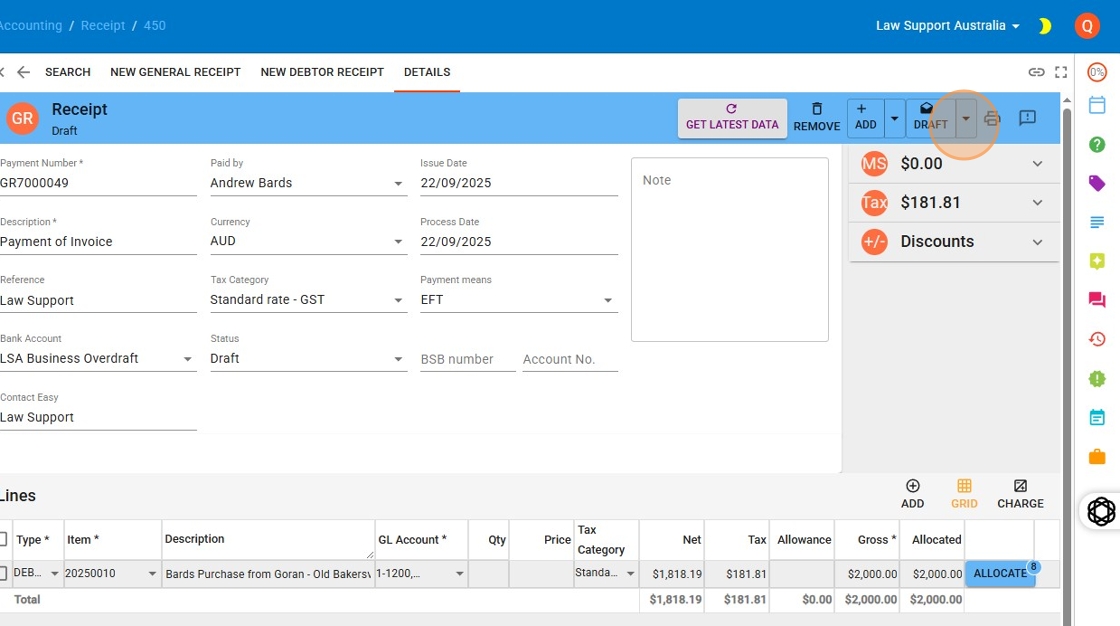
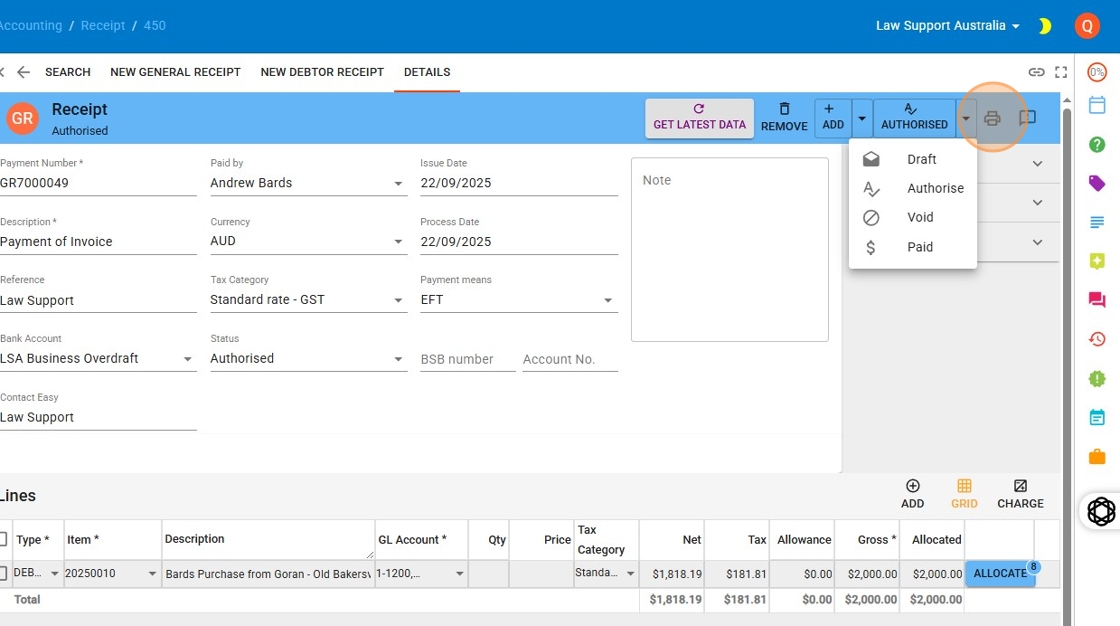
15. press Draft drop down to change to Authorised
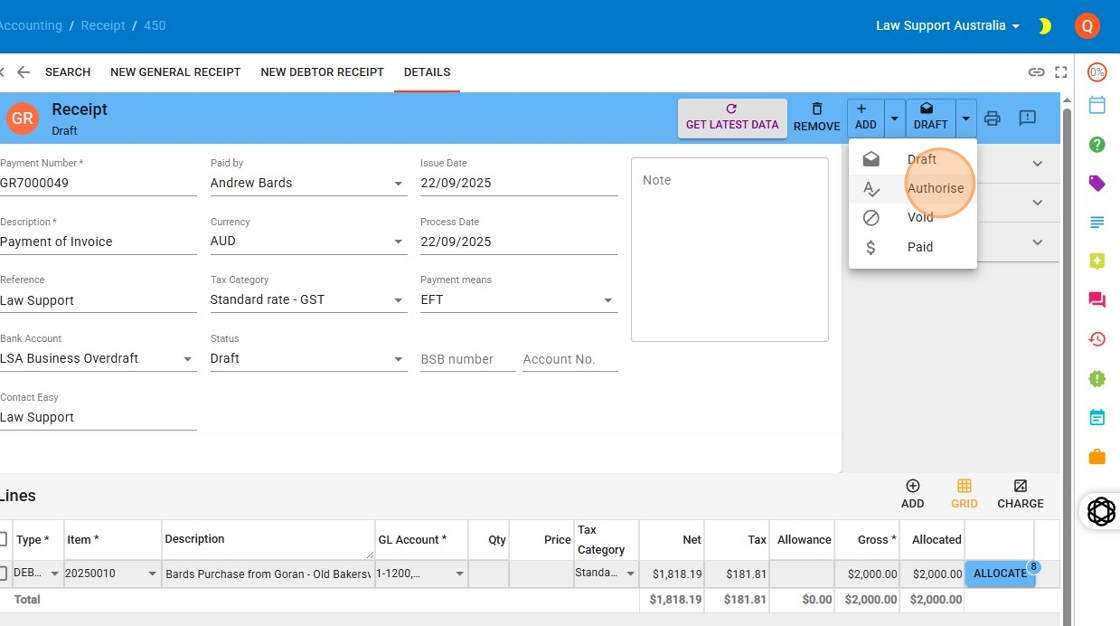
16. Select to authorize the bill.
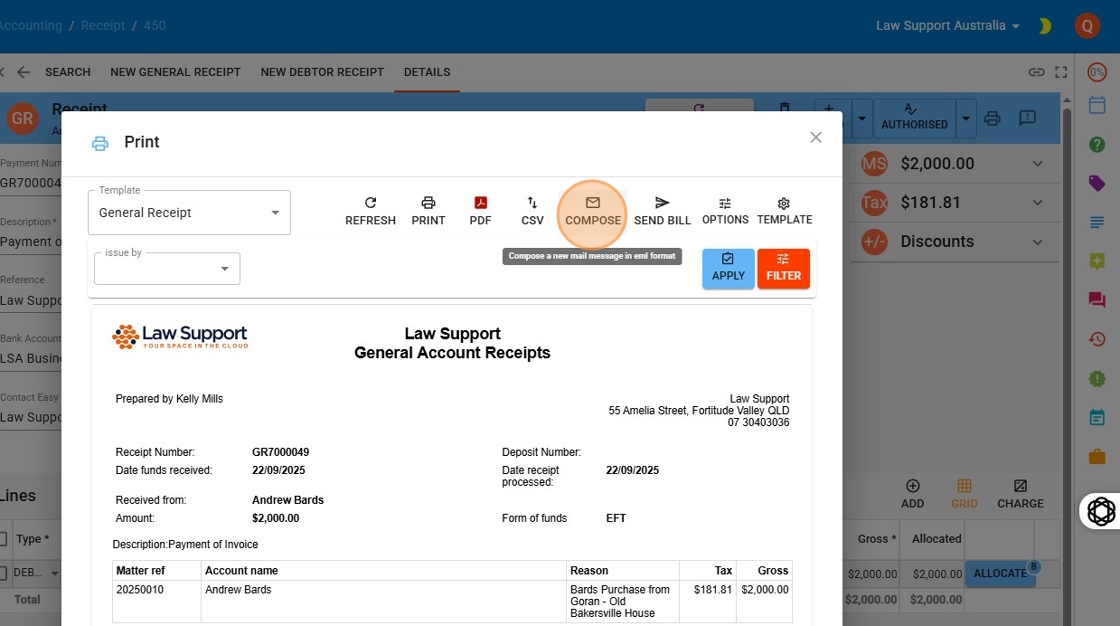
17. To email or Print press the Print Button
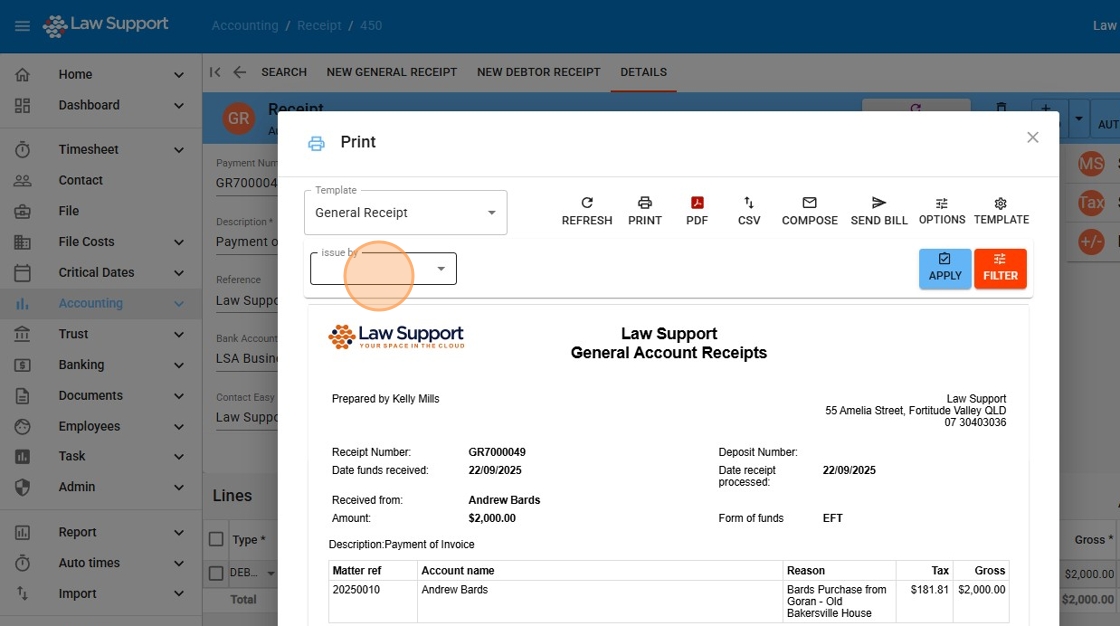
18. Choose who issued the invoice or who you want marked as the issuer, if different from the person who entered the receipt.
19. Invoice Sending Options in The Law App
When finalising and sending an invoice, The Law App offers a few different options to suit your workflow:
- Compose:
This option allows you to send the invoice using your own email account. It opens a pre-filled email draft that you can review and send directly.
✅ Recommended for personalised communication and direct client engagement. - Send Bill:
This sends the invoice via The Law App’s internal sending service. It’s quick and doesn’t require you to manually send the email, but the message comes from a system-generated address. - PDF:
Generates a PDF version of the invoice, which you can save or attach to an external email if preferred. - Print:
Sends the invoice to your printer.
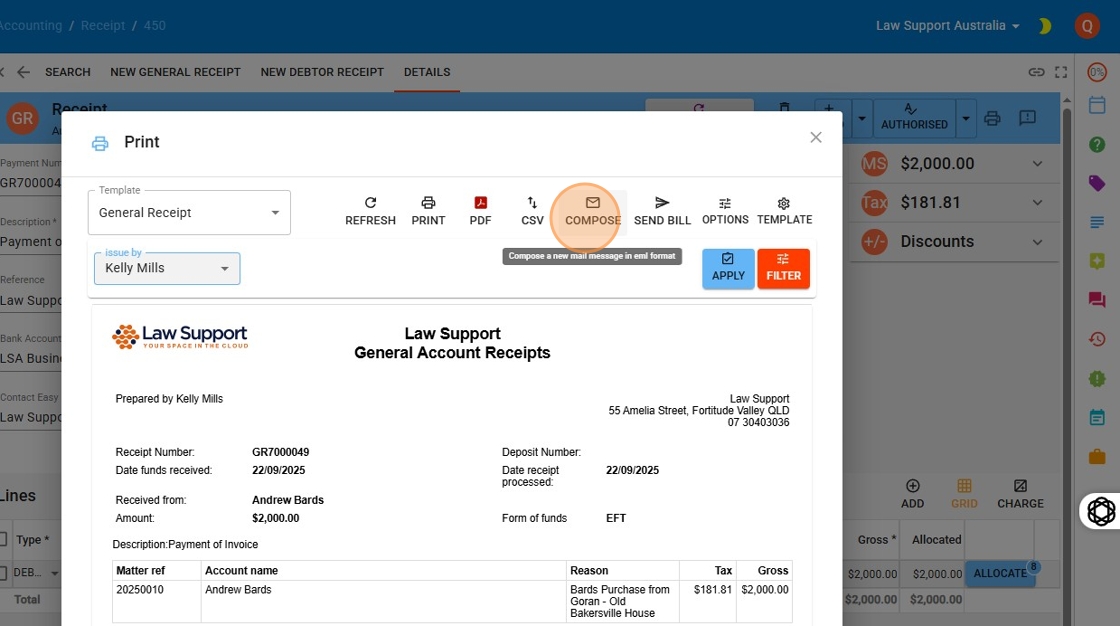
20. Click Print
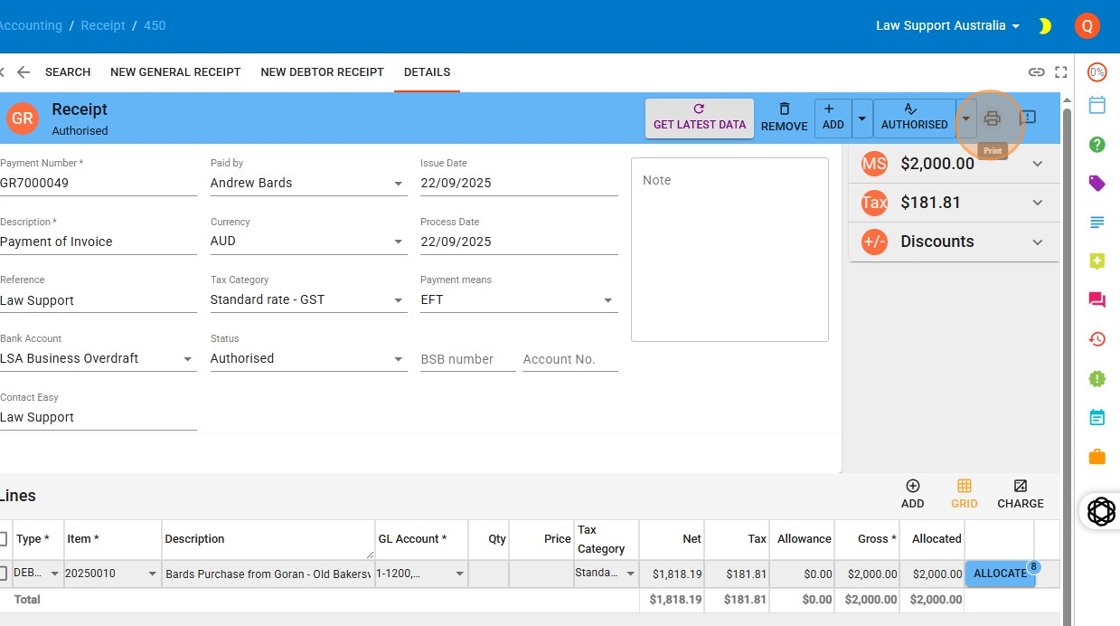
21. Click “Compose” to email to the client
How to Make Emails and PDFs Open Automatically After Downloading
https://support.lawsupport.com.au/knowledge-base/automatically-open-email-and-word-docs-after-download-from-chrome/
To streamline your workflow in The Law App, you can adjust your browser settings so that PDFs and downloaded files (like email attachments) open automatically after download.
✅ For Google Chrome (Recommended):
- When you download a PDF, Email or any file, it is easier if the documetn automatically opens after downloading –
- To facilitate this, click on download button.
- Click the arrow (⌄) next to the downloaded file name – or Right click on the file you want to open automatically
- Select “Always open files of this type”.
- For PDFs: Chrome will then open them in a new tab or your default PDF viewer.
- For
.emlfiles (email files): This will open them in your default email program (e.g. Outlook).
✅ For Microsoft Edge:
- After downloading a file, click the three dots (…) next to the file in the downloads bar.
- Select “Always open this type of file”.
> Note: If this option doesn’t appear, check your system settings to ensure the file type is associated with the correct program (e.g., Adobe Reader for PDFs or Outlook for .eml files).
Once this is set, your downloaded invoices, PDFs, or emails from The Law App will open automatically—saving you clicks and time.
Leave a Reply