
You can perform an InfoTrack search directly from a file in Law App. Open the file, go to Searches and click Perform Search — InfoTrack opens with the file number already recorded, and the search fee is added to the file for you.
Before you start: your InfoTrack account needs to be signed into Law App. See How to add your InfoTrack login to Law App.
How to perform an InfoTrack search
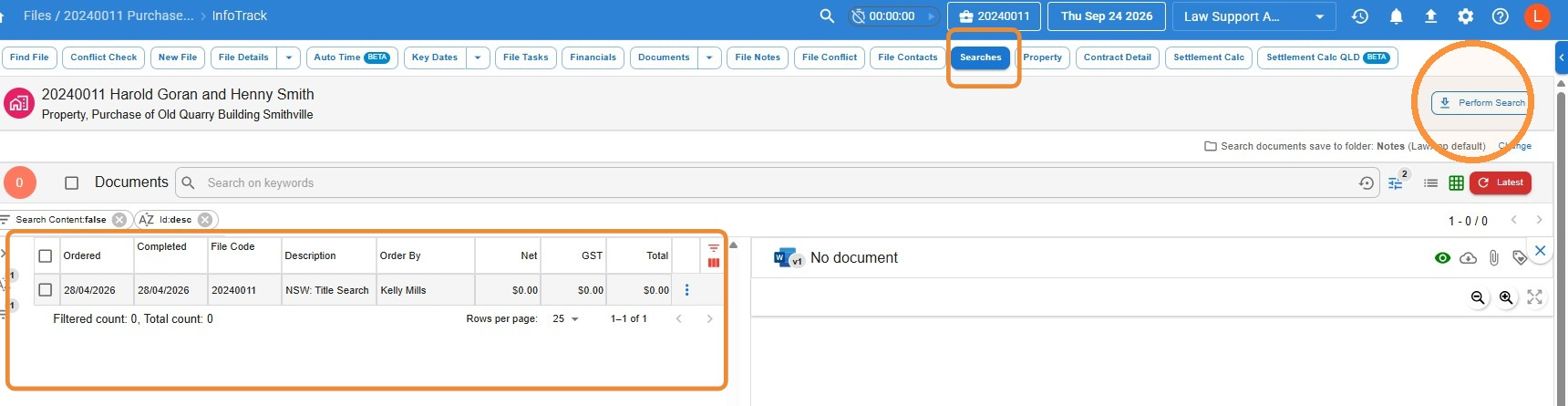
- Open the file you want to search on and select Searches.
- Click Perform Search. The InfoTrack search portal opens, and the file number you’re on is recorded against the search automatically.
- Complete your search in InfoTrack as you normally would.
One file at a time. Finish your search completely before starting a search on another file. To search on a different file, exit InfoTrack, open the new file in Law App, then click Perform Search again.
Viewing InfoTrack searches on a file
The Searches screen lists every existing search for the file on the left. Select a search from the list to see a preview of it on the right for easy reference.
Completed date showing 01/01/0001? This isn’t a date error. It means the search hasn’t been returned from InfoTrack yet, so there’s no completed date recorded. The date will update once the search is complete.
How InfoTrack search fees are charged
The fee for each search is automatically added to the file as a supplier disbursement, so there’s nothing extra to enter.
Leave a Reply