
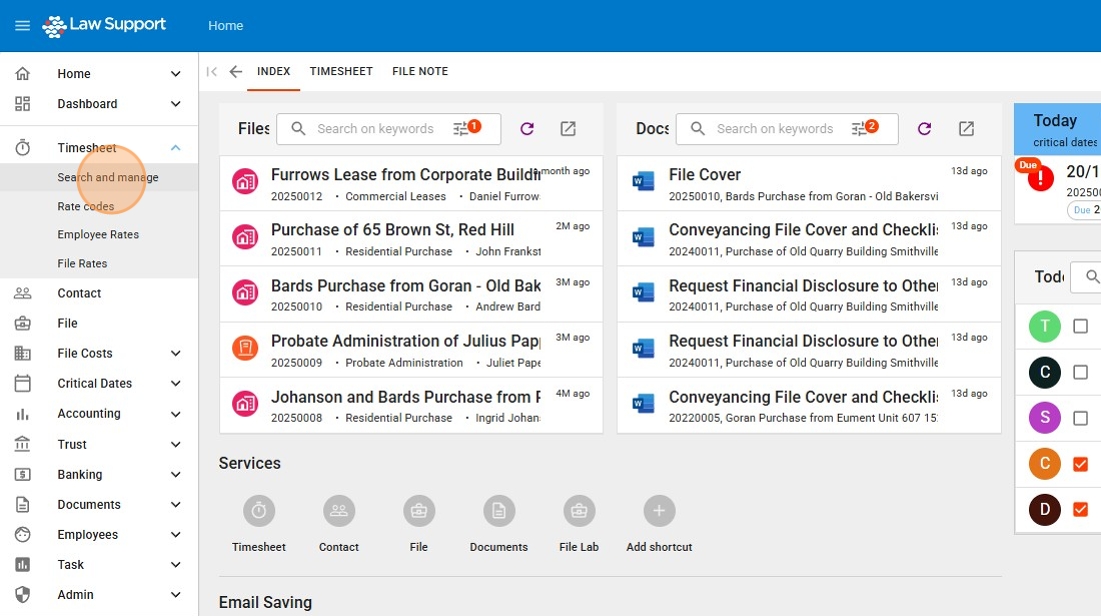
1. Navigate to your preferred Timesheet Screen.
The most features are available from the Timesheet “Search and Manage” area.
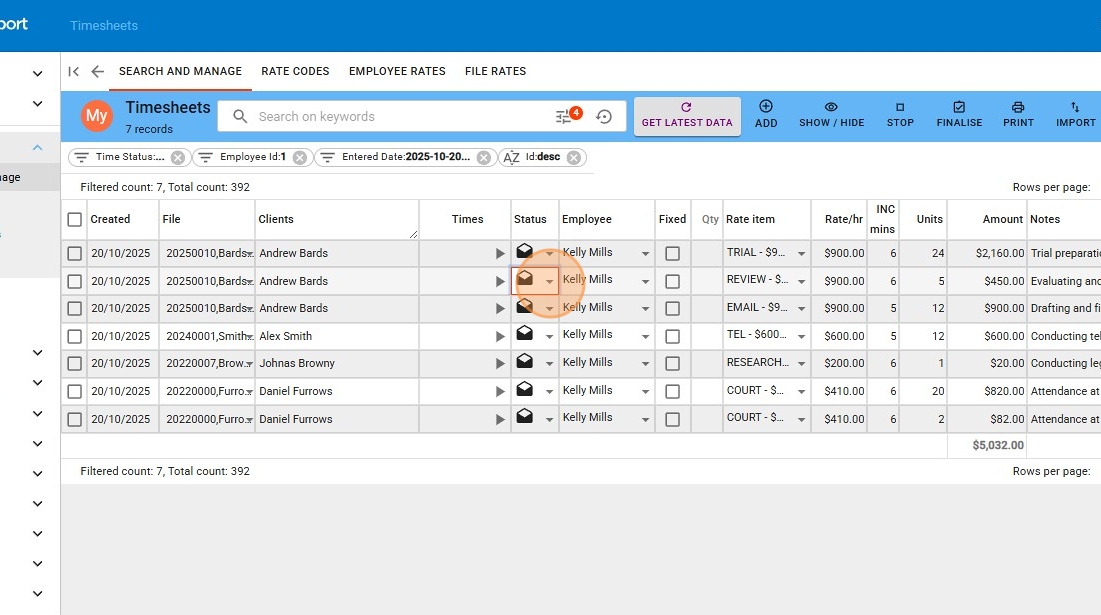
2. While a Timesheet is in Draft Indicated by the envelope you can drop down to change the status of the time entry
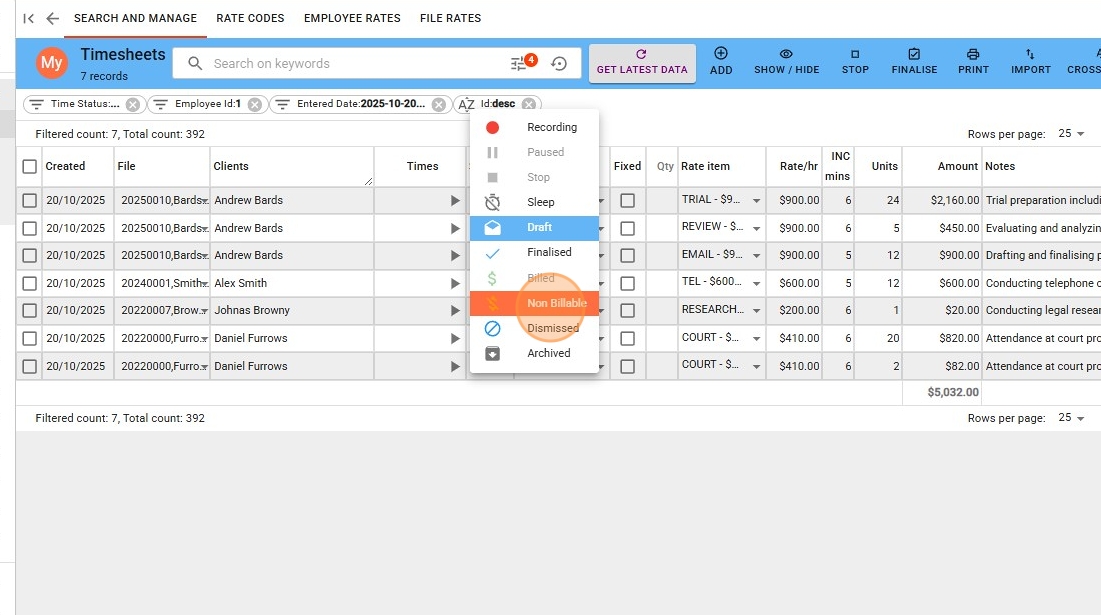
3. Click “Non Billable” “Dismissed” or “Archived” etc
After you have chosen the correct status for each item you can press Save
DO NOT PRESS FINALISE AND SAVE
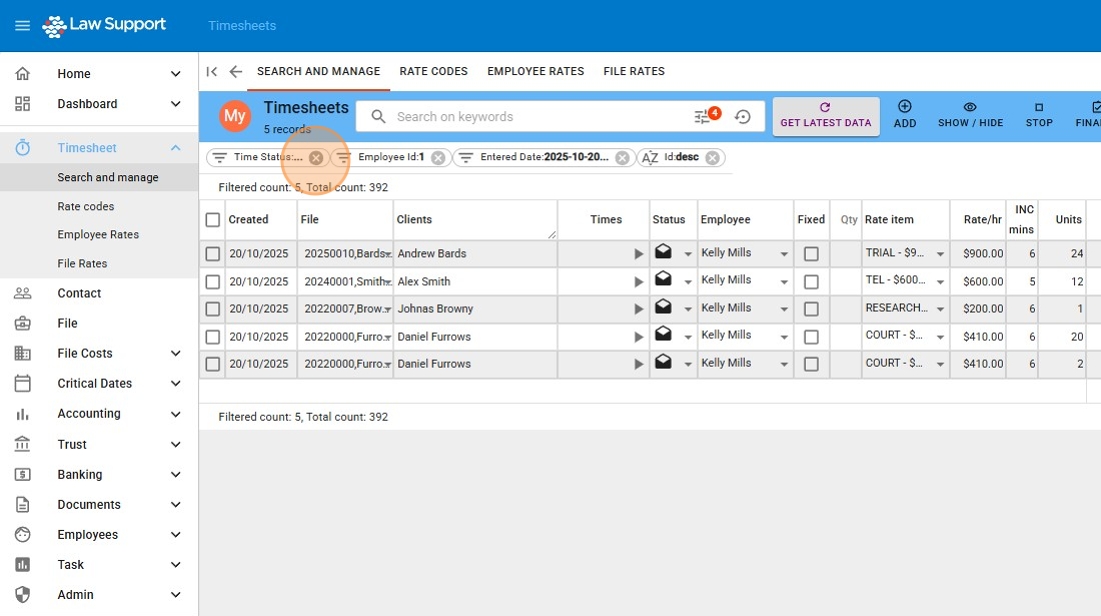
4. Time sheets by default will only show active time entries not those that are archived or dismissed. Remove the filter indicated in the image below to show all time sheets regardless of their status.
5. If you want to edit in bulk all at once you can flag all by pressing the Flag box at the top of the grid
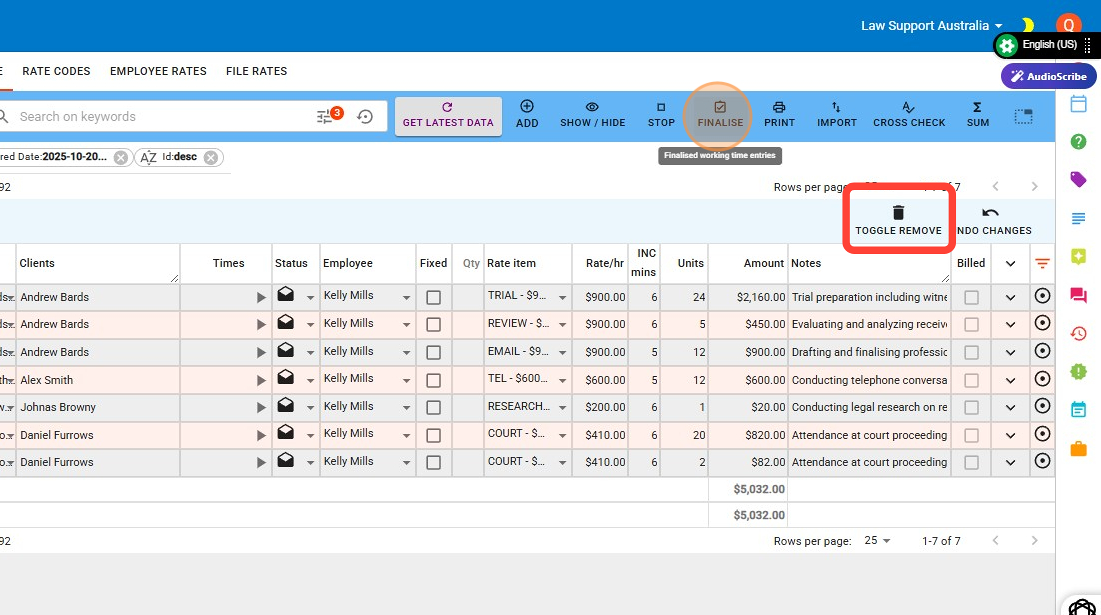
With this function you can “finalise all” and “Delete All”
Delete all Action can not be undone!
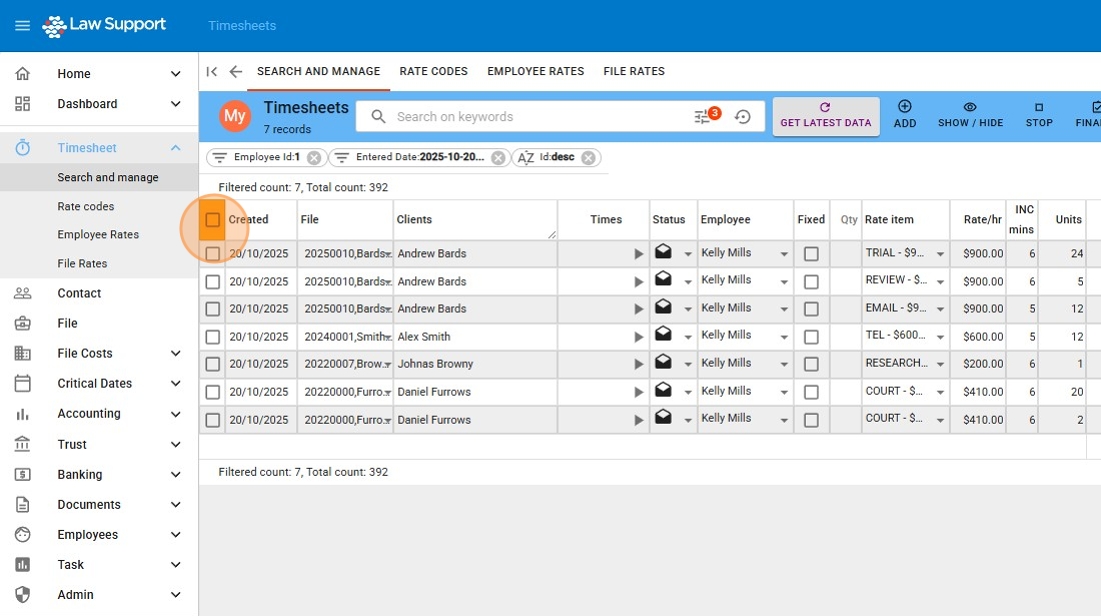
6. After Selecting all you can press Finalise (to complete all) or Remove (to remove all)
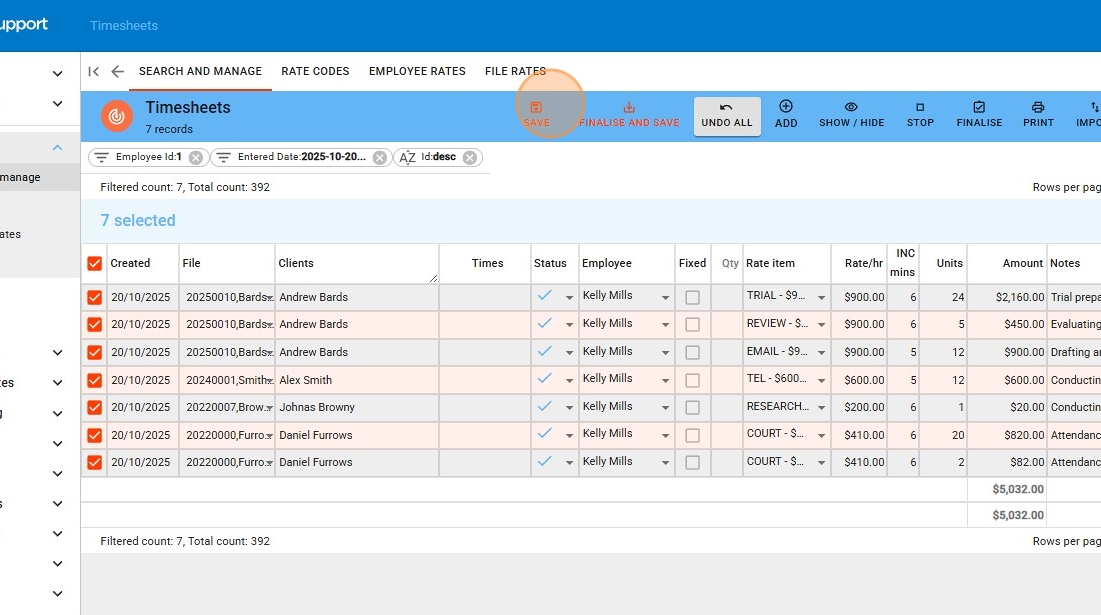
7. To Complete either action you must Click “Save” to complete the action.
Reserve “Finalise and Save” only for when you are want to finalise and save entries, not for other actions.
Leave a Reply