
Accounts Setup holds the structure behind your general ledger: the account types, the accounts Law App posts to automatically, your chart of accounts, the GST codes, and how your bills print. Most firms start with the Law App standard chart and only add accounts. Change the structure carefully: it affects every transaction posted from then on, and your financial reports.
How to get there
- From the left menu, click Settings.
- Under Firm, click Accounts Setup.
- Use the tabs: Account Types, Control Accounts, Chart of Accounts, Tax Categories and Billing Settings.
Chart of Accounts
Every general ledger account your firm posts to, in a tree: each account sits under a parent, and totals roll up to it on your financial reports. See Law App Standard Chart of Accounts for what each standard account is for.
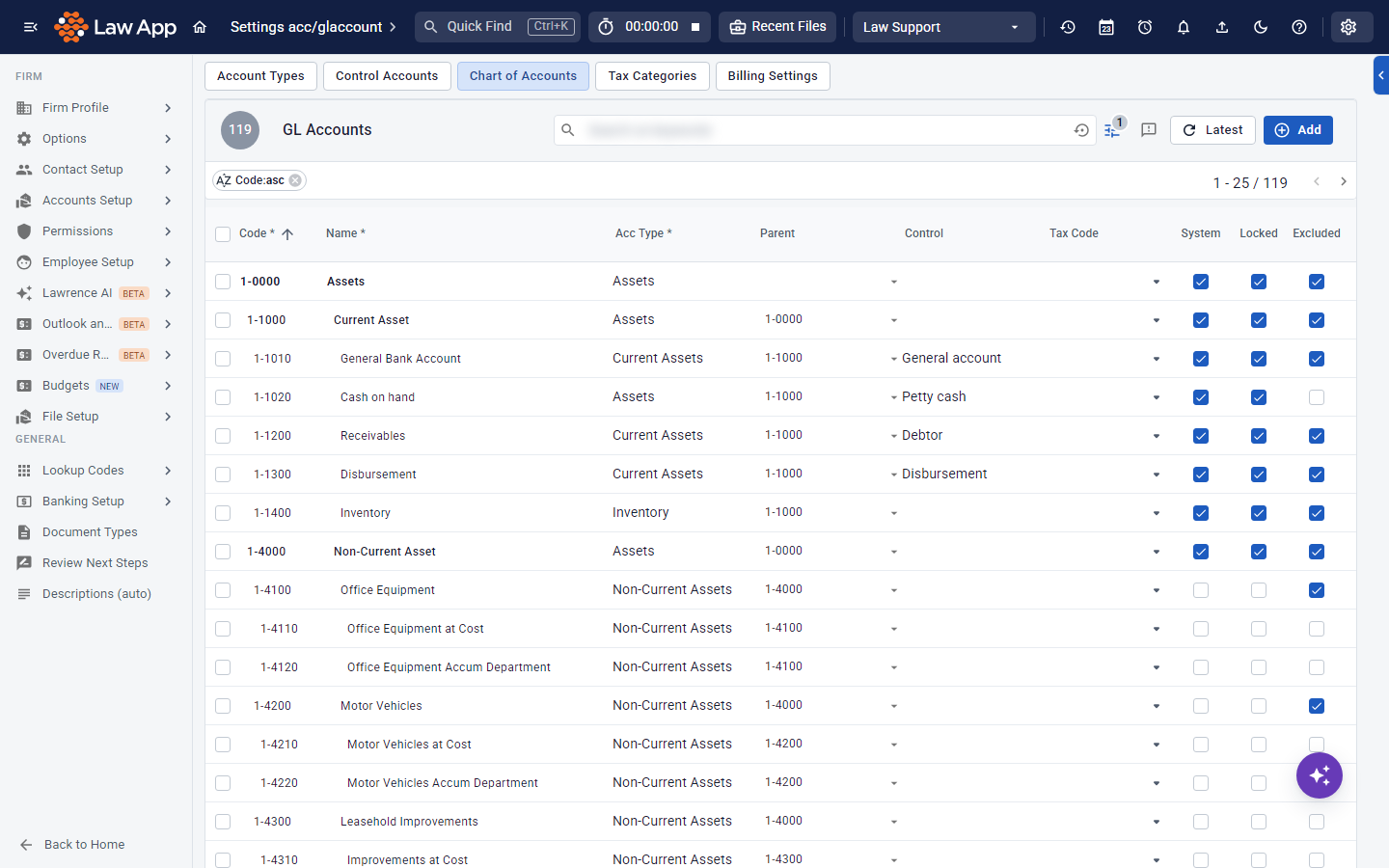
| Column | What it’s for and what it changes |
|---|---|
| Code and Name | The account number (such as 6-1200) and its name, as they appear on reports and in account pick lists. |
| Acc Type | Whether it’s an asset, liability, income, expense and so on. Decides which financial report the account appears on and where. |
| Parent | The account it sits under. Its balance is added into the parent’s total. |
| Control | Links the account to a control account (General account, Debtor, Disbursement and so on), so Law App posts to it automatically. Only the standard accounts need this. |
| Tax Code | The GST code entries posted to this account start with. You can still change it on each line. |
| System | Law App’s own account. Don’t change or remove it. |
| Locked | The account can’t be changed. |
| Excluded | The account doesn’t appear in the account pick lists, so nobody can choose it on a transaction. Use it for headings and for accounts you no longer use. |
To add an account, click Add. See Adding a GL Code to Your Chart of Accounts.
Account Types, Control Accounts and Tax Categories
| Tab | What it’s for and what it changes |
|---|---|
| Account Types | The types an account can be (Assets, Current Assets, Income, Expenses and so on), their order, and which type each one rolls up into. Decides how the Balance Sheet and Profit and Loss are laid out. Most firms never change these. |
| Control Accounts | The jobs Law App posts to automatically, such as the general bank account, debtors, creditors, disbursements, trust and GST, and which account each one uses. Change these only with your accountant: a wrong control account sends every automatic posting to the wrong place. |
| Tax Categories | Your GST codes and their rates, such as Standard rate GST and Exempt. They appear as the tax choices on invoices, payments, receipts and journals, and drive your BAS figures. Wages and super use E, Exempt from tax. |
Billing Settings
How your firm’s bills print. When a bill prints, Law App takes the options in this order, and the most specific wins: the bill itself, then each person’s own default (saved on the print screen), then the firm default set here.
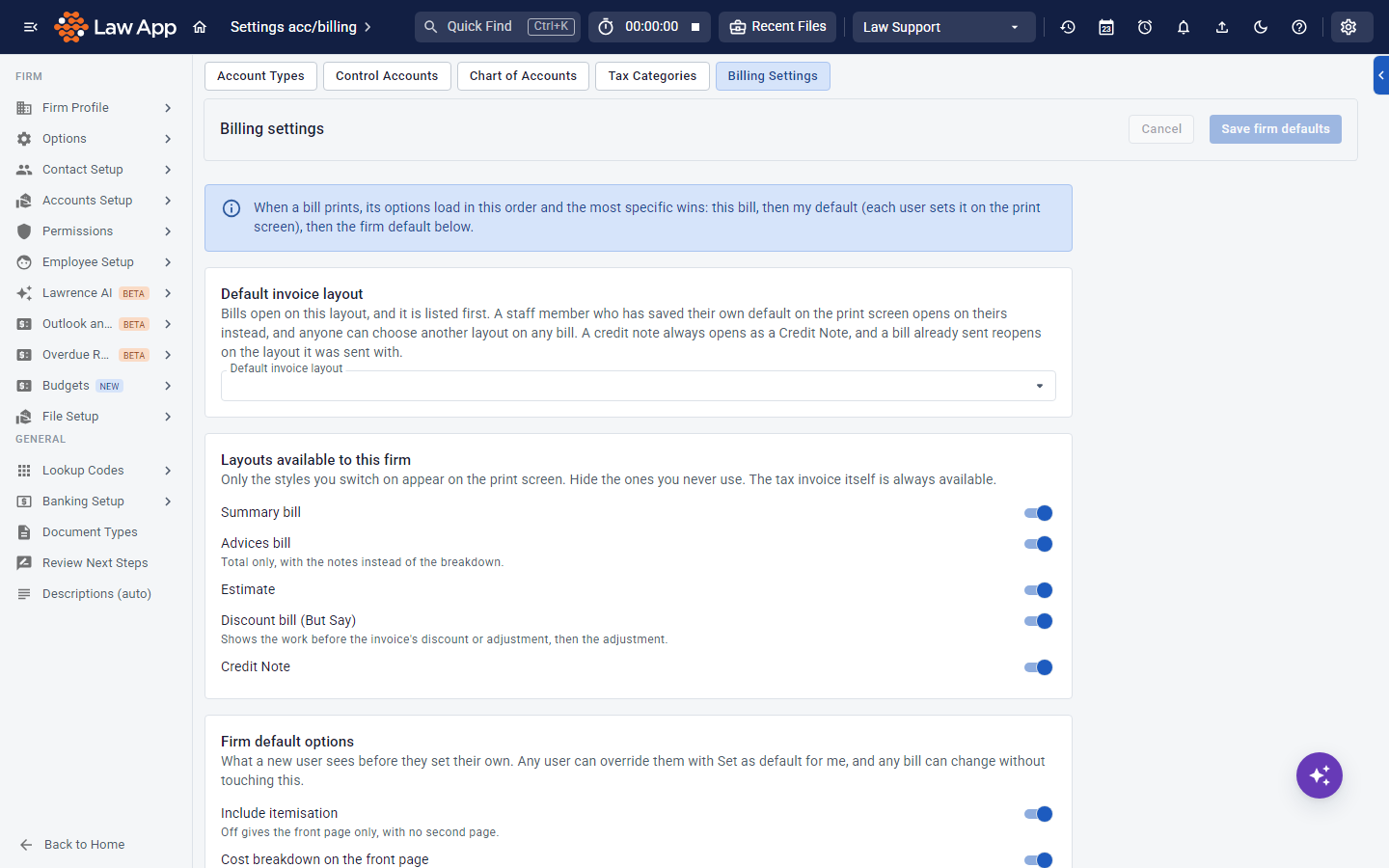
| Section | What it’s for and what it changes |
|---|---|
| Default invoice layout | The layout bills open on, listed first on the print screen. Anyone can still choose another layout on a bill. A credit note always opens as a Credit Note, and a bill already sent reopens on the layout it was sent with. |
| Layouts available to this firm | Switch off the styles you never use (Summary bill, Advices bill, Estimate, Discount bill, Credit Note) so they don’t clutter the print screen. The tax invoice is always available. |
| Firm default options | What a new user sees before they set their own, such as Include itemisation and Cost breakdown on the front page. Each user can override them with Set as default for me on the print screen, and any bill can be changed without touching these. |
Click Save firm defaults to keep your changes. See Invoice layouts in Law App and How to Print Invoices and Set Your Default Print Settings. The wording on the remittance slip and the client’s rights notice is set in Firm Profile, Invoice Layout.
Questions
How do I set which invoice layout our bills open on? Go to Settings, Accounts Setup, Billing Settings, choose the Default invoice layout and click Save firm defaults.
How do I stop staff choosing a GL account we no longer use? Tick Excluded on the account in Settings, Accounts Setup, Chart of Accounts. Don’t delete it, because past transactions still use it.
How do I set the GST code an account starts with? Set the Tax Code on the account in Settings, Accounts Setup, Chart of Accounts.
Leave a Reply