
The Overdue Reminders screen lists every file (or client) with overdue invoices and the reminder each one is due for. From here you preview and send reminders by hand, and check and send the reminders the scheduled run has prepared for review.
Use this sheet for day-to-day chasing. Your firm’s settings must be done first, at least the email signature: see Overdue Reminders settings. To see reminders already sent, see History and runs.
Before you start
- You need Accounting view access to see the screen, and Accounting create access to preview and send.
- The firm’s email signature must be saved. Until it is, the Send buttons are greyed out and a notice says so.
How to open Overdue Reminders
- In the left menu, under Accounts, click General.
- Click Overdue Reminders (marked BETA) in the row of buttons at the top. A number beside it means reminders are waiting in the review queue.
The screen has three tabs: Reminders (the list, covered here), History and Runs.
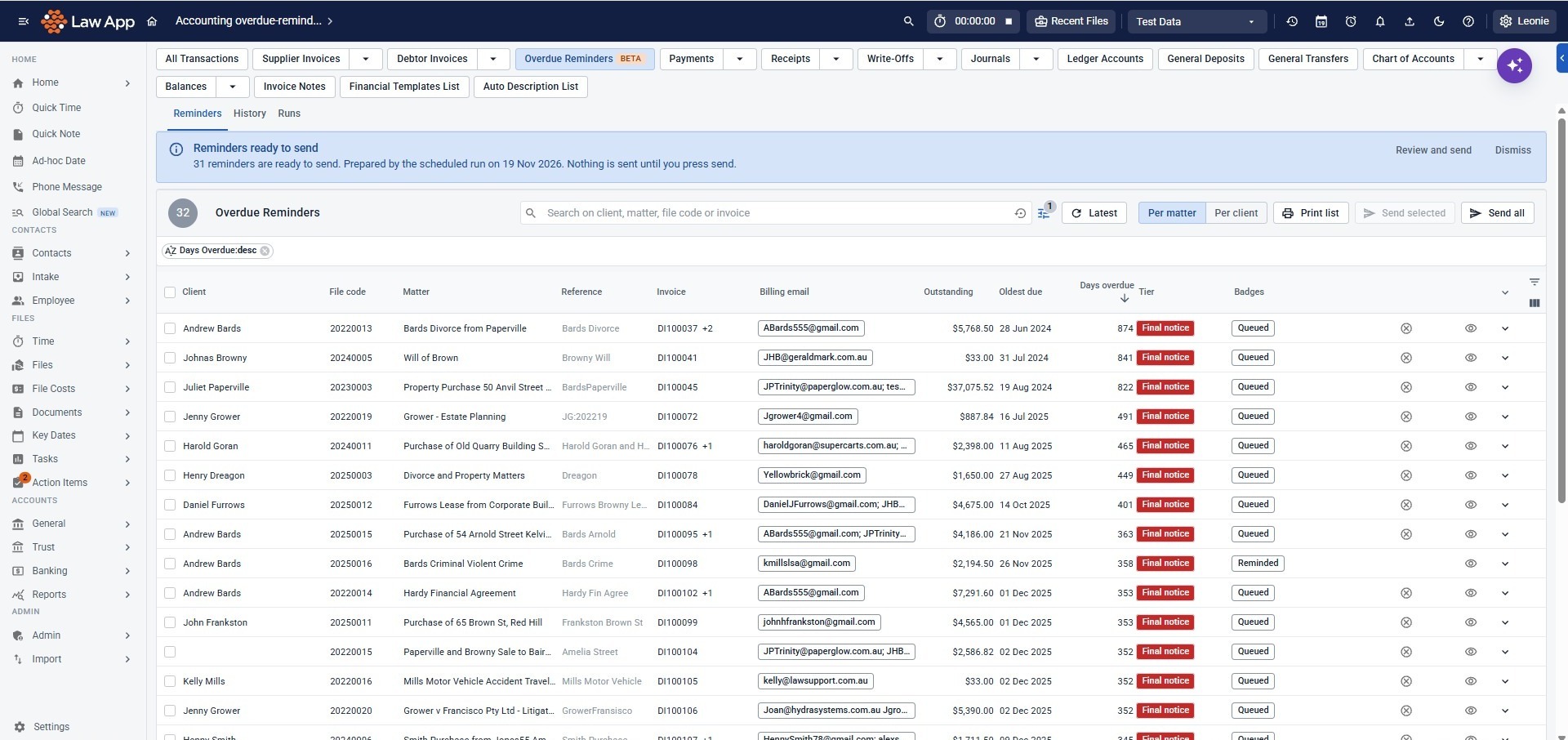
The toolbar
| Control | What it does |
|---|---|
| Count | How many rows match the current filters. |
| Search | Per matter: searches the client, matter, file code and invoice number. Per client: searches the client. |
| Filter button | Opens the filters. The number on it is how many filters are on. |
| Latest | Reloads the list with up-to-date balances. |
| Per matter / Per client | Changes the list to one row per file, or one row per client covering all their files. This only changes what you are looking at and sending now. The firm setting decides how the scheduled run groups. |
| Print list | Downloads the rows matching the current filters as a CSV file you can open in Excel. |
| Send selected | Sends the rows you have ticked. Greyed out until a row is ticked. |
| Send all | Sends every row the current filters match. |
The banners
| Banner | What it means |
|---|---|
| Reminders ready to send | The scheduled run has prepared reminders for review. It says how many and when they were prepared. Review and send shows just those rows, all ticked. Dismiss hides the banner until you next open the screen. Nothing is sent until you press send. |
| Automated reminders are failing | The last scheduled run couldn’t send from your firm’s mailbox. Open settings takes you to the settings page to check the mailbox and send a test email. |
| Reminders cannot be sent until the firm’s email signature is saved | No signature yet. If you can change settings, Open settings takes you there. Otherwise, ask an administrator. |
Filters
| Filter | Choices |
|---|---|
| Tier | Any of your firm’s tiers, or Current for invoices that are overdue but haven’t reached the first tier yet. |
| Overdue | Any, or at least 1, 7, 14, 30, 60 or 90 days. |
| Status | All, Not yet reminded (due for a reminder at its tier), Reminded at current tier, Queued (waiting in the review queue) or Not yet at a tier. |
| Show excluded | Off by default. Tick it to also show files set to Always exclude from reminders. |
The list is sorted by days overdue, most overdue first. Click the Client, Outstanding, Days overdue or Tier heading to sort by it instead. Filters and the sort show as chips above the list; click the cross on a chip to remove it.
The columns
Per matter
| Column | What it shows |
|---|---|
| Client, File code, Matter, Reference | The file the reminder is about. |
| Invoice | The oldest overdue invoice. +2 (for example) means more invoices are overdue on the file, and the reminder will use the multiple invoices template. |
| Billing email | Where the reminder will go: the file’s billing email. An information mark means no billing email is set, so the matter’s main email is used. A warning mark means there is no address at all and the row can’t be sent. |
| Outstanding | The total owing on the overdue invoices. |
| Oldest due | The due date of the oldest overdue invoice. |
| Days overdue | Days past due, for the most overdue invoice. |
| Tier | The reminder the row is due for. Current means overdue, but not yet at your first tier. |
| Badges | See Badges. |
| Action buttons | Cancel reminder (queued rows only), Capture bill (only on a row flagged Original bill not saved), Preview, and the arrow to expand the row and see each invoice with its issued and due dates, days overdue, tier and amount. |
Per client
One row per client: Client, Billing email(s), Matters (how many files), Total outstanding, Oldest due, Days overdue, Highest tier and Badges. Expand a row to see the files, then each file’s invoices. The note under an expanded row says who the one email will go to and which tier’s wording it uses.
Badges
| Badge | What it means |
|---|---|
| Closed | The file is closed but still has an unpaid invoice. Closed files are still chased unless they are excluded. |
| Queued | The scheduled run has prepared this reminder and it is waiting to be sent. Hover to see when it was prepared. |
| Reminded | A reminder at this tier has already been sent. Hover to see the date. |
| Excluded | The file is set to Always exclude from reminders. Only seen with Show excluded ticked. Hover for the reason. |
| No email address | Neither the file nor the matter has an email address. The row can’t be sent. |
| Original bill not saved | Your firm attaches original bills, but one of this row’s bills has no stored copy. Hover to see whether a statement will be sent instead or the reminder is held. Press Capture bill to store it. |
How to send reminders
Send one reminder
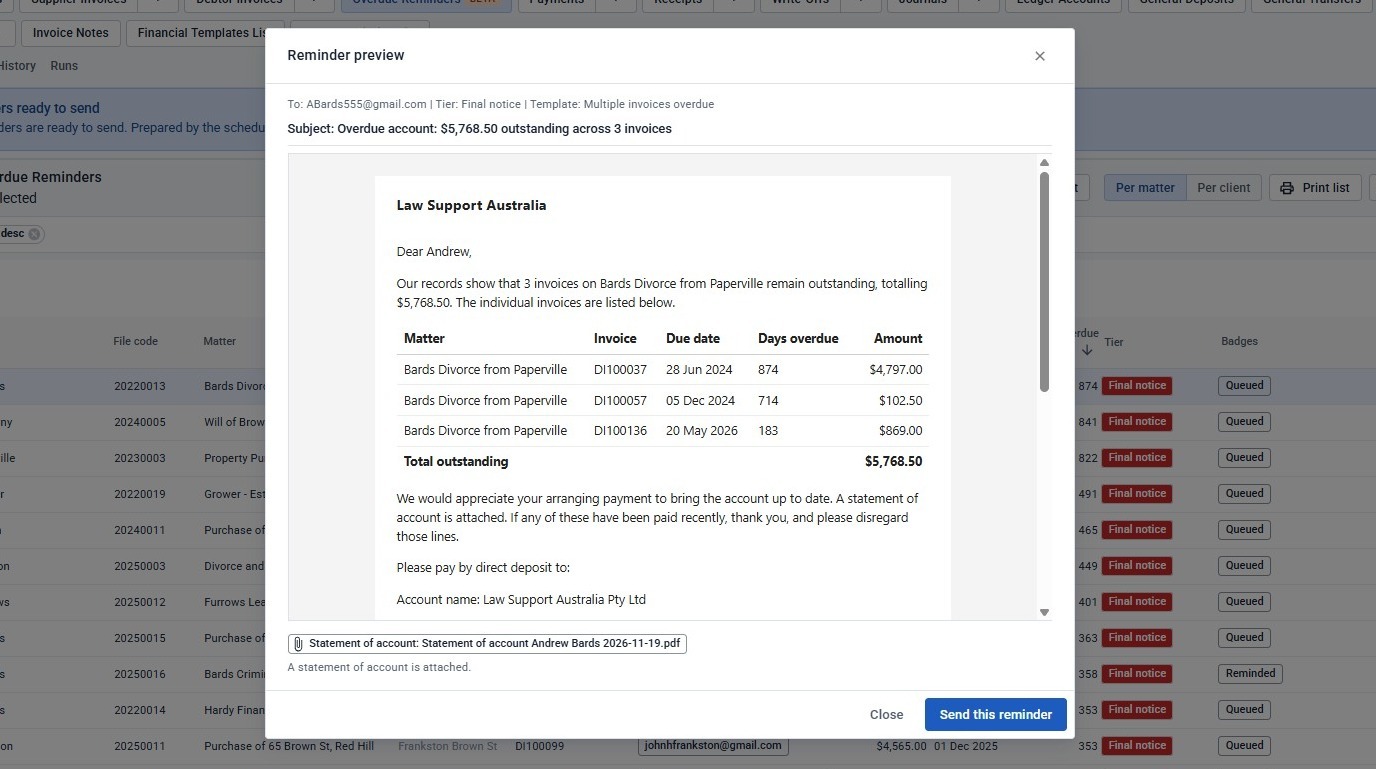
- Press Preview (the eye) on the row.
- Check the email, then press Send this reminder.
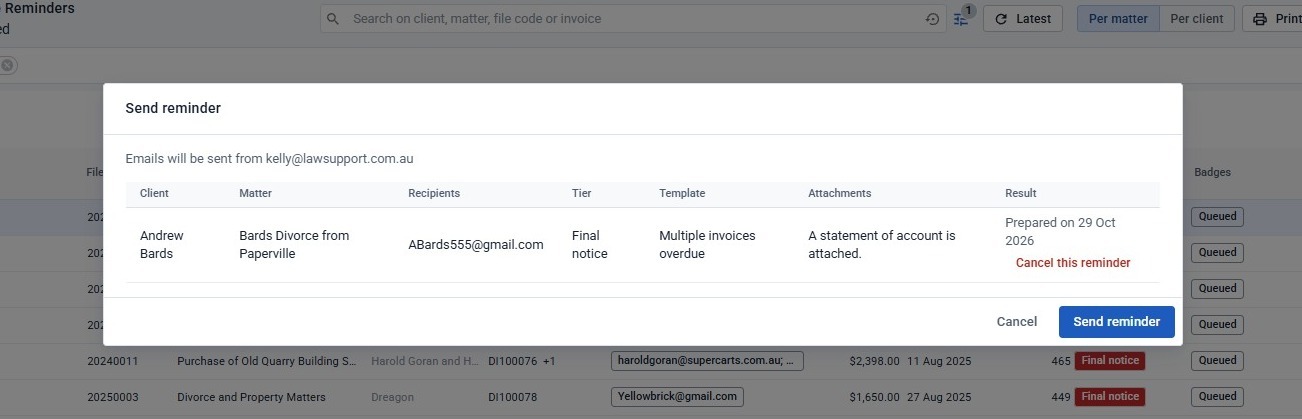
- Check the confirm step and press Send reminder.
Send the rows you choose
- Tick the rows. The tick box in the heading ticks every row on screen.
- Press Send selected.
- Check the confirm step and press Send N reminders.
Send everything the filters show
- Set the filters so the list shows only what you want to send. For example, Status Not yet reminded.
- Press Send all.
- Check the confirm step and press send.
The preview
The preview shows who the email goes to, the tier and the template, then the subject and the email exactly as the client will see it, with your signature, logo and payment details, and the attachments listed underneath. A warning appears if a reminder at this tier has already been sent, or if the reminder can’t be sent and why.
The confirm step
Every send goes through a confirm step. The line at the top says which mailbox the emails come from. Each reminder is listed with its client, matter, recipients, tier, template and attachments.
| In the Result column | What it means |
|---|---|
| Already reminded at this tier on date | A reminder at this tier has gone before. You can send again, but check you mean to. |
| Prepared on date, Cancel this reminder | A reminder from the review queue. Click Cancel this reminder to drop it instead of sending it. |
| This repeats the final notice. | Your firm repeats the last tier, and this one is due again. |
| This is not yet at a reminder tier. Sending it now uses the first tier wording | A Current row you chose to send early. See Sending a Current row. |
| Original bill not saved, statement sent. | There’s no stored copy of the bill, so a statement goes instead. |
| The attachments were over the 3 MB limit, so only the statement of account is attached. | The original bills are too big to email, so only the statement goes. |
| This matter is closed. | The file is closed, but still has an unpaid invoice. |
Rows that can’t go are listed separately and aren’t counted: Cannot be sent (no email address), with what to fix, and Held until the bill is captured, with a Capture bill button for each.
Press Send reminder (or Send N reminders) to go ahead, or Cancel to go back without sending. Large batches go in groups and a progress line counts them. Each row then shows its result, with a summary such as “11 sent, 1 failed”. Hover over a failed row to see why.
Who the email comes from
If your firm has set up and verified its own sending mailbox, every reminder comes from that mailbox and a copy is in its Sent Items. If not, reminders come from Law App’s own sending address. The confirm step always tells you which. See Sending from your firm’s own mailbox.
What stops a reminder
- No email address on the file (billing email) or the matter.
- Paid in the meantime. The balance is checked again at the moment of sending. An invoice paid since the list loaded isn’t sent, and the result says the invoices were paid first.
- Held because the original bill isn’t stored and your firm chose to hold rather than send a statement.
- No signature saved for the firm.
- The file is excluded from reminders. The scheduled run never prepares or sends it. If you show excluded files and send one by hand, the confirm step warns you that “This matter is set to never send reminders” before you press send.
Sending a Current row
You can send a reminder for an invoice that hasn’t reached your first tier yet, for example a client who asked for a statement. Law App uses your first tier’s wording and records it as a reminder at that tier.
The review queue
When automated reminders are on and set to Review queue, the scheduled run finds overdue invoices on the days and time in your settings and prepares reminders, but doesn’t send them. You’ll see a number on the Overdue Reminders button, the Reminders ready to send banner, and a Queued badge on each prepared row.
- On the banner, press Review and send. The list shows only the queued rows, all ticked.
- Untick anything you don’t want to send yet. Use Preview to check any reminder.
- Press Send selected, check the confirm step and press send.
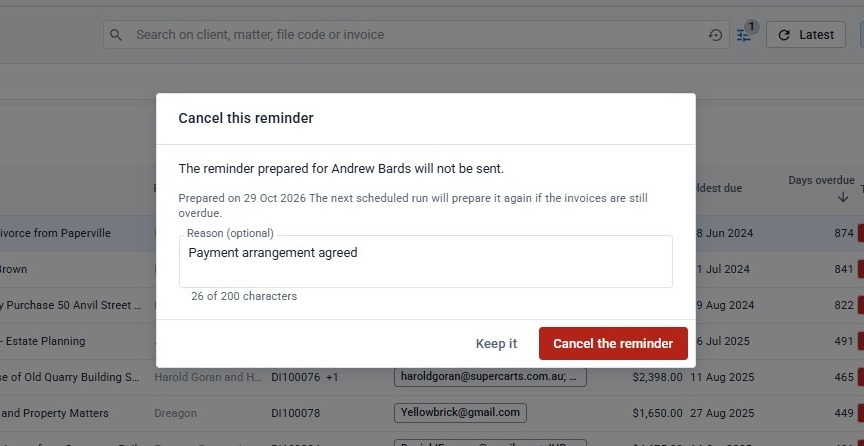
Queued reminders are checked again on every run. If an invoice is paid, the reminder moves up a tier, or the billing email changes, the old reminder is cancelled and a fresh one prepared. A queued reminder not sent within 30 days expires. Both show in History as Cancelled, with the reason.
Cancel a queued reminder
- Press Cancel reminder on the row, or in the History tab press Cancel on a Queued row.
- Add a reason if you like. Your team sees it in History; the client never does.
- Press Cancel the reminder. Keep it closes the box without cancelling.
Common questions
| Question | Answer |
|---|---|
| The Send buttons are greyed out | The firm’s email signature isn’t saved. Someone with Accounting edit access adds it in Settings, Overdue Reminders, Settings. |
| A file I expected isn’t in the list | Check the filters, then tick Show excluded. If it’s still missing, the invoice may not be past its due date, or may be paid. |
| The reminder went with a statement, not the bill | Law App has no stored copy of that bill, or the bills were over 3 MB. Press Capture bill on the row to store it for next time. |
| A send says “Microsoft 365 connection needs to be renewed” | Press Reconnect in the box and try again. If it keeps happening, ask your IT provider to check the mailbox setup. |
| A client says they didn’t get it | Look in your sending mailbox for a bounce message, check the billing email on the file, and check the reminder in History. |
Leave a Reply