
Each file has its own billing details: the email address invoices and overdue reminders go to, the address printed on bills, and whether the file follows the firm’s reminder settings or is always included or always left out. The same page shows every reminder sent for the file.
Use this sheet when a client’s accounts go to a different person or address, when a file should never be chased (for example, a payment plan is agreed), or to check what one client has been sent. To see reminders for the whole firm, see History and runs instead.
How to open billing details
- Open the file.
- Click the arrow on the Overview tab above the file’s name, and choose Billing details.
You need Files edit access to change these fields. With view access, you can read them only.
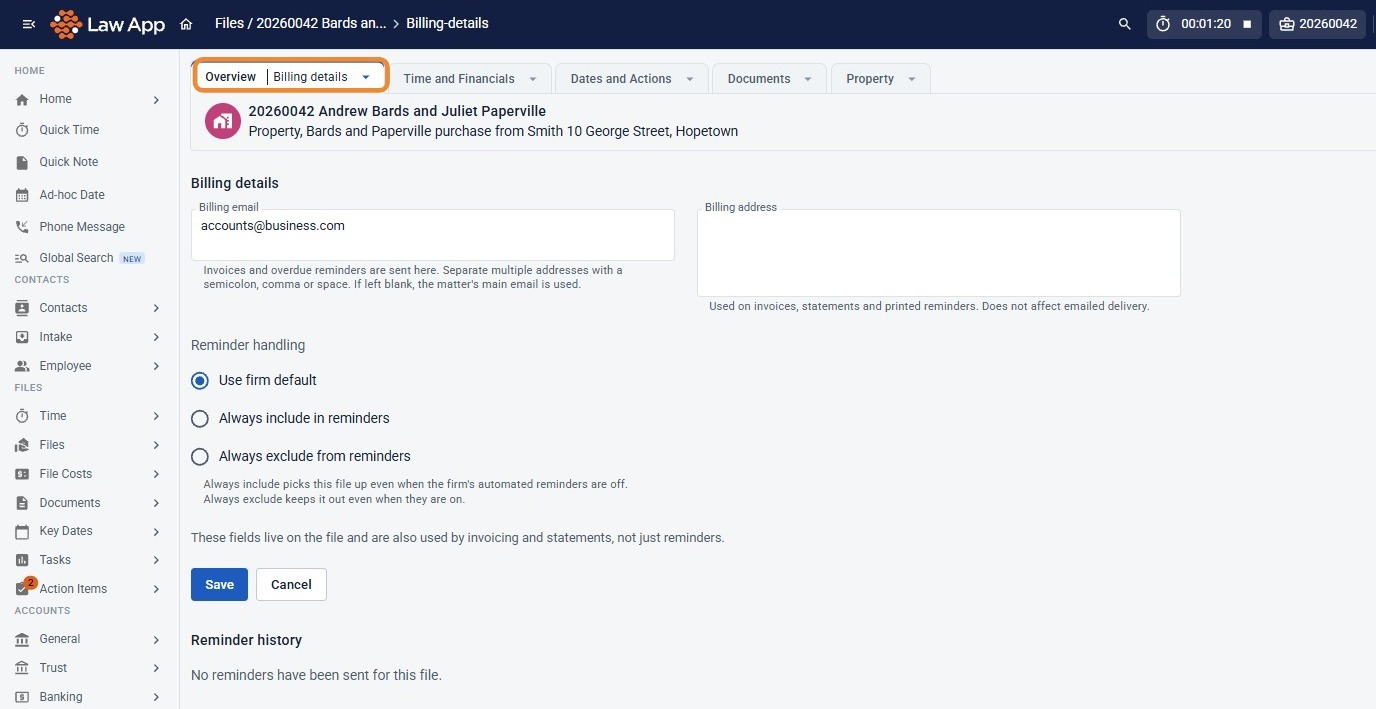
The fields
| Field | What it does |
|---|---|
| Billing email | Where invoices and overdue reminders for this file are emailed. To send to more than one person, separate the addresses with a semicolon, comma or space. Leave it blank to use the matter’s main email: a note under the field shows which address that is. |
| Billing address | The postal address printed on invoices, statements and printed reminders. It doesn’t change where emails go. |
| Reminder handling | See Reminder handling below. |
| Reason (optional) | Appears when you choose Always include or Always exclude. Say why, so the rest of your team knows. It is shown on the Overdue Reminders screen, never to the client. Up to 500 characters. |
Press Save. Cancel puts back what was saved.
Reminder handling
| Option | What it does |
|---|---|
| Use firm default | The file follows the firm’s Overdue Reminders settings. Most files should be left on this. |
| Always include in reminders | The file is chased even when the firm’s automated reminders are off. The scheduled run prepares its reminders for review (it never sends them by itself while automation is off). |
| Always exclude from reminders | The file is never chased by the scheduled run, even when automated reminders are on. It drops out of the Overdue Reminders list unless someone ticks Show excluded, where it carries an Excluded badge with your reason. |
Stop reminders for a file
- Open the file, then Overview, Billing details.
- Under Reminder handling, choose Always exclude from reminders.
- Type a reason, for example “Payment plan agreed 24/11/2026”.
- Press Save.
Any reminder already waiting in the review queue for this file is cancelled on the next run. To start reminders again, choose Use firm default and save.
Who a reminder goes to
- The file’s Billing email, if there is one.
- Otherwise, the matter’s main email (the main client’s email).
- If neither exists, the reminder can’t be sent. It shows with a No email address badge on the Overdue Reminders screen until an address is added.
Advices invoices are different. A reminder for an advices invoice goes to the contact the invoice was billed to, using that contact’s email, not the file’s billing email. This stops a general advice file chasing your own firm for a client’s debt.
Reminder history
Under the form, Reminder history lists every reminder for this file: date, tier, template, recipients, status, who sent it and the attachments. Press View to see the reminder exactly as it was sent. If nothing has been sent, it says No reminders have been sent for this file.
For what each status means and what the reminder detail shows, see History and runs.
Common questions
| Question | Answer |
|---|---|
| Save says the billing email isn’t valid | One of the addresses isn’t a complete email address. Check for typing errors, and separate addresses with a semicolon, comma or space. |
| The client pays through their accountant | Put the accountant’s address in Billing email, or both addresses separated by a semicolon. |
| I excluded a file but it still shows on the list | Show excluded is ticked on the Overdue Reminders screen. The file has an Excluded badge and won’t be sent by the scheduled run. |
| The file is closed but still being chased | Closed files with unpaid invoices are still chased. Exclude the file if you don’t want that. |
Leave a Reply