
When a client pays by cash or cheque, that payment needs to be linked to a bank deposit slip before it can be banked. This article covers linking trust and general receipts to bank deposit slips, then printing the slip so the money can be taken to the bank.
Deposits for Trust Receipts – Completion of the Trust Receipt
Everything starts on the receipt itself. Getting the Form of Funds and deposit slip fields right here is what makes the receipt show up in the right place later.
-
When creating a trust receipt for a client who has brought cash or a cheque into your office, select Cash or Cheque as the Form of Funds. Add to deposit slip will automatically be set to Build Later — this is correct. The Deposit Date and Clear Date will stay blank — this is also correct, and they’ll populate once the receipt is linked to a deposit. Complete the rest of the trust receipt as usual.
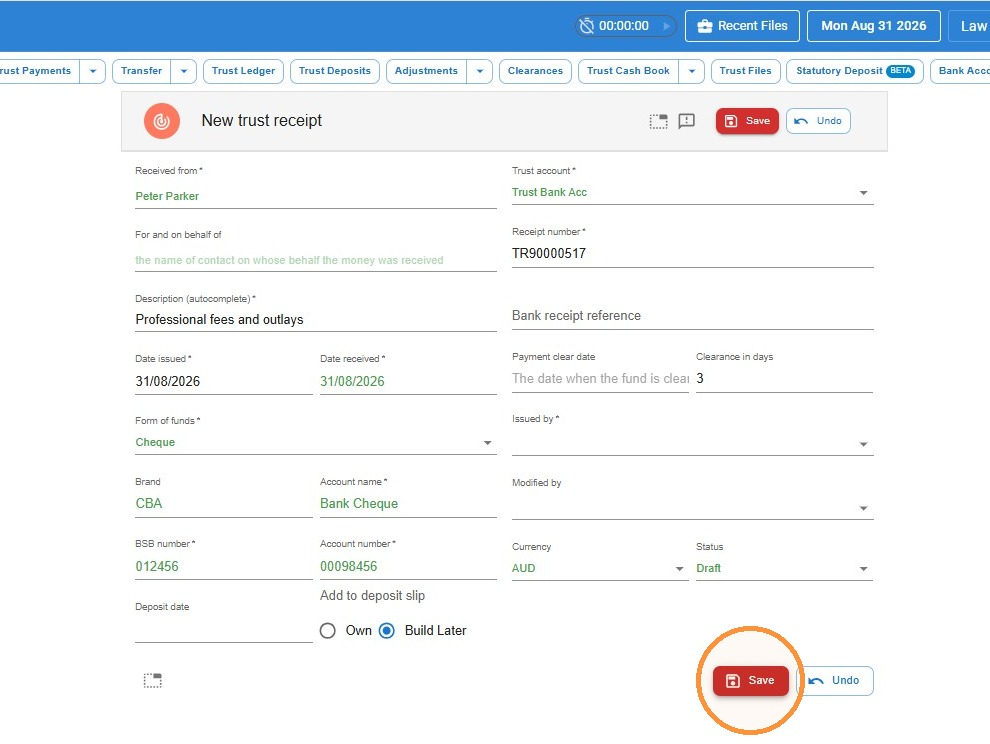 Don’t change Build Later to Own. Leave Add to deposit slip on Build Later so this receipt can be properly added to a receipt in the next step.
Creating a Bank Deposit within a Trust Receipt
If you’re receipting cash or a cheque and want to create a bank deposit for just this one receipt, you can do it directly from the trust receipt.
-
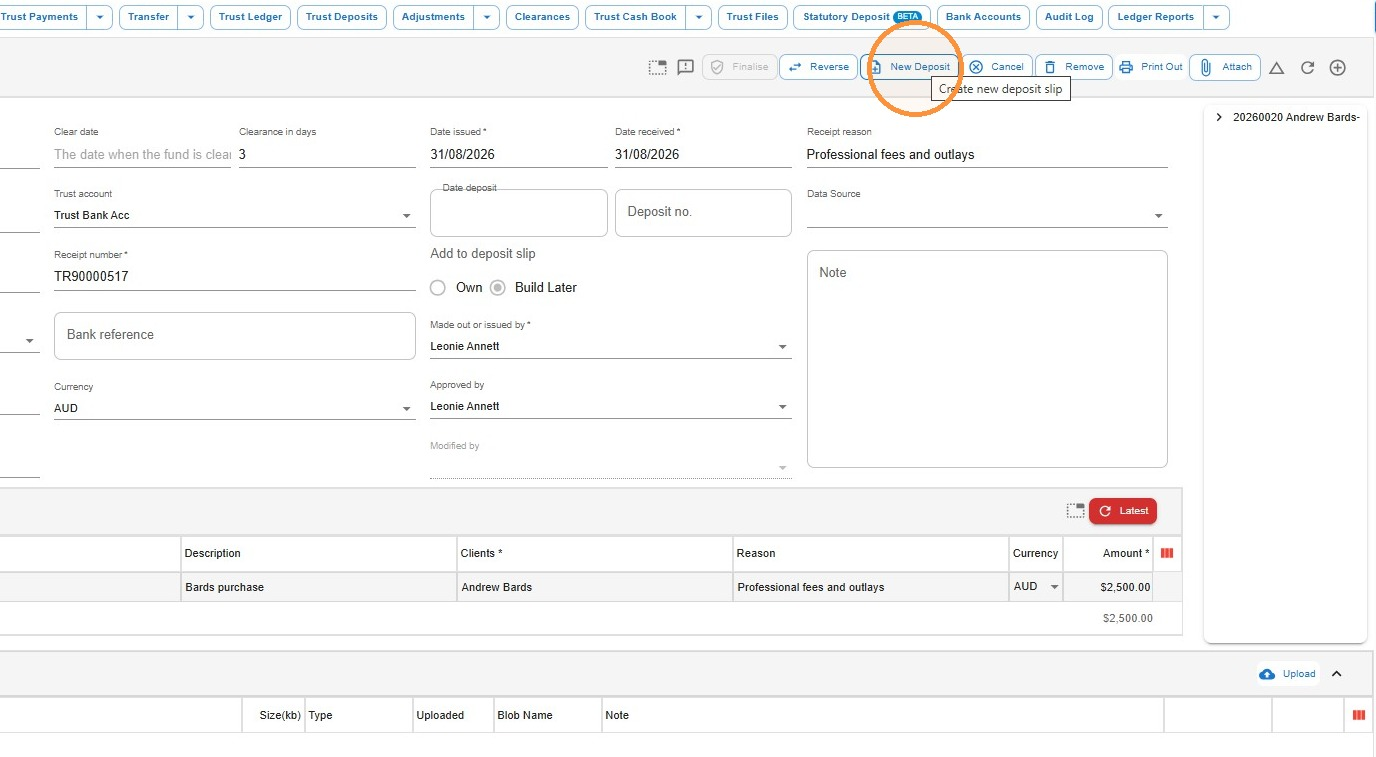
On the saved trust receipt, click New Deposit.
-
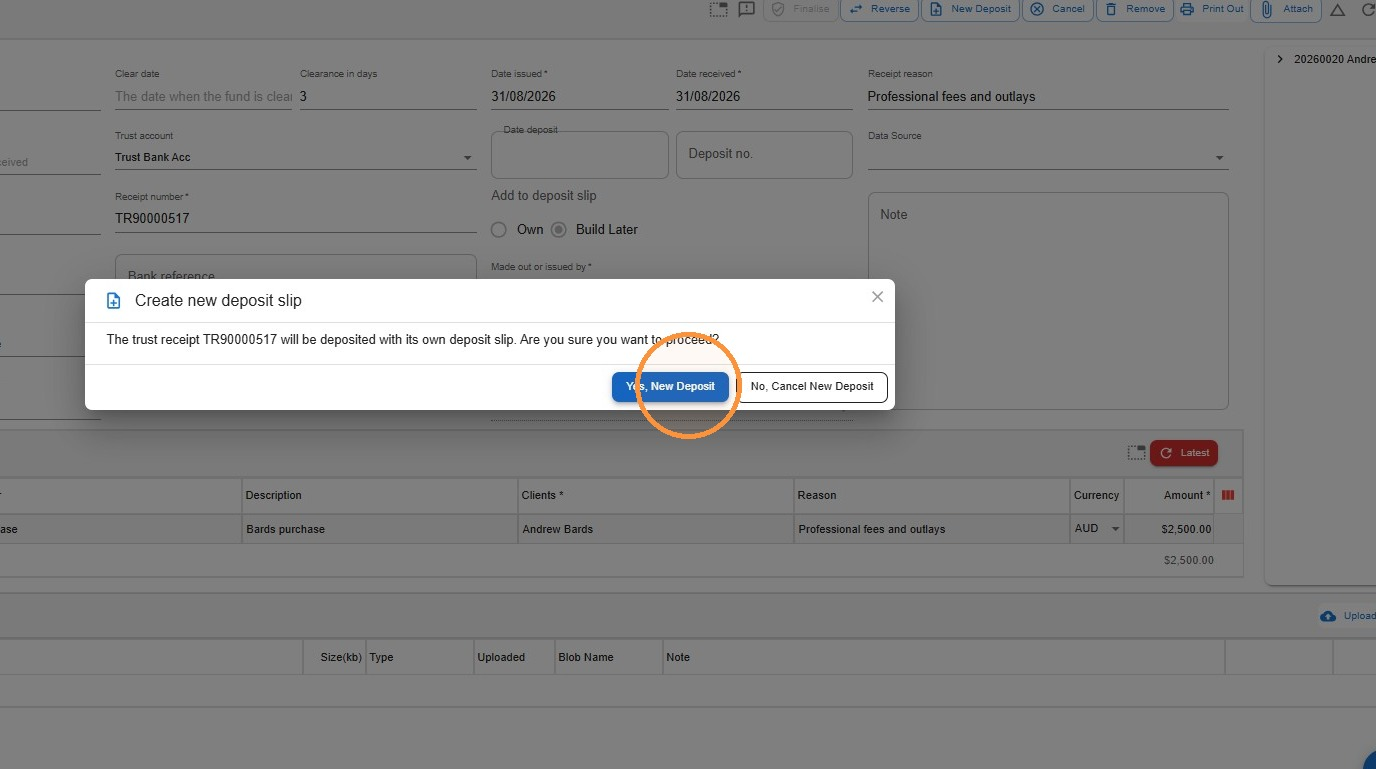
Click Yes, New Deposit to confirm.
-
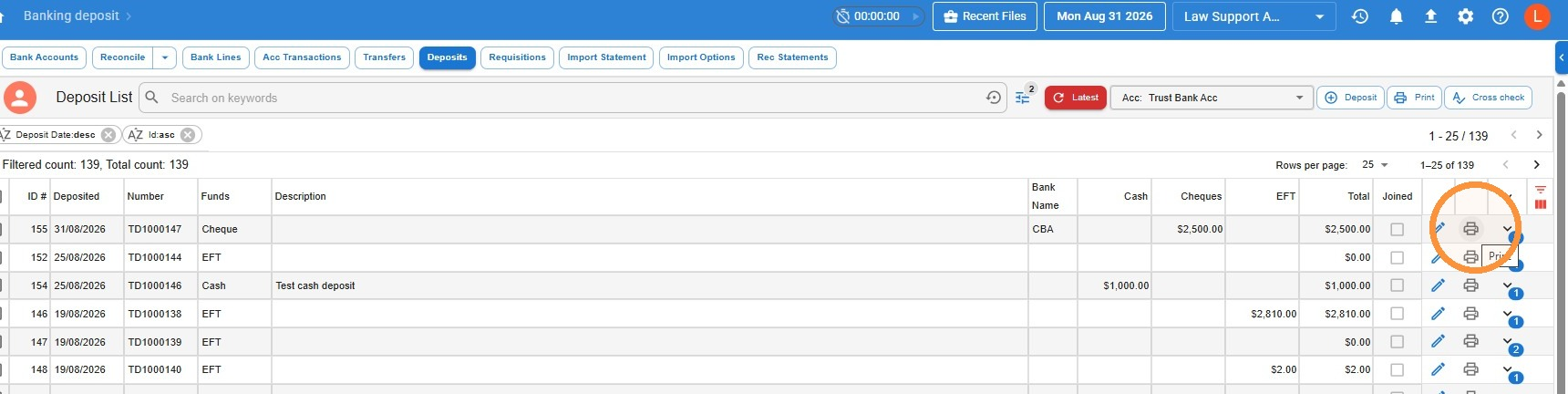
To generate the deposit slip, go to Banking > Deposits and select the account from the dropdown. Locate the deposit and click Print.
Creating a Bank Deposit for multiple Trust Receipts or for General receipts
Use this method when you want to group several trust receipts onto one deposit slip, or when you’re depositing general receipts.
-
Once your trust or general receipts are completed, go to Banking > Deposits, select the account, then click Deposit.
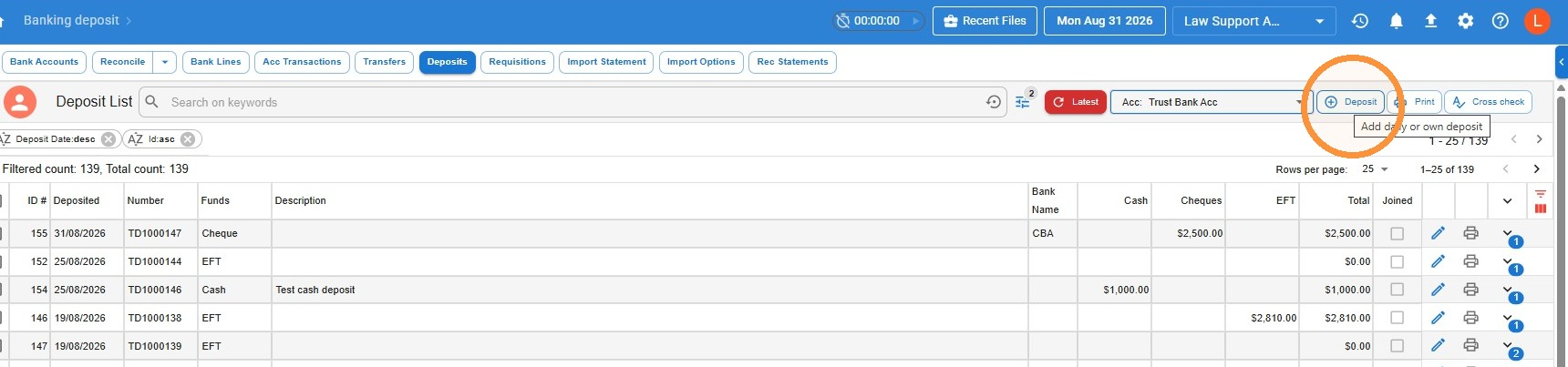 General receipts work a little differently. There’s no New Deposit option inside a general receipt itself, and fewer fields need completing. Every general receipt for a cash or cheque payment is added to a deposit using these steps, and will appear automatically in the receipt list at the next step.
-
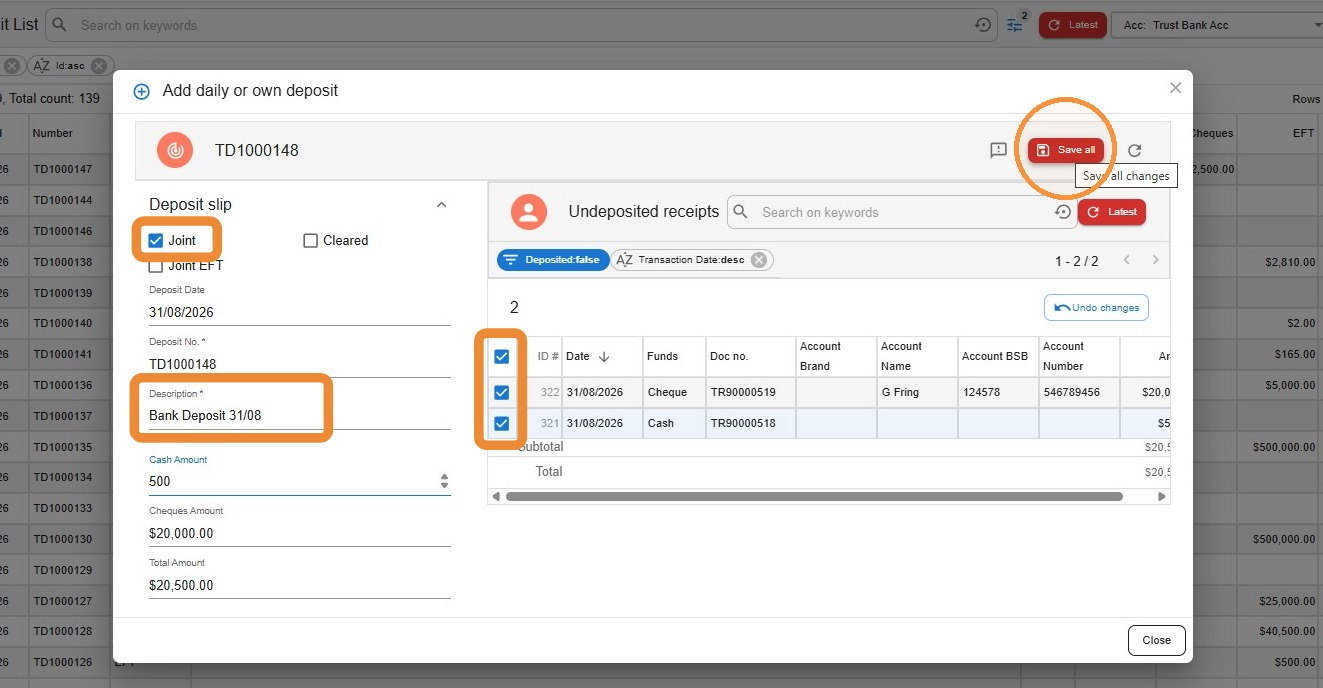
You’ll see a list of every cash or cheque receipt that hasn’t yet been linked to a deposit. Select the receipts to add to this deposit, select Joint, add a description for the deposit, then click Save all.
-
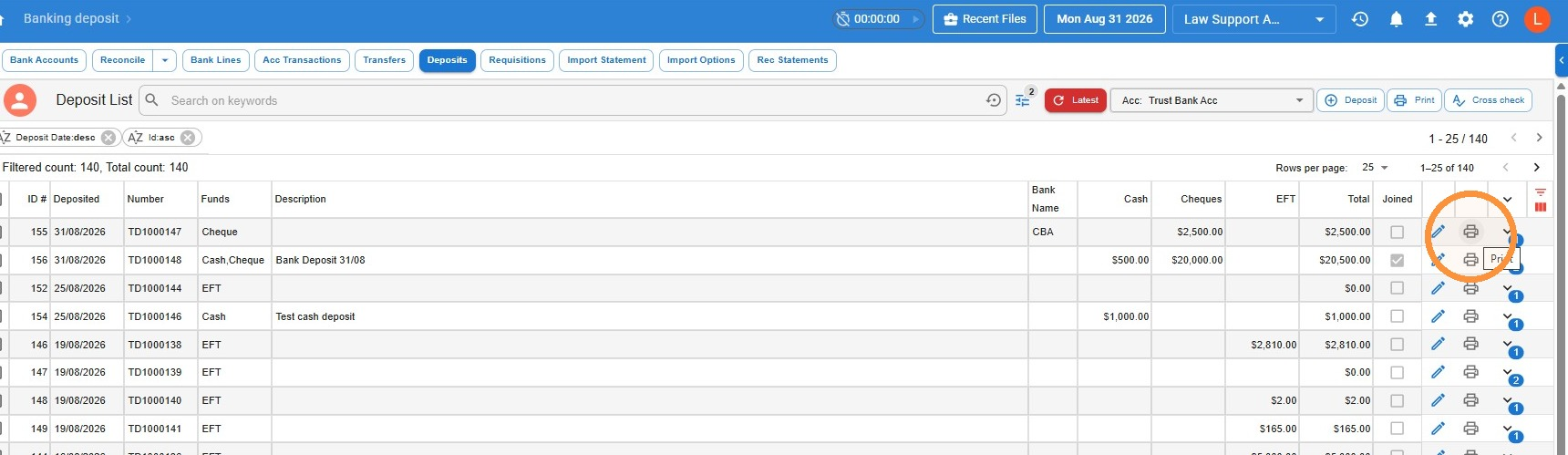
To generate the deposit slip, locate the deposit in the list and click Print.
Leave a Reply