
When you click Print on a debtor invoice, Law App opens the Print window. The options are on the left and a preview of the invoice is on the right, so you see every change as you make it. From here you choose the style of bill and what shows on it, then print it, save it to the file or email it.
The options only change how the bill looks on paper. They never change the figures on the invoice itself.
Open the Print window
- Open the invoice from the Debtor Invoices list.
- Click Print at the top right of the invoice. The Print window opens.
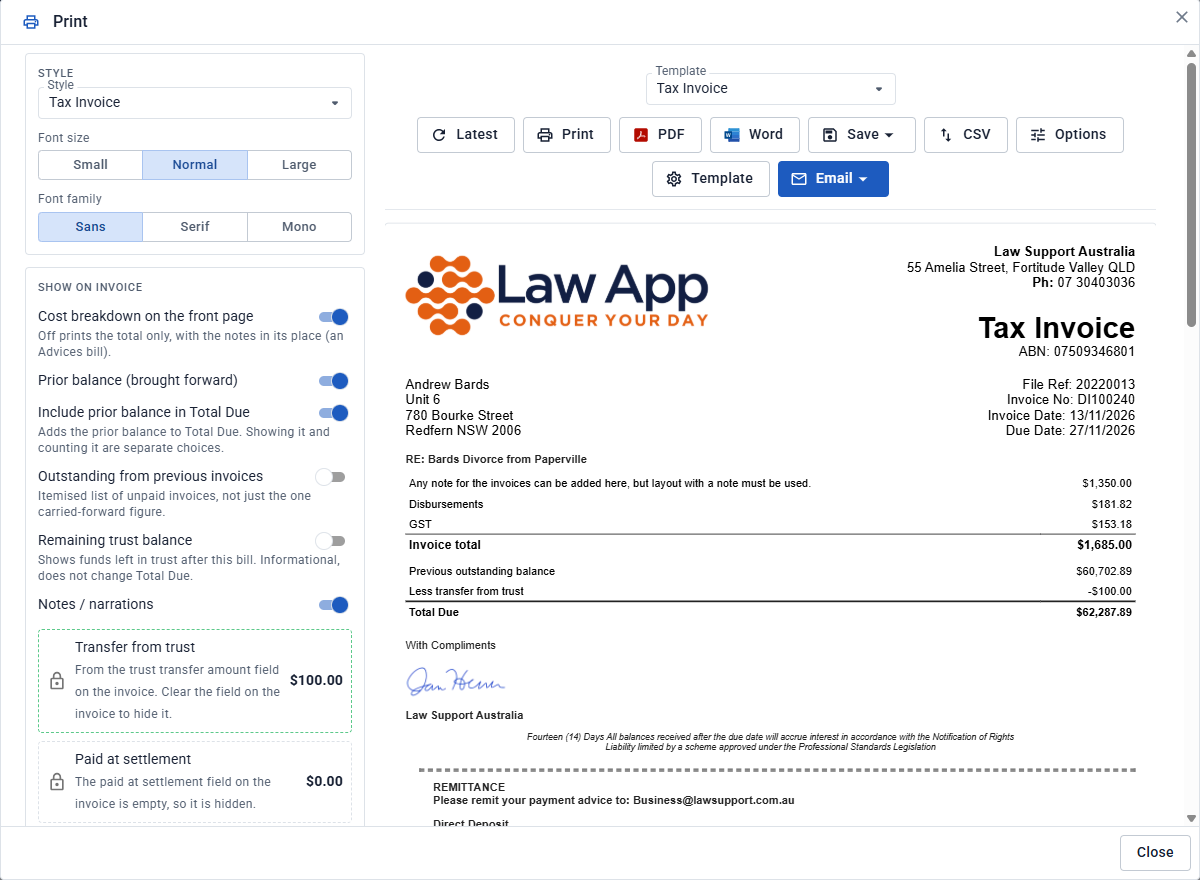
Choose a style
The style decides the layout of the bill. Open the Style list at the top left and pick one. The list only shows the styles your firm has turned on, so you may not see them all.
Most styles have two parts:
- The front page: who the bill is to, the cost breakdown (professional fees, office costs, disbursements and GST), the invoice total and what is due.
- The itemisation: a second page listing each time entry, office cost and disbursement, with its date, description, who did it, units and amount.
Under the style, choose the Font size (Small, Normal or Large) and the Font family (Sans, Serif or Mono).
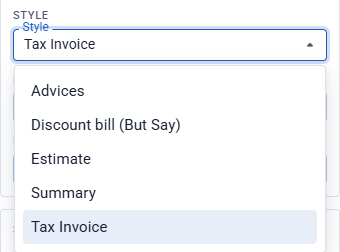
Tax Invoice
The full bill: the front page with the cost breakdown, then the itemisation.
Use it for everyday bills, when the client should see the work behind the total.
Summary
The front page only, with the cost breakdown. There is no itemisation page.
Use it for clients who want the totals without the detail, such as fixed fee work.
Advices
The total only. Your invoice notes take the place of the cost breakdown, describing the work in words. The itemisation is off, but you can turn it on.
Use it for advices invoices billed to someone other than the file’s client (see below), and “for professional services rendered” style bills. See How to set up Invoice Notes.
Discount bill (But Say)
A tax invoice that shows the professional fees before the discount, then the reduced “But say to you” figure.
Use it for a discounted invoice, when the client should see the discount. See Adding a Discount or Write Up to an Invoice.
Estimate
The same layout as the Tax Invoice, without the prior balance, outstanding invoices or trust lines, because it does not ask for payment.
Use it for telling a client what the work is expected to cost.
Credit Note
Credits one invoice, with no prior balance or trust lines. It only appears if your firm has turned it on.
Use it for crediting a bill back to the client.
Tax Invoice or Advices: what’s the difference?
Both are tax invoices, and both print “Tax Invoice” at the top. The difference is how the front page describes the work.
| Tax Invoice | Advices | |
|---|---|---|
| Front page | A cost breakdown: professional fees, office costs, disbursements and GST | Your invoice notes, describing the work in words, then the total |
| Addressed to | The file’s Mailing Envelope | The contact on the invoice: the one picked in Invoice to, or the file’s client if Invoice to is blank |
| Itemisation page | On | Off, but you can turn it on |
| Prior balance, trust transfer and Total Due | Shown | Shown |
| Before you print | Nothing extra | Write the invoice notes, because they are what the client reads |
| The same. Every style uses your firm’s invoice email text. Only the attached PDF changes. | ||
Use a Tax Invoice when the client should see what each part of the bill is for. Use Advices when you would rather describe the work in a few sentences, for example “Advice and attendances in relation to your property settlement”, and show one total. If you turn on Cost breakdown on the front page for an Advices bill, it prints the breakdown as a Tax Invoice does, with your notes as the label on the fees line.
Advices invoices: who the bill is addressed to
- Ordinary bill: when Invoice to on the invoice is blank, every style is addressed using the file’s Mailing Envelope, on the file’s details. It is filled in from the file’s main client.
- Advices bill: to bill someone other than the file’s client, pick them in Invoice to on the invoice before you authorise it. When you then click Print, the Print window opens on the Advices style, addressed to that contact’s name and address.
Using one of your older templates
The Template list above the preview shows the styles above under Templates (BETA). Below them, under Older templates, are the numbered invoice layouts your firm used before. Pick one if you want an invoice to look the way your firm’s invoices always have.
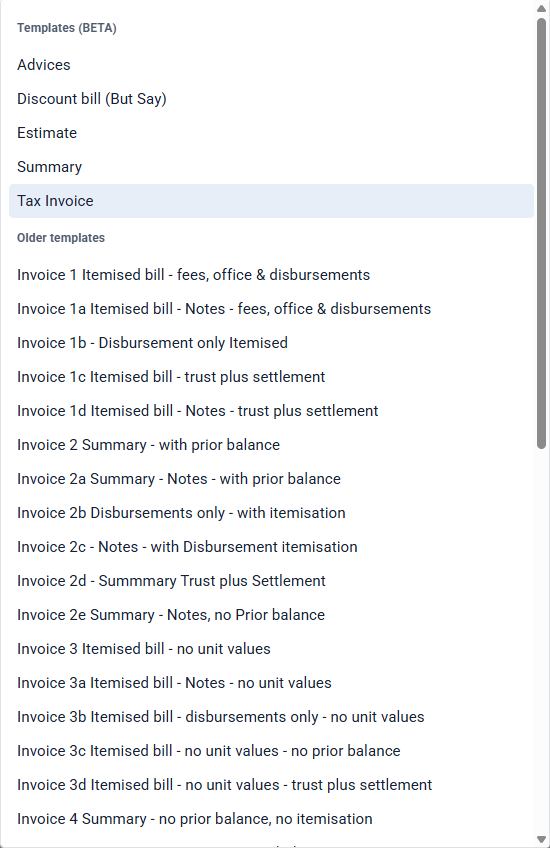
The words in each older template’s name tell you what it prints. For the full list, see Invoice layouts in Law App.
| In the name | What it means |
|---|---|
| Itemised bill | Includes the itemisation page |
| Summary | Front page only, no itemisation |
| Notes | Prints the invoice notes |
| with prior balance | Shows what the client already owed |
| trust plus settlement | Shows the transfer from trust and the amount paid at settlement |
| no unit values | Hides the units column |
| Disbursement(s) only | Itemises the disbursements only |
Choose what shows on the invoice
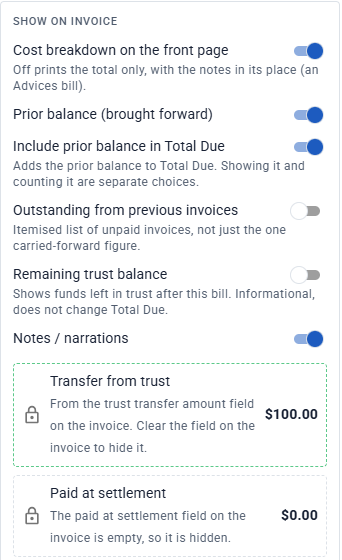
Under Show on invoice, turn each line on or off:
- Cost breakdown on the front page: off prints the total only, with the notes in its place.
- Prior balance (brought forward): shows what the client already owed.
- Include prior balance in Total Due: adds that prior balance to Total Due. Showing the prior balance and counting it are separate choices.
- Outstanding from previous invoices: lists each unpaid invoice, not just the one carried-forward figure.
- Remaining trust balance: shows the funds left in trust after this bill. It is for information only and does not change Total Due.
- Notes / narrations: prints the invoice’s notes.
Transfer from trust and Paid at settlement have a lock beside them. They come from those fields on the invoice, so you cannot switch them off here. To hide one, clear that field on the invoice.
Set up the itemised breakdown
The itemisation is the second page of the bill, listing the work done.
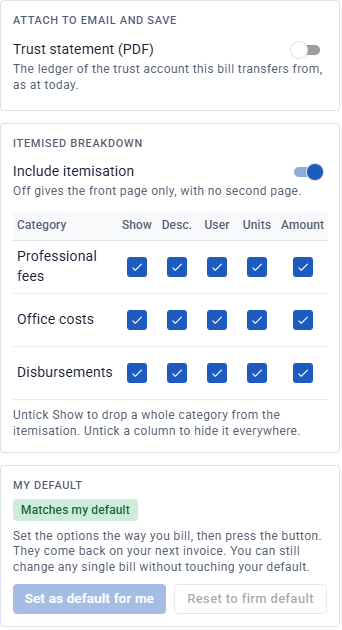
- Turn off Include itemisation to print the front page only.
- Untick Show to drop a whole category, such as Office costs, from the itemisation.
- Untick a column (Desc., User, Units or Amount) to hide it for that category.
If the invoice has a trust transfer amount, Attach to email and save lets you add the Trust statement (PDF). This is the ledger of the trust account the bill transfers from, as at today. It goes with the bill when you email it or save it to the file.
Set your default print settings
The My default section at the bottom of the options shows Matches my default or Changed for this bill.
- On your first invoice, go through every option carefully and check the preview. When the bill looks right, click Set as default for me. Your settings come back on every invoice after that.
- From then on, only change an option when a particular bill needs something different. That change applies to that bill only and does not touch your default.
- Click Reset to firm default to go back to your firm’s settings.
Print, save or email the invoice

Use the buttons above the preview:
- Latest refreshes the preview with the invoice’s latest figures.
- Print sends the bill to your printer.
- PDF and Word download a copy to your computer.
- Save saves a copy to the file’s documents, as a PDF or as a Word document you can edit.
- Email sends the bill or gives you an email draft. See below.
Email the invoice
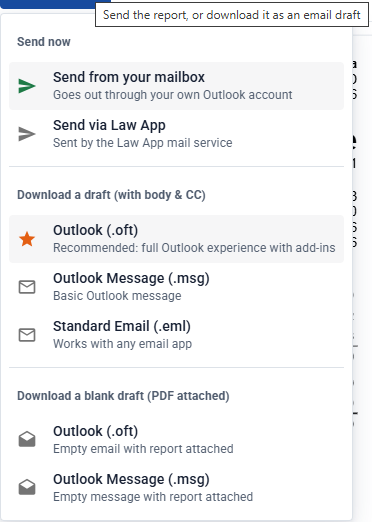
Click Email and choose how to send it.
Send now:
- Send from your mailbox: goes out through your own Outlook account.
- Send via Law App: sent by the Law App mail service.
Download a draft (with body & CC) gives you an email that is ready to check and send:
- your firm’s invoice email text is already in the body
- the subject is filled in
- it is addressed to the email on the file (or the client’s email), with your firm’s email copied in
- the invoice PDF is attached
Outlook (.oft) is recommended. It opens as a new email in Outlook, with your Outlook add-ins, so you only need to check it and click Send. Use Outlook Message (.msg) for a basic Outlook message, or Standard Email (.eml) if you use a different email app.
Download a blank draft (PDF attached) gives you an empty email with only the invoice attached, for when you want to write the email yourself.
When you are finished, click Close.
Billing a file, step by step
- Quick bill from a file (Bill Selected or Bill All), or create an invoice on a file
- Add a discount or write-up, if needed
- Print, email and set your default print settings (you are here)
Using one of your older numbered layouts? See Invoice layouts in Law App.
Leave a Reply