
Overdue Reminders lets your firm chase unpaid invoices with reminder emails sent in the firm’s name. Law App finds the overdue invoices, works out which reminder each one is due for, drafts the email with a statement of account attached, and keeps a copy of everything that goes out. A person presses Send unless the firm chooses otherwise.
How it works
Every reminder belongs to a tier based on how many days the invoice is overdue. Out of the box these are Friendly reminder at 30 days, Overdue notice at 60 days and Final notice at 90 days. Each matter (or client) receives one reminder per tier, and the balance is re-checked at the moment of sending so a paid invoice is never chased.
A person sends
Send reminders by hand from the list, or let the scheduled run prepare them in a review queue each morning for someone to check and send. This is the default.
Send automatically
The scheduled run sends reminders with nobody logged in. Needs Microsoft 365, a verified sending mailbox and a saved firm signature.
Where to find it
| What | Where in Law App |
|---|---|
| The reminders list, History and Runs | Accounting > General > Overdue Reminders |
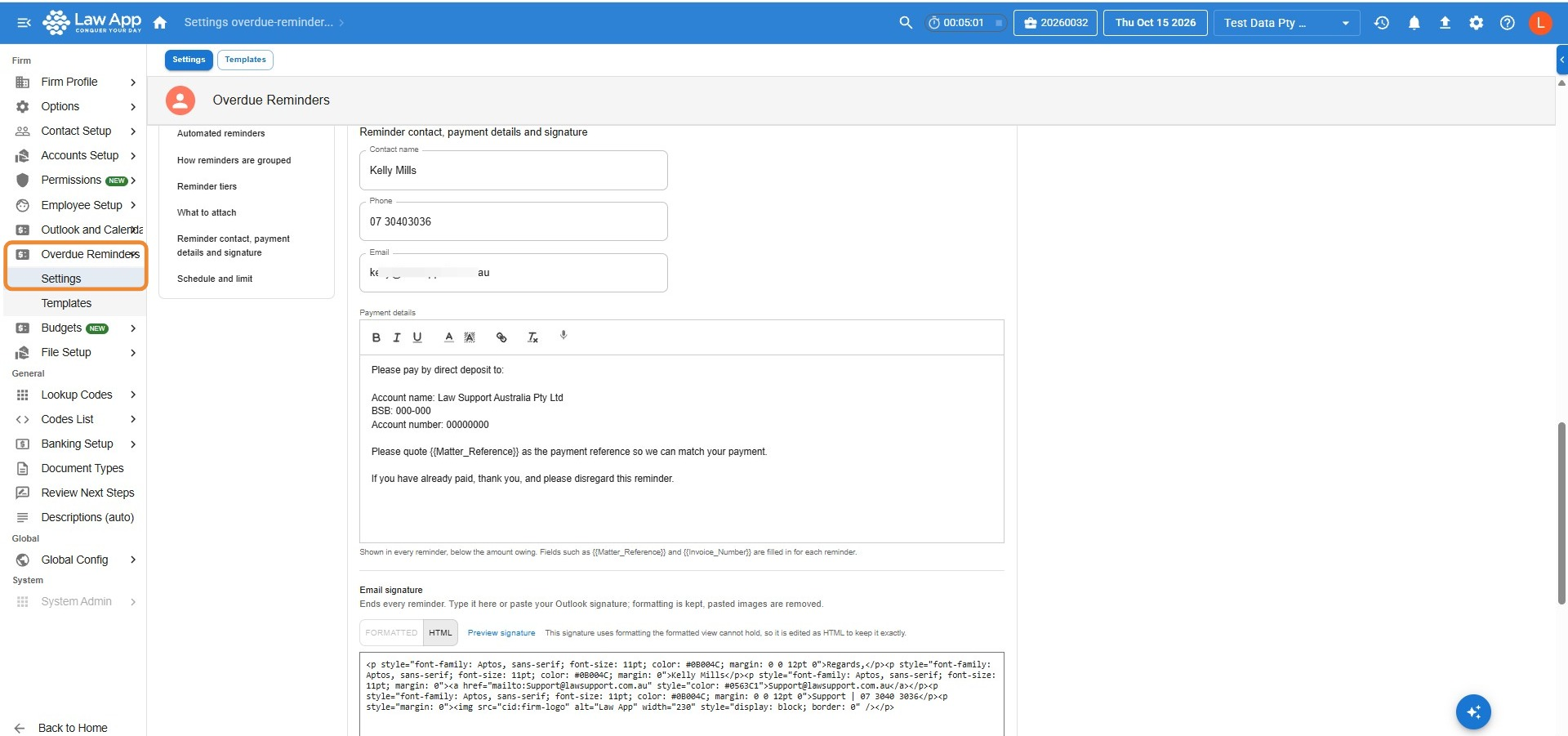
| Firm settings (tiers, grouping, attachments, signature, schedule, sending mailbox) | Settings > Overdue Reminders > Settings |
| Email templates | Settings > Overdue Reminders > Templates |
| A file’s billing email, billing address and reminder handling | Open the file, then File Details > Billing details |
While the feature is in beta, the menu items are marked BETA. The Overdue Reminders menu item shows a count when the scheduled run has prepared reminders that are waiting for someone to review and send.
Set up before the first send
Do these once, in this order. Nothing can be sent until step 1 is complete.
- Save the firm’s email signature. Go to Settings > Overdue Reminders > Settings, block Reminder contact, payment details and signature.
- Fill in the reminder contact and payment details in the same block. These appear in every reminder email and in the footer of the statement of account.
- Check the tiers. The defaults are Friendly reminder at 30 days, Overdue notice at 60 days and Final notice at 90 days. Change the names or days if your firm chases differently.
- Choose grouping and attachments. Per matter or per client; statement of account, original bills, both or nothing.
- Review the templates. Five are ready to use. Edit the wording if you want, then use Preview to see the result.
- Set billing emails on files where needed. A reminder goes to the file’s billing email. If none is set, it goes to the matter’s main email.
- Connect your sending mailbox (recommended). With a verified Microsoft 365 mailbox, every reminder goes from your firm’s own address. See Automated reminders and the sending mailbox.
- Optional: turn on automated reminders. Review queue works for every firm. Send automatically needs Microsoft 365 and a verified sending mailbox.
The Overdue Reminders list
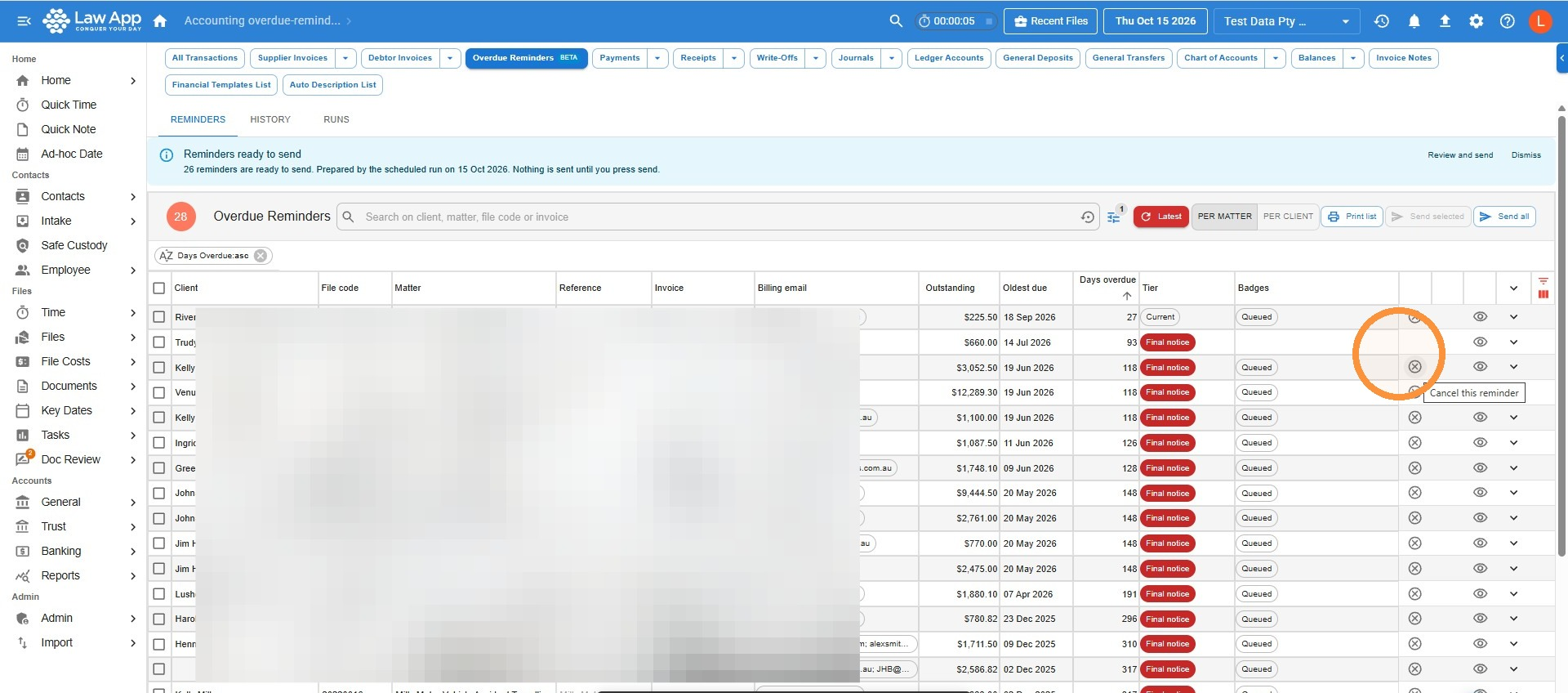
Open Accounting > General > Overdue Reminders. The page has three tabs: Reminders (the list), History and Runs.
Header controls
| Control | What it does |
|---|---|
| Count bubble | How many rows match the current filters. |
| Search | Per matter: searches client, matter, file code and invoice number. Per client: searches the client. |
| Filter button | Opens the filters. The number on it is how many filters are active. |
| Per matter / Per client | Switches the view. Per matter shows one row per file. Per client shows one row per client, covering all of that client’s overdue matters. The switch only changes what you’re looking at; the firm setting decides how the scheduled run groups. |
| Send selected | Sends the ticked rows. Disabled until something is ticked. |
| Send all | Sends every row that matches the current filters. |
| Print list | Downloads the current view as a CSV file. |
Banners above the list
- Reminders ready to send. The scheduled run has prepared reminders. Press Review and send to filter the list to those rows and tick them all, or Dismiss to hide the banner for this session. Nothing is sent until you press Send.
- Microsoft 365 warning. The last automatic run couldn’t sign in to the sending mailbox. Use Open settings to check the mailbox, or Reconnect.
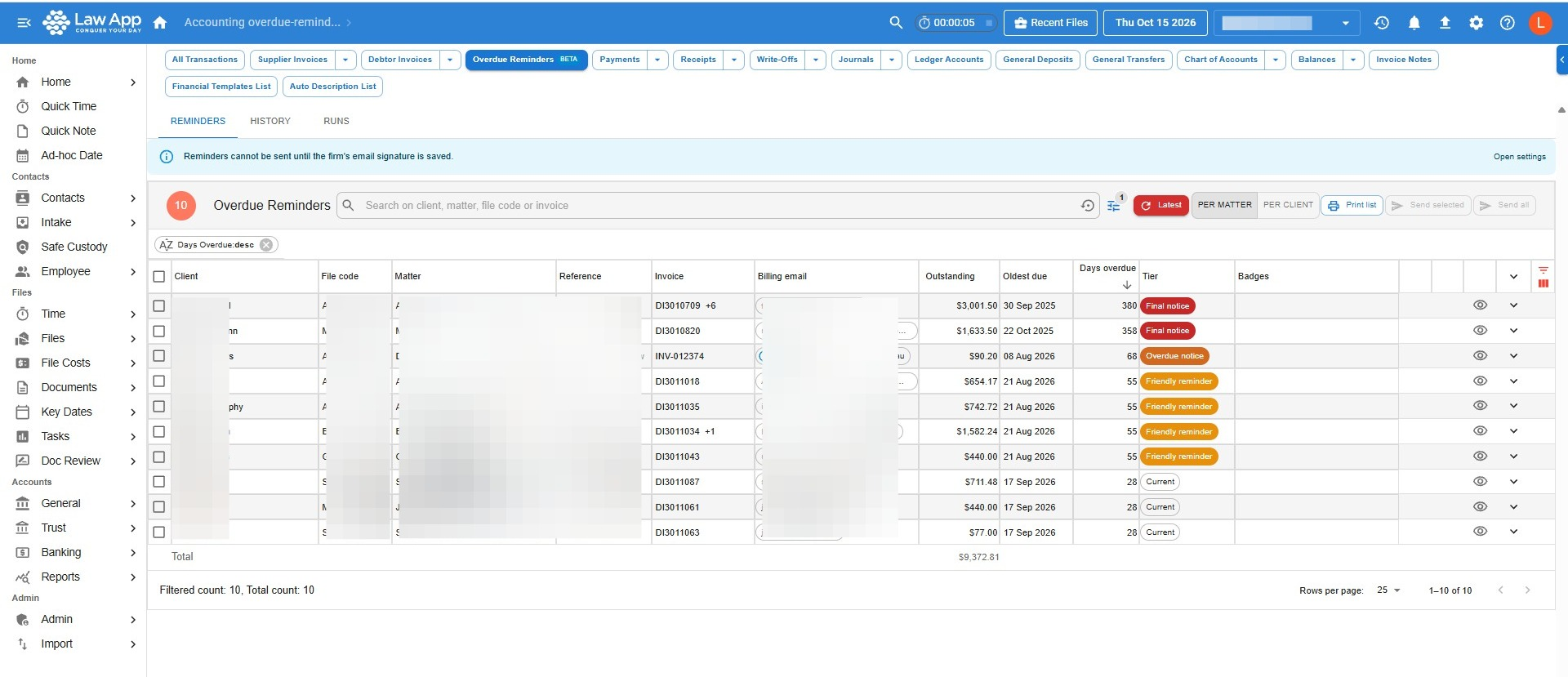
- Signature notice. No firm signature is saved yet. Sending is disabled until an administrator adds one in Settings.
Filters
| Filter | Options |
|---|---|
| Tier | All, any tier name, or Current (invoices past due but not yet at the first tier). |
| Overdue | At least N days. |
| Status | Not yet reminded, Reminded at current tier, Queued, All. |
| Show excluded | Off by default. Turn on to see files set to Always exclude. |
| Sort | Days overdue, Outstanding, Client A to Z. |
Active filters appear as chips you can remove one at a time. If nothing matches, the list says so and offers Clear filters.
Columns in Per matter view
| Column | Meaning |
|---|---|
| Tick box | Select the row. The header tick box selects every visible row. |
| Client | The file’s main client. |
| File code | The file’s code. |
| Matter | The matter description. |
| Reference | The file’s short name or reference. |
| Invoice | The oldest overdue invoice. A number badge means two or more invoices are overdue, and the reminder will use the Multiple invoices overdue layout. |
| Billing email | Where the reminder will go. An info icon means the matter’s main email is being used because no billing email is set. A warning icon means there’s no email at all and the row can’t be sent. |
| Outstanding | Total owing across the overdue invoices. |
| Oldest due | Due date of the oldest overdue invoice. |
| Days overdue | The largest number of days across the invoices. |
| Tier | Which reminder the row is due for. Current means it’s past due but below the first tier. |
| Badges | See Badges below. |
| Actions | Cancel (⊗, on queued rows only), Preview (eye icon), Capture bill (only when shown), and an expand arrow. Expanding a row lists each overdue invoice with its issued date, due date, days overdue and amount. |
Per client view
Columns are Client, Billing email(s), Matters (count), Total outstanding, Oldest due, Days overdue, Highest tier, Badges and Actions. Expand a row to see the matters, then the invoices.
Badges
| Badge | Meaning |
|---|---|
| Closed | The file is closed but still has an unpaid invoice. Closed files are still chased. |
| Queued | The scheduled run has prepared this reminder and it’s waiting to be sent. |
| Reminded | A reminder at this tier has already been sent. Hover to see the date. |
| Excluded | The file is set to Always exclude. Only visible when Show excluded is on. Hover for the reason. |
| Original bill not saved | The firm attaches original bills, but Law App has no stored copy of one of this row’s bills. Either a statement is sent instead, or the row is held, depending on the firm setting. Use Capture bill to store the original. |
Sending reminders
Method 1 — Send one reminder
- Press Preview on the row.
- Check the email, then press Send this reminder.
Method 2 — Send selected rows
- Tick the rows you want to send.
- Press Send selected.
Method 3 — Send everything in the current view
- Set your filters so the list shows only what you want to send.
- Press Send all.
The preview
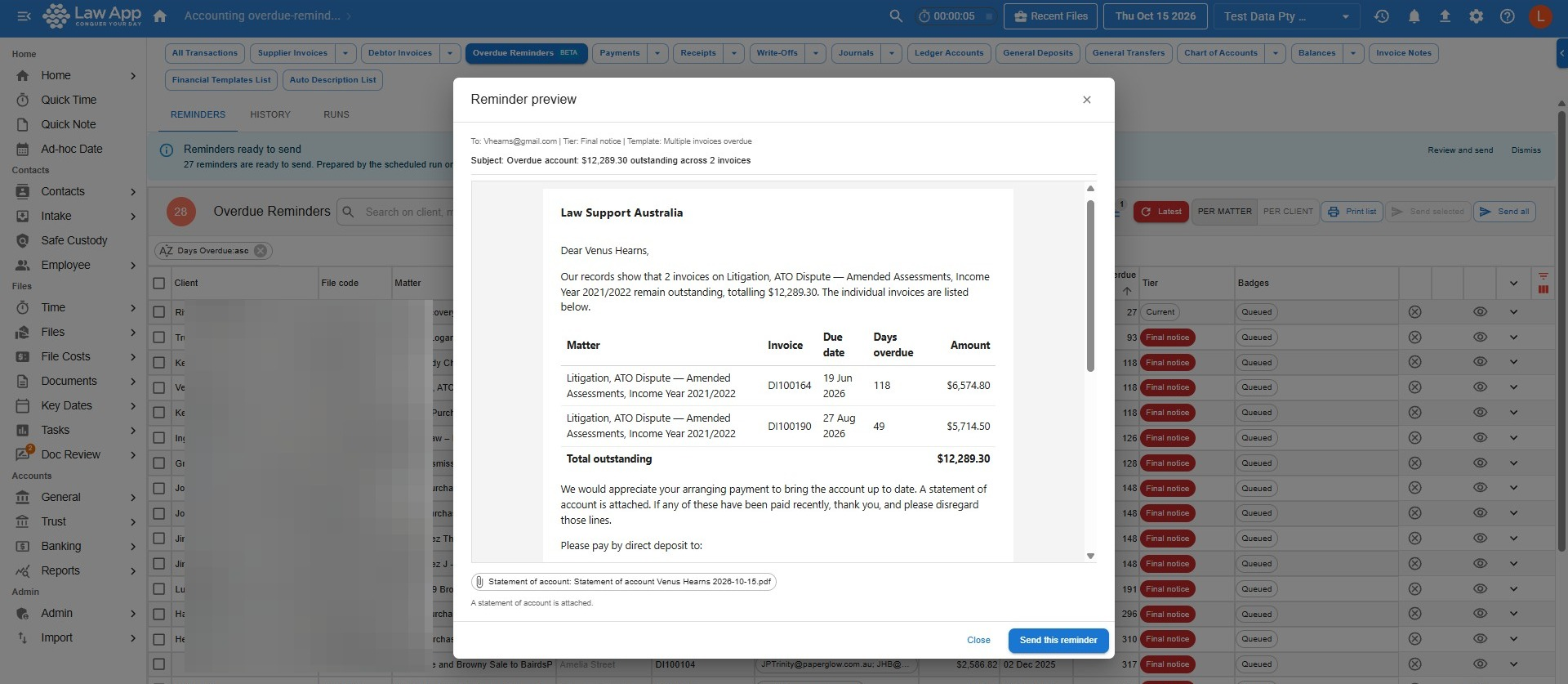
The preview shows the recipients, the tier, the template in use and the attachments, followed by the subject and the full email exactly as the client will receive it, including the firm signature, logo and payment details. Warnings appear when a reminder at this tier has already been sent, or when a fallback template or attachment is being used.
The confirm step
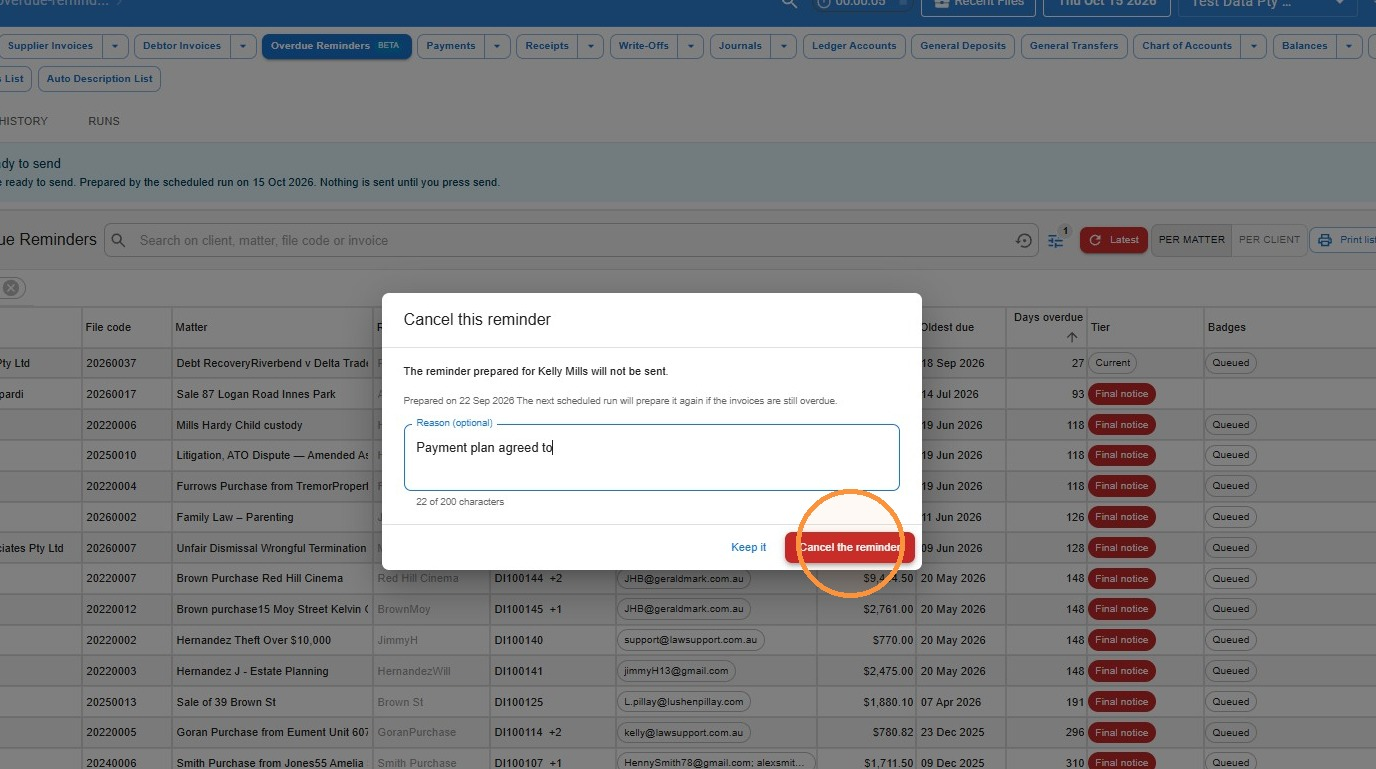
Every send goes through a confirm step. The Send reminder box shows how the emails will be sent (for example, Emails will be sent from accounts@yourfirm.com.au, or through the Law App relay) and lists each reminder with its client, matter, recipients, tier, template and attachments. The Result column shows any warning, and for queued reminders, the date it was prepared with a Cancel this reminder link if you want to drop one before sending. Rows that can’t be sent are listed separately under Cannot be sent (no email address) and aren’t counted.
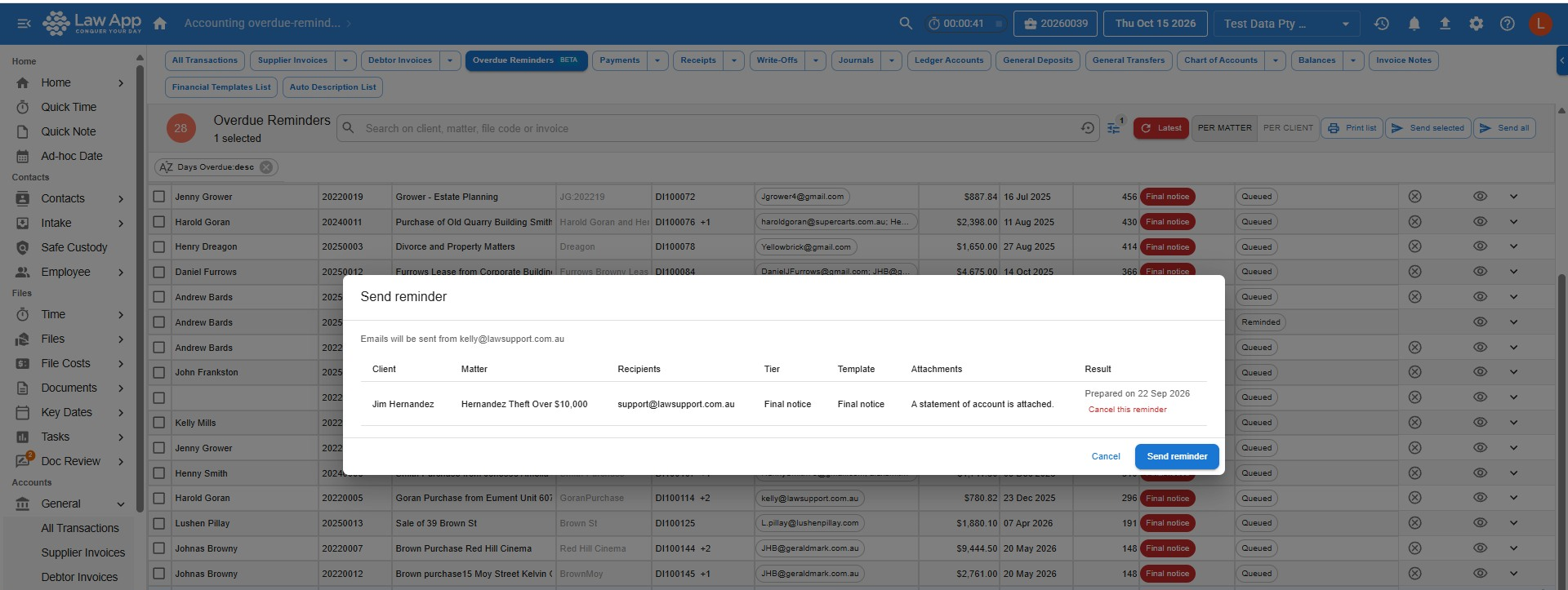
| Warning | Meaning |
|---|---|
| Already reminded at this tier on date | A reminder at this tier has gone out before. Sending again is allowed but not usual. |
| Final-tier repeat | The firm has chosen to repeat the final reminder, and this one is due. |
| Statement only (attachments over 3 MB) | The original bills are too large to attach, so a statement is sent instead. |
| Prepared on date | This is a queued reminder from the scheduled run. |
Press Send reminder (or Send N reminders when several are ticked) to go ahead, or Cancel to go back without sending. Progress shows as the emails go out, then each row shows its result with a summary such as “11 sent, 1 failed”. Hover over a failed row to see why. If Microsoft 365 rejects the sign-in, sending stops and you’re asked to reconnect.
Who the email comes from
- With a verified sending mailbox: every reminder, whether sent by hand, from the review queue or automatically, goes from your firm’s verified Microsoft 365 mailbox. Sent reminders appear in that mailbox’s Sent Items, and client replies and any bounce messages arrive there too.
- Without one: reminders go through the Law App relay, using Law App’s own mailbox.
What stops a row from sending
- No email address on the file or its main client.
- The invoice was paid between the list loading and Send. Law App re-checks the balance at send time and reports Paid before sending.
- The file is set to Always exclude.
- The firm signature hasn’t been saved.
The statement of account
The default attachment is a statement of account listing every outstanding invoice for the matter (or the client, in Per client view). The firm’s payment details appear in its footer.
The exact statement that was attached is kept with the reminder and can be downloaded from the reminder detail. A Current statement download is also available. It’s built from today’s figures, so it isn’t the file the client received.
The review queue
When automated reminders are set to Review queue, the scheduled run finds overdue invoices on the days and time set in Settings and prepares reminders without sending them. You’ll see:
- a count on the Overdue Reminders menu item,
- the Reminders ready to send banner on the list,
- a Queued badge on each prepared row.
- Press Review and send on the banner.
- Check the ticked rows, unticking any you don’t want to send yet.
- Press Send selected.
Queued reminders are re-checked on every run. If an invoice is paid, moves to a higher tier or the recipient changes, the old queued reminder is cancelled and a fresh one is prepared. Queued reminders that aren’t sent within 30 days expire.
History and Runs
History tab
Every reminder ever prepared, sent, cancelled or failed. Filter by status, date range, tier, client or matter.
| Column | Meaning |
|---|---|
| Date | When the reminder was sent or prepared. |
| Client, Matter(s), Invoices | What it covered. |
| Tier | The reminder tier used. |
| Recipient(s) | Who it went to. |
| Status | Queued, Sent, Failed or Cancelled. Sent means Microsoft 365 or the relay accepted the email. |
| Channel | Microsoft 365 or Law App relay. |
| Sent by | The person who pressed Send, or Automatic. |
| Actions | View opens the reminder detail. Cancel appears on queued rows. |
Reminder detail
Shows the email exactly as it was sent: subject, body, recipients, attachments with sizes, the invoices and amounts covered, tier, template, channel, times and who sent it. Nothing in this view is recalculated, so it’s the record of what the client received.
Runs tab
One row per scheduled run, with its date, start time, duration, status and mode. The mode tells you whether the run prepared a review queue or sent automatically, and flags the first automatic run. The counts show how many invoices were detected, how many reminders were due, queued, sent, suppressed or failed, and whether the send cap was reached. An error column explains any failure.
Billing details on a file
The file’s billing email shows (read-only) on the File Details page. To change it, open the file and choose File Details > Billing details.
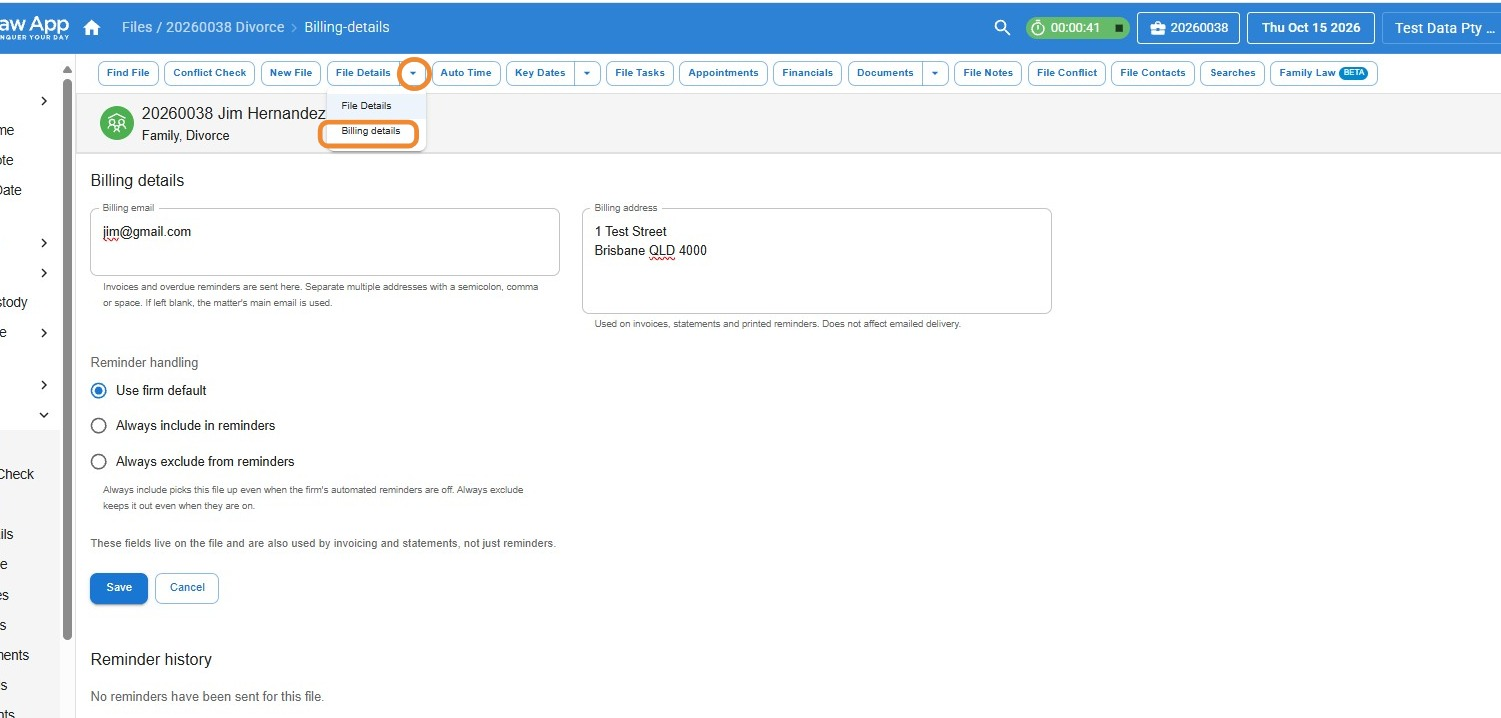
| Field | What it does |
|---|---|
| Billing email | Where invoices and reminders are sent. Separate several addresses with a semicolon, comma or space. Leave blank to use the matter’s main email. |
| Billing address | Used on invoices, statements and printed reminders. Doesn’t affect emailed delivery. |
| Reminder handling | Choose Use firm default, Always include in reminders (this file is chased even when the firm’s automated reminders are off) or Always exclude from reminders (this file is never chased, even when they’re on). |
| Reason (optional) | Appears when you choose Always exclude. Shown to your team on the Overdue Reminders list. Never shown to the client. |
These fields live on the file and are also used by invoicing and statements, not just reminders. Press Save. Below the form, Reminder history lists every reminder sent for this file, with a View action for each.
Exclude a file from reminders
- Open the file and choose File Details > Billing details.
- Under Reminder handling, select Always exclude from reminders.
- Add a Reason in the box that appears, so your team knows why, then press Save.
Settings
Go to Settings > Overdue Reminders > Settings. The page is one form: press Save settings at the bottom to save every block at once. If anything is invalid, the message appears next to the field and nothing is saved.
Automated reminders and the sending mailbox
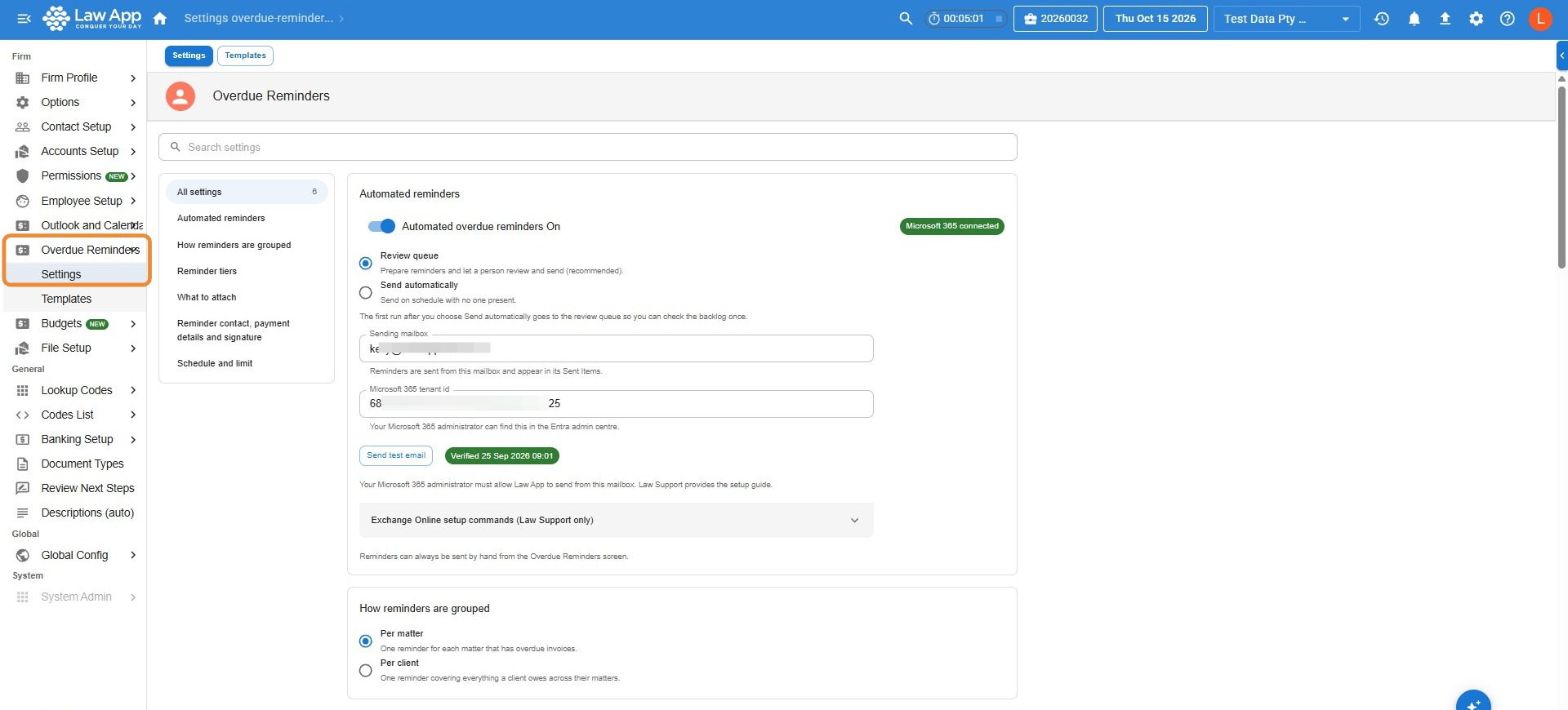
- Automated overdue reminders On/Off. Off means reminders are only ever sent by hand from the list.
- Review queue (recommended). The scheduled run prepares reminders and a person sends them.
- Send automatically. The scheduled run sends with no one present. Needs Microsoft 365, a verified sending mailbox and a saved signature.
- Sending mailbox. Enter the mailbox, then press Send test email. A successful test shows Verified with the date. Once verified, all reminders go from this mailbox, including ones sent by hand, and appear in its Sent Items.
- Microsoft 365 Tenant ID. Your firm’s Microsoft 365 tenant, entered once. Your Microsoft 365 administrator can find it in the Entra admin centre. It’s the same field used by Settings > Outlook and Calendar, and only firm administrators can change it.
- Status chip. Shows Microsoft 365 connected when Law App can reach your firm’s Microsoft 365.
How reminders are grouped
- Per matter. One email per file. A file with several overdue invoices gets one itemised email.
- Per client. One email per client covering every overdue matter and invoice, with a total. The highest tier across the invoices decides the wording. A client with more than one billing email set receives one email per set.
Reminder tiers
A table of tiers, each with a Name, Days overdue and a Single-bill email template. Add up to six tiers and keep at least one. Days must increase from one tier to the next, and names must be unique. Use Add tier to add one, or the bin icon to remove one.
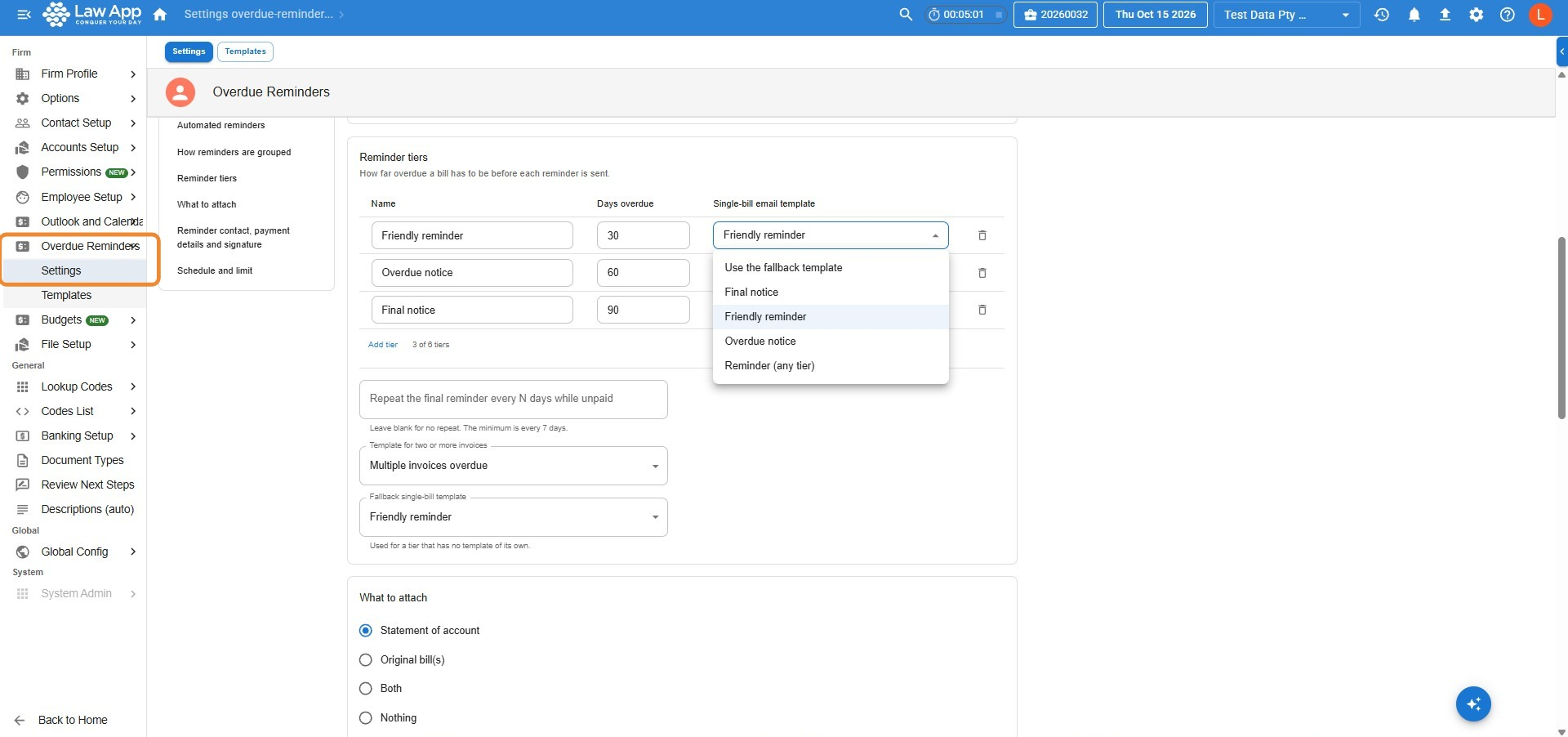
- Repeat the final reminder every N days while unpaid. Enter a number of days (minimum 7) to keep sending the top tier reminder while the invoice stays unpaid. Leave it blank for no repeat.
- Template for two or more invoices. Used whenever a reminder covers more than one invoice.
- Fallback single-bill template. Used by any tier that has no template of its own.
What to attach
- Statement of account (default), Original bill(s), Both or None.
- When an invoice has no stored original bill: Send a statement of account instead (the row is flagged so someone can capture the bill) or Hold the invoice and flag it until the bill is captured.
- Law App stores a bill the first time someone saves, sends, prints or emails it. Older bills can be captured from the bill itself or from a flagged row on the Overdue Reminders list.
Reminder contact, payment details and signature
- Contact name, Phone, Email. The person clients should contact about the account. Pre-filled from the firm profile.
- Payment details. Free text for how clients should pay, such as account name, BSB, account number and the reference to quote. You can use fields like
{{Matter_Reference}}and{{Invoice_Number}}, which fill in for each reminder. Payment details appear in every reminder below the amount owing, and in the statement of account footer. - Email signature. Required. Type it, or paste your Outlook signature; formatting is kept and pasted images are removed. Edit it in the Formatted tab, or the HTML tab for signatures with formatting the formatted view can’t hold. Preview signature shows how it will look.
- Logo. Upload the firm logo (PNG or JPG, up to 200 KB), then use Insert logo to place it in the signature. It’s sent inside the email so it displays in Outlook and Gmail. Use Replace or Remove to change it. The signature can’t be removed while Send automatically is on.
Schedule and limit
- Run at and the days of the week to run.
- Maximum sent per run. A cap on automatic sends per run, from 1 to 1000. Reminders over the cap wait for the next run. Manual sends aren’t capped.
- Time zone, used to work out overdue days and the run time.
Templates
Go to Settings > Overdue Reminders > Templates. Each template has a layout: One invoice or Two or more invoices. Columns are Name, Layout, Used by, Attachment override and Last updated.
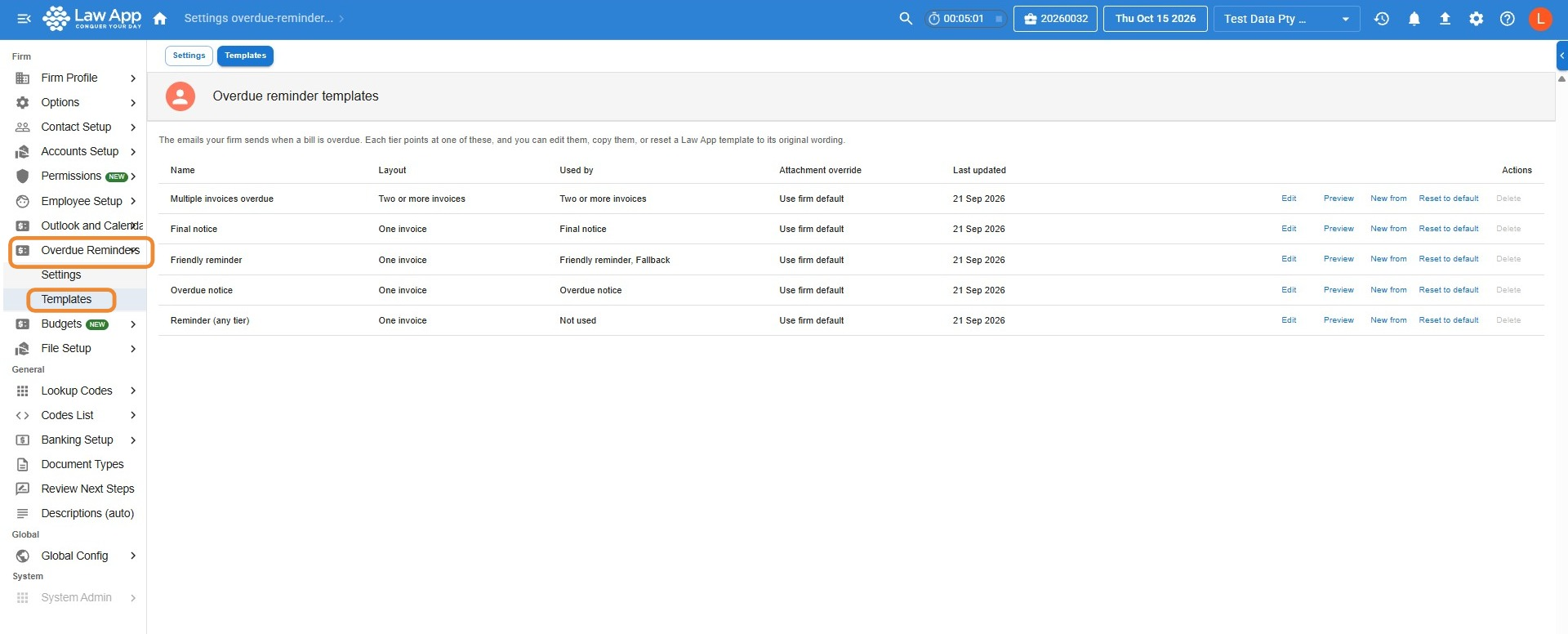
Templates included with Law App
| Template | Used for |
|---|---|
| Friendly reminder | Tier 1 (one invoice) |
| Overdue notice | Tier 2 (one invoice) |
| Final notice | Tier 3 (one invoice) |
| Multiple invoices overdue | Any reminder covering two or more invoices |
| Reminder (any tier) | Fallback for a tier with no template of its own (one invoice) |
Actions on each template
| Action | What it does |
|---|---|
| Edit | Open the template editor. |
| Preview | Show the template with sample data. |
| New from | Create a new template starting with the same wording, under a new name. |
| Reset to default | Restore the original wording. Only on templates that came with Law App. |
| Delete | Remove a template. Only when nothing uses it. Templates that came with Law App can’t be deleted. |
A template’s Used by tells you which tiers use it, or whether it’s the multiple-invoice or fallback template. Change which template a tier uses on the Settings page, in the Reminder tiers block.
Editing a template
| Field | Notes |
|---|---|
| Name | Must be unique. |
| Subject | The email subject line. Fields are allowed. |
| Body | The email body. Fields are allowed. |
| Attachment override | Use firm default, Statement, Original bill(s), Both or None. Lets one template attach something different from the firm setting. |
The Fields panel lists every field with a description and a copy button. Click a field to copy it, then paste it into the subject or body. Preview shows the template with sample data. Save checks the template: subject and body are required, and any field name that isn’t in the list is rejected.
Fields
Write a field as its name in double curly braces, for example {{Client_Salutation}}. Payment details and the firm signature contain formatting, so they use triple braces: {{{Payment_Details}}} and {{{Firm_Signature}}}.
| Field | What it shows |
|---|---|
| Firm_Name | The firm’s name. |
| Firm_Contact_Name, Firm_Phone, Firm_Email | The reminder contact from Settings. |
| Payment_Details | The payment details from Settings (triple braces). |
| Firm_Signature | The firm signature from Settings (triple braces). |
| Client_Name | The client’s full name. |
| Client_Salutation | The client’s salutation or first name, or the full name if none. |
| Matter_Description | The matter description. For several matters: “your matters with us”. |
| Matter_Reference | The file code. |
| Invoice_Number, Invoice_Date, Due_Date | The invoice. For several invoices: the oldest one. |
| Days_Overdue | Days overdue. For several invoices: the largest. |
| Amount_Outstanding | Owing on the invoice. For several invoices: the oldest one. |
| Total_Outstanding | Owing across every invoice covered. |
| Invoice_Count | How many invoices are covered. |
| Tier_Label | The tier name. |
| Attachment_Sentence | A sentence describing what’s attached, for example “A statement of account is attached.” Leave it out if you don’t want the sentence. |
| Today | Today’s date. |
Templates for two or more invoices
In a template for two or more invoices, the invoices are listed inside a repeating block:
The included Multiple invoices overdue template puts this block inside a table with a total row. Use New from on it if you want a different multi-invoice layout, and keep the repeating block.
Template tips
- Don’t claim a previous reminder was sent. Law App gives every invoice the tier it qualifies for today, so a very old invoice may receive a Final notice as its first reminder.
- Describe attachments only through
{{Attachment_Sentence}}, so the email never mentions a copy that isn’t there. - The email header, footer and styling are set by Law App, so the template only needs the body text.
How the rules work
- One reminder per tier. A matter or client gets one reminder at each tier. It gets another only when it reaches the next tier, or when a new overdue invoice appears that no reminder at that tier has covered.
- Per matter and per client sends count for each other. If a per client reminder covered an invoice at a tier, the per matter view shows it as Reminded, and the other way around.
- Today’s tier. An invoice is placed in the tier it qualifies for today. A 100 day old invoice with no prior reminder receives a Final notice.
- Balance re-check. The balance is checked again at the moment of sending. A paid invoice is never chased.
- Final tier repeat. If turned on, the final reminder repeats every N days while the invoice stays unpaid.
- Send cap. Automatic runs stop at the maximum per run and pick up the rest next time. Manual sends aren’t capped.
- First automatic run. Always a review queue, even if Send automatically is chosen.
- No changes to balances. Law App doesn’t apply interest, fees or write-offs.
- Closed files with unpaid invoices are still shown and chased, marked with the Closed badge.
Common questions
| Question | Answer |
|---|---|
| The Send buttons are greyed out | The firm signature hasn’t been saved. An administrator needs to add it under Settings > Overdue Reminders > Settings. See Set up before the first send. |
| A row shows a warning icon in Billing email | Neither the file nor its main client has an email address. Add a billing email on the file, or an email on the client contact. |
| A client receives one email covering several matters, but I want one per matter | Switch the firm setting to Per matter under How reminders are grouped, or use the Per matter view when sending by hand. |
| Two rows for the same client in Per client view | The client’s files have different billing emails. Each billing contact receives only the invoices that belong to them. |
| The reminder attached a statement, not the original bill | Law App has no stored copy of that bill. Press Capture bill on the row and choose the layout it was originally sent on. Future reminders will attach it. |
| I want to exclude a file from reminders | See Exclude a file from reminders. |
| I chose Send automatically but the first run only queued | That’s by design. The first run after choosing Send automatically goes to the review queue so you can check the backlog. Unattended sending starts from the following run. |
| Reminders aren’t coming from our firm’s email address | No sending mailbox has been verified, so reminders go through the Law App relay. Enter your mailbox in Settings and press Send test email. Your IT provider may need to complete the Microsoft 365 setup first. |
| Law App says automated reminders are failing | Law App can’t send from the sending mailbox any more (for example, the access was removed or the mailbox was renamed). Use Open settings or Reconnect on the banner, and ask your IT provider to check the Microsoft 365 setup. To stop the message in the meantime, switch the firm back to Review queue. |
| A client says they didn’t receive a reminder | Check the sending mailbox for a bounce (non-delivery) message, then correct the billing email on the file. |
| Where do I see what was actually sent? | History tab, then View on the row. The reminder detail shows the exact email, recipients and attachments as they were sent. The same list appears on the file under Billing details. |
Leave a Reply