
Invoice Notes are reusable descriptions of the work your firm has done, which you can add to a debtor invoice instead of, or alongside, the itemised list of timesheet entries. Set them up once under General > Invoice Notes, pick one on any invoice, then print with a template that has “Notes” in its name.
They’re handy for fixed-fee or standard work — a sale, a purchase or a will — where a single generic description reads better than a long list of time entries.
How to create an Invoice Note
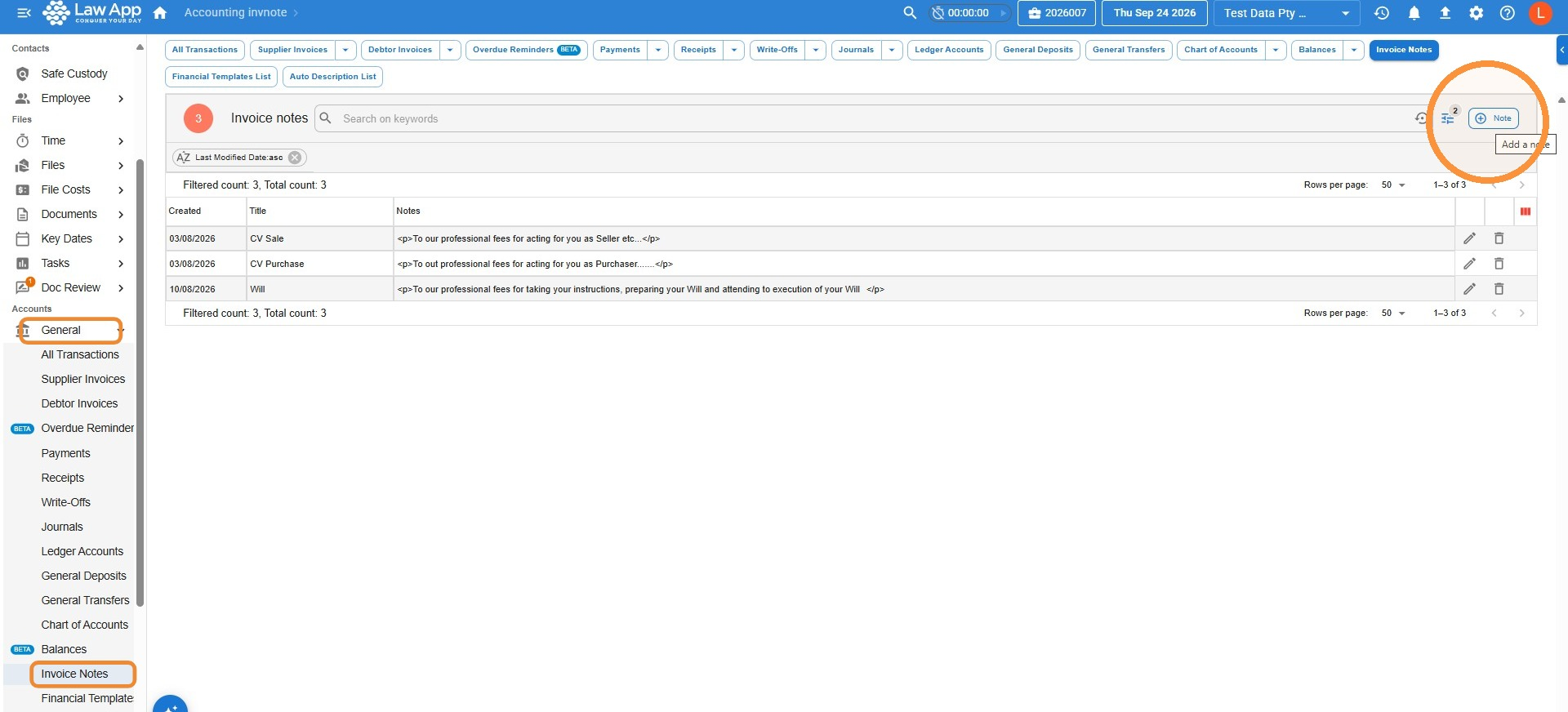
- From the left-hand menu, select General, then Invoice Notes.
- Click + Note at the top right of the Invoice notes list.
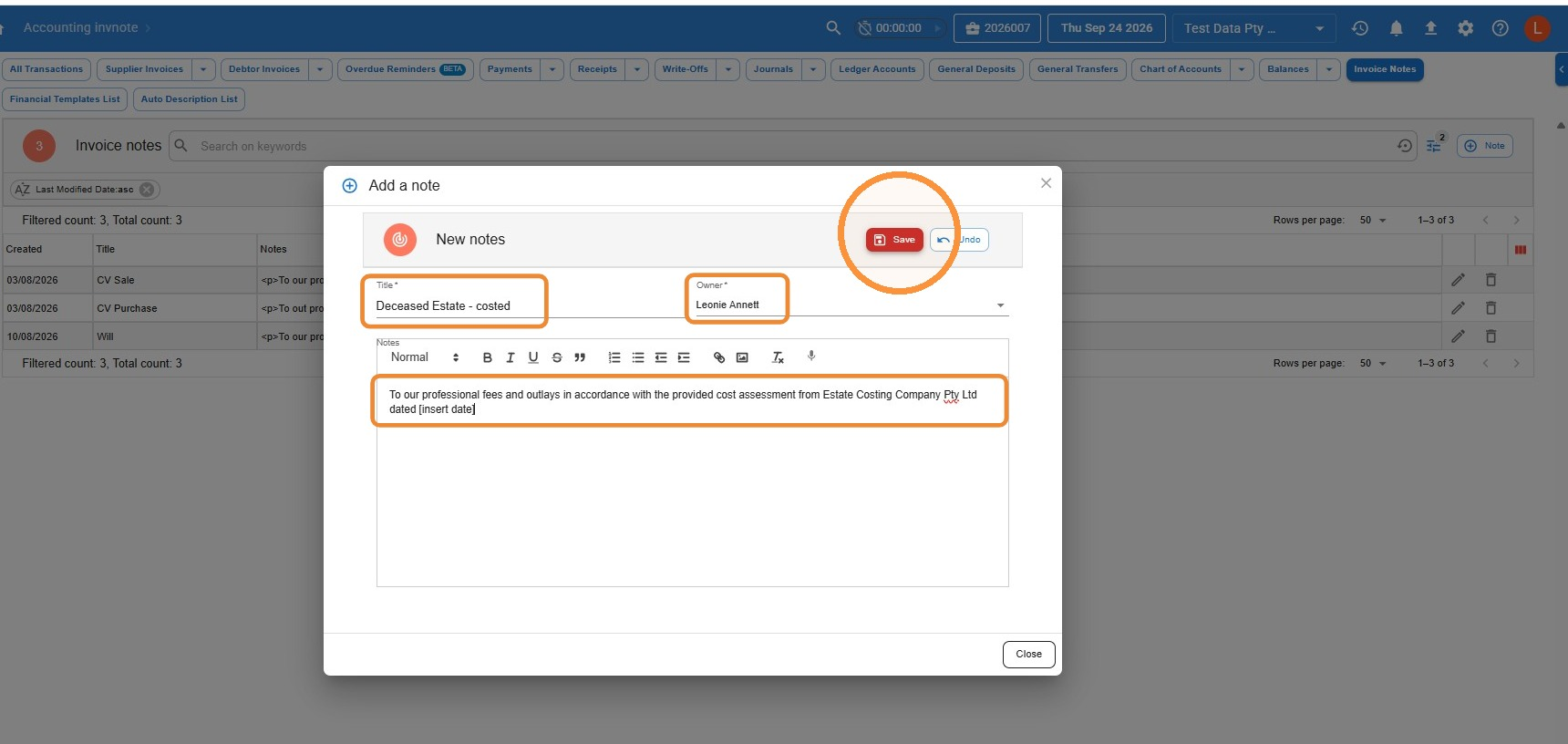
- Enter a Title so the Note is easy to find, and choose the Owner.
- Type the description you want to appear on the invoice in the Notes box.
- Click Save.
How to edit or delete Invoice Notes
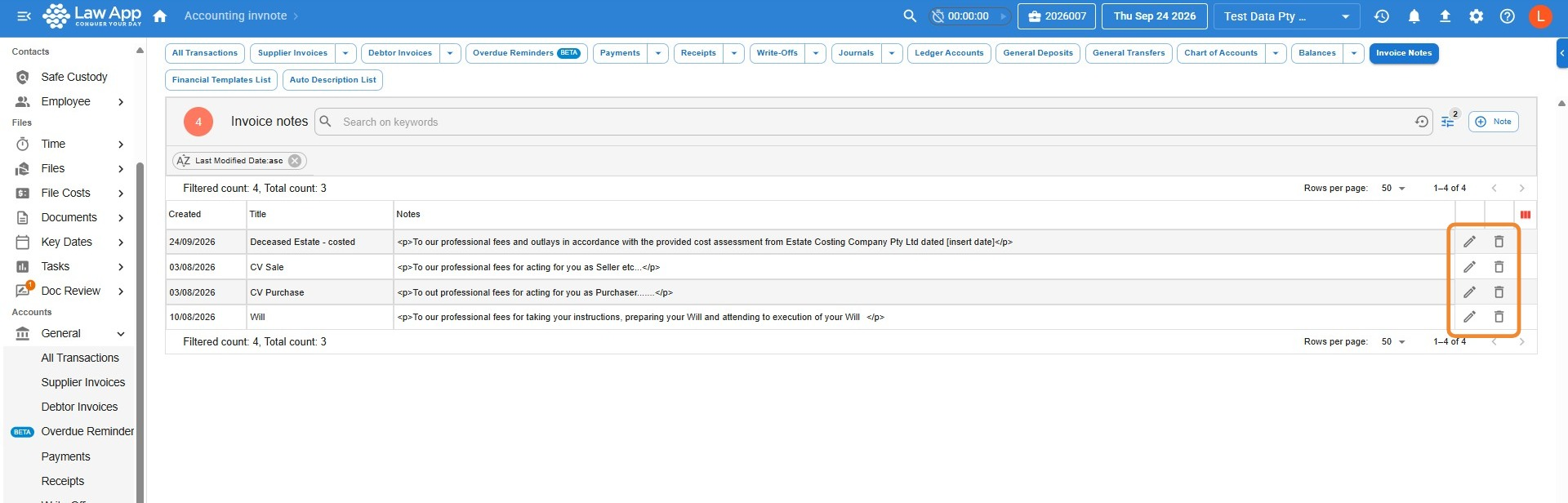
All of your firm’s Notes are listed under General > Invoice Notes. Click the pencil icon on a row to edit a Note, or the bin icon to remove it.
How to add an Invoice Note to a debtor invoice
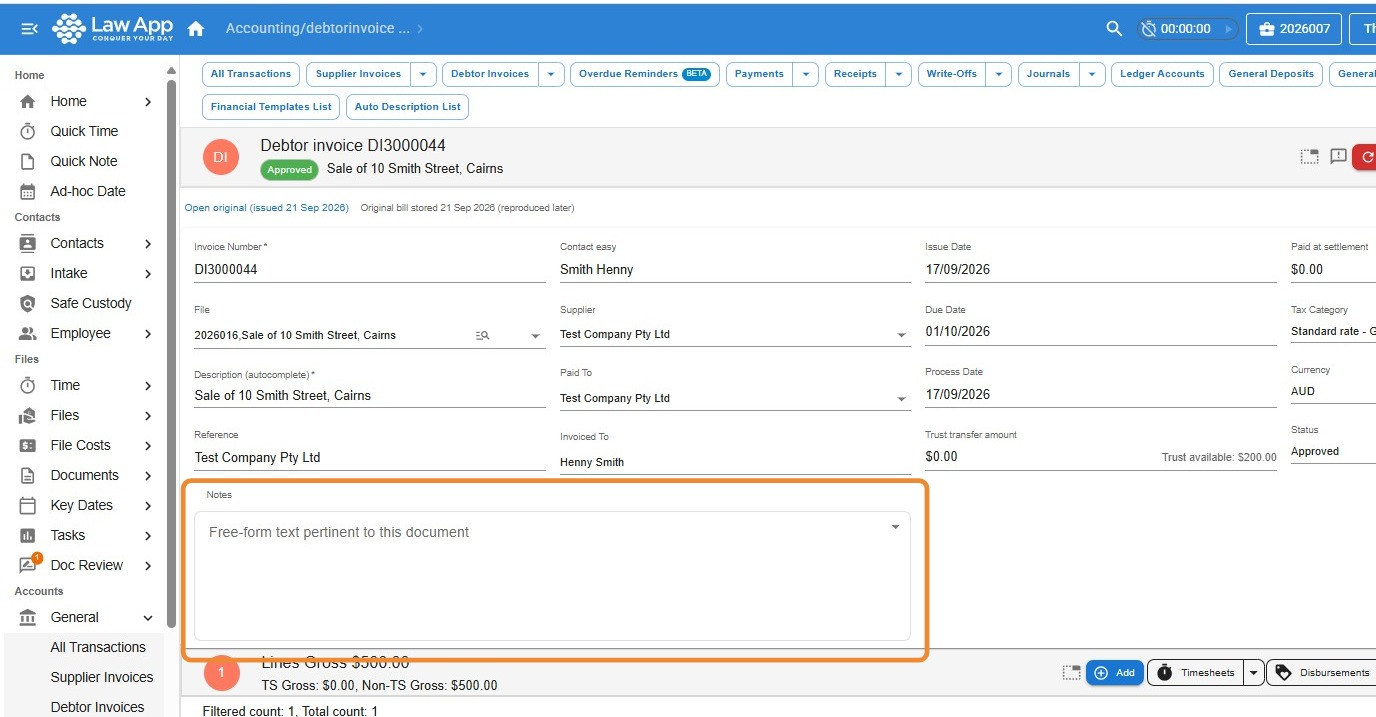
- Open the debtor invoice and click in the Notes field. A list of your firm’s Notes appears.
- Click the Note you want to use, then click Save.
How to print an invoice with Notes
When you print the invoice, choose one of the invoice templates with Notes in its name. The Note you selected then appears on the invoice.
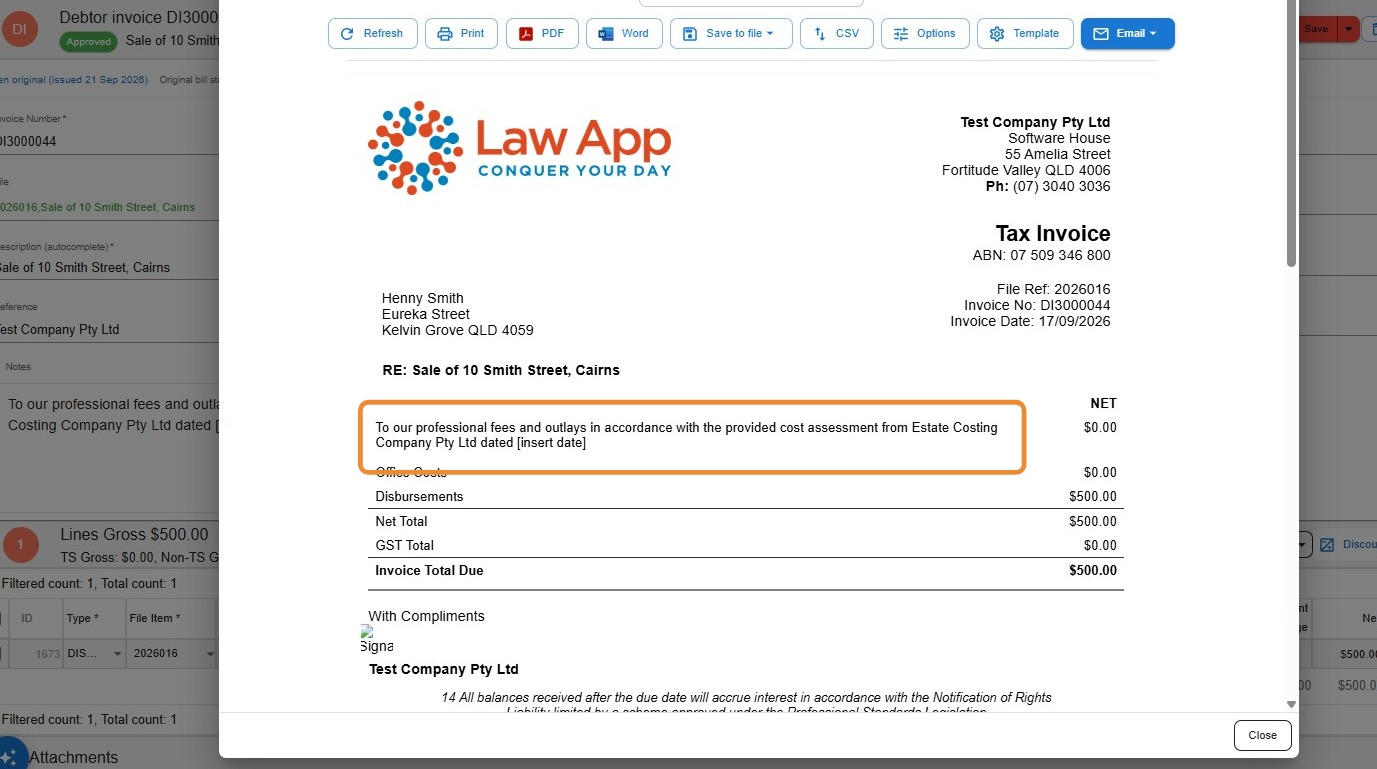
Some Notes templates show the Note together with the itemised timesheet entries, while others show only the Note. For help choosing the right one, see Invoice layouts — choosing the right bill.
Leave a Reply