
Law App automatically assigns transaction numbers like invoice numbers, receipt numbers, and file codes to help keep your records clean and consistent. But if you’re migrating from another system or fixing legacy data, you might need to manually update a number.
In this article, we’ll show you how number sequencing works in Law App, when to change it, and how to reset the next number in a series.
How to Reset or Edit Number Sequences in Law App
Here’s how to find and adjust numbering:
Step 1: Go to the Number Sequencer
- From the sidebar, click Admin
- Then select Number Sequencer
Step 2: Find the Code You Want to Edit
You’ll see a list of all transaction types with their codes and current settings.
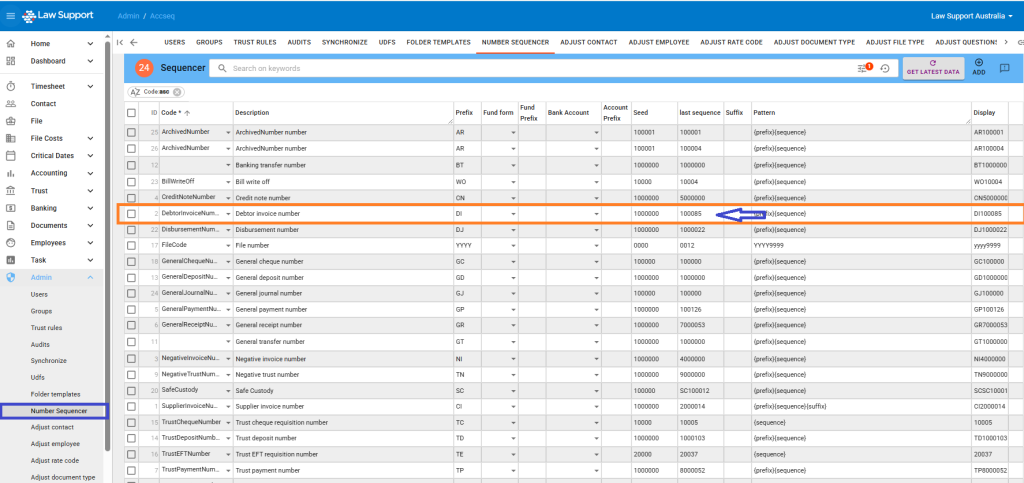
Step 3: Update the Sequence
- Click the row to edit it
- Change the Last Sequence value to the number you want to continue from
- Click Save or Get Latest Data to refresh
⚠️ Caution: Only reset a sequence if you’re certain — this change affects all future transactions of that type.
❓ When Should You Change a Number?
Most of the time, you don’t need to touch the sequence — Law App keeps numbering automatically.
But you can manually edit a number when:
- You’re migrating from an old system
- You need to match a specific external reference
- You’re fixing a duplicate or skipped number issue
Once you update the number, Law App will continue from that new point.
Example: If your last invoice was
DI100094, and you change it toDI101000, the next one will beDI101001.
📌 What Is Number Sequencing?
Every transaction in Law App — such as invoices, receipts, payments, trust records, and files — is assigned a unique number using a sequencer. This ensures your documents stay in order and are easy to track.
Law App uses a combination of:
- Prefix (e.g.
DIfor Debtor Invoice) - Seed (starting number)
- Pattern (e.g.
{prefix}{sequence}) - Last Sequence (the most recent number used)
Best Practices
- Don’t reuse numbers — each number should be unique
- Let Law App handle it unless you have a specific reason to change it
- If in doubt, ask — changes here can affect reporting and audits
Common Questions
What if I accidentally use the wrong number?
You can adjust it in the Number Sequencer — just make sure future entries won’t conflict.
Can I have a different format?
Not at this time. All patterns follow {prefix}{sequence} or a variant with suffixes. If you need a specific format, let support know.
🙋 Need Help?
If you’re unsure what to change, or something looks wrong, reach out to support@lawsupport.com.au and we’ll walk you through it.
Leave a Reply