
Overpayments and refunds come up for all sorts of reasons in Law App — a client pays too much, a disbursement is refunded, or an invoice needs correcting after it’s already been finalised. This guide walks through each of these scenarios, and the steps to record them correctly so your financial records stay accurate and properly reconciled.
Refund due to a client overpayment
When a client pays more than they owe on an invoice, there are two ways to record and refund the difference — through a suspense account, or directly against the file. Which one you use comes down to whether you want the overpayment to touch the file at all.
Option 1 – Simple receipting with suspense (external handling)
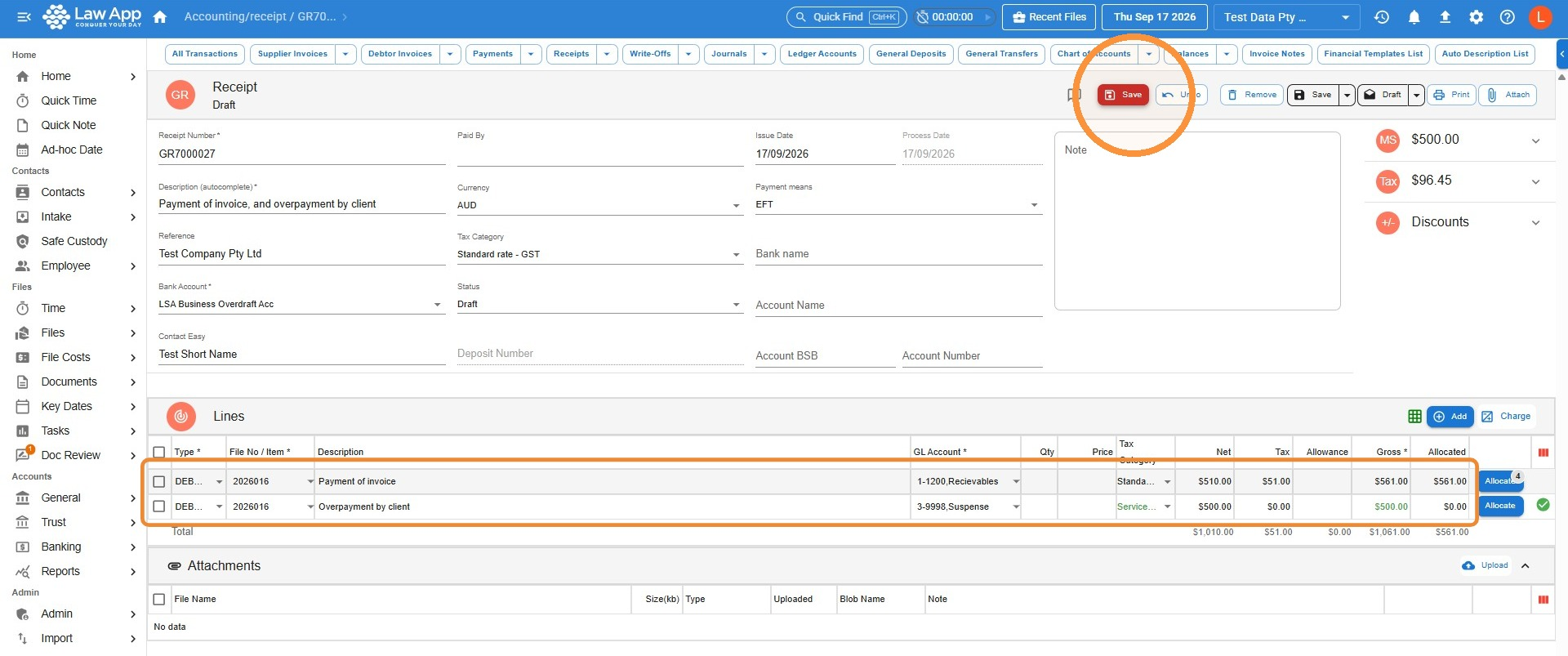
- Receipt the correct amount as a normal debtor receipt.
- Receipt the overpaid portion as a general ledger receipt into your suspense account.
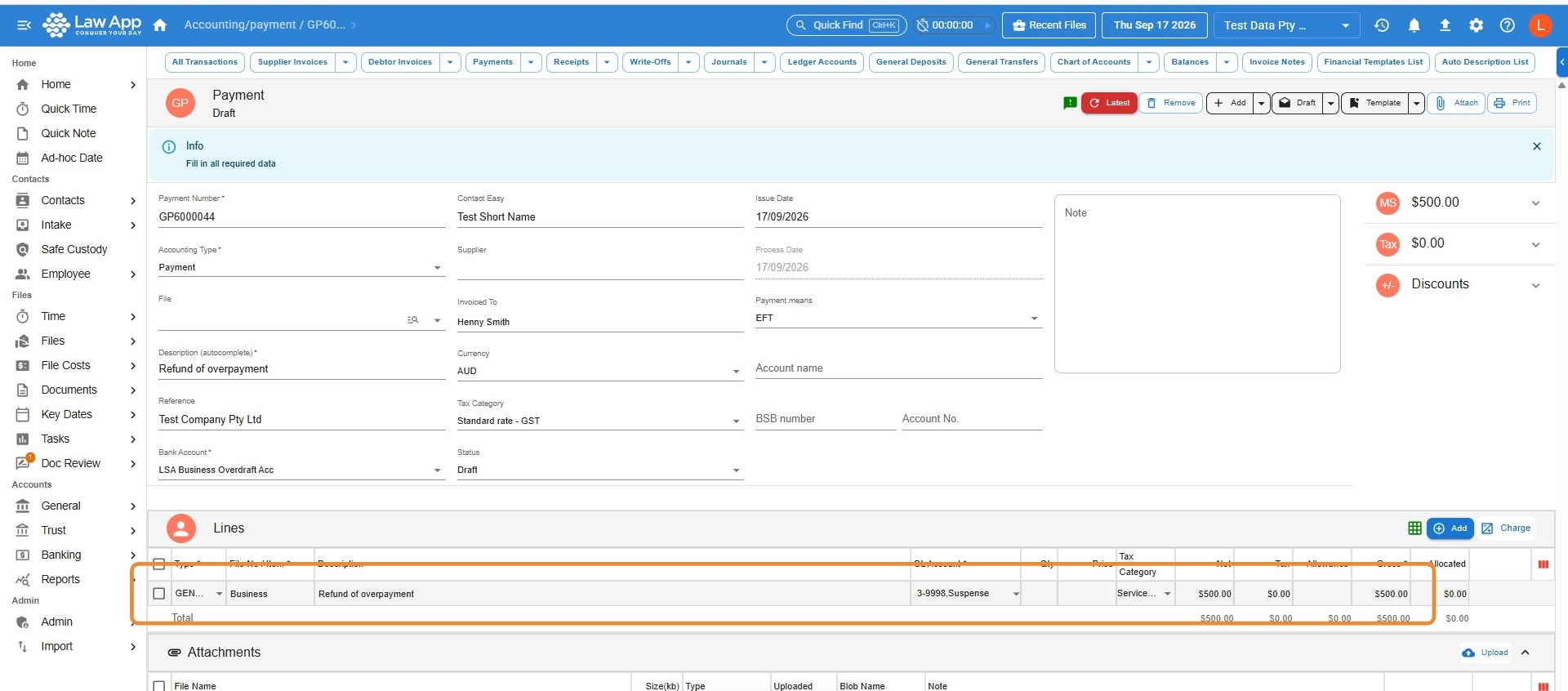
- When you issue the refund, create a General Payment back to the client from the suspense account.
Option 2 – File-based handling (internal handling)
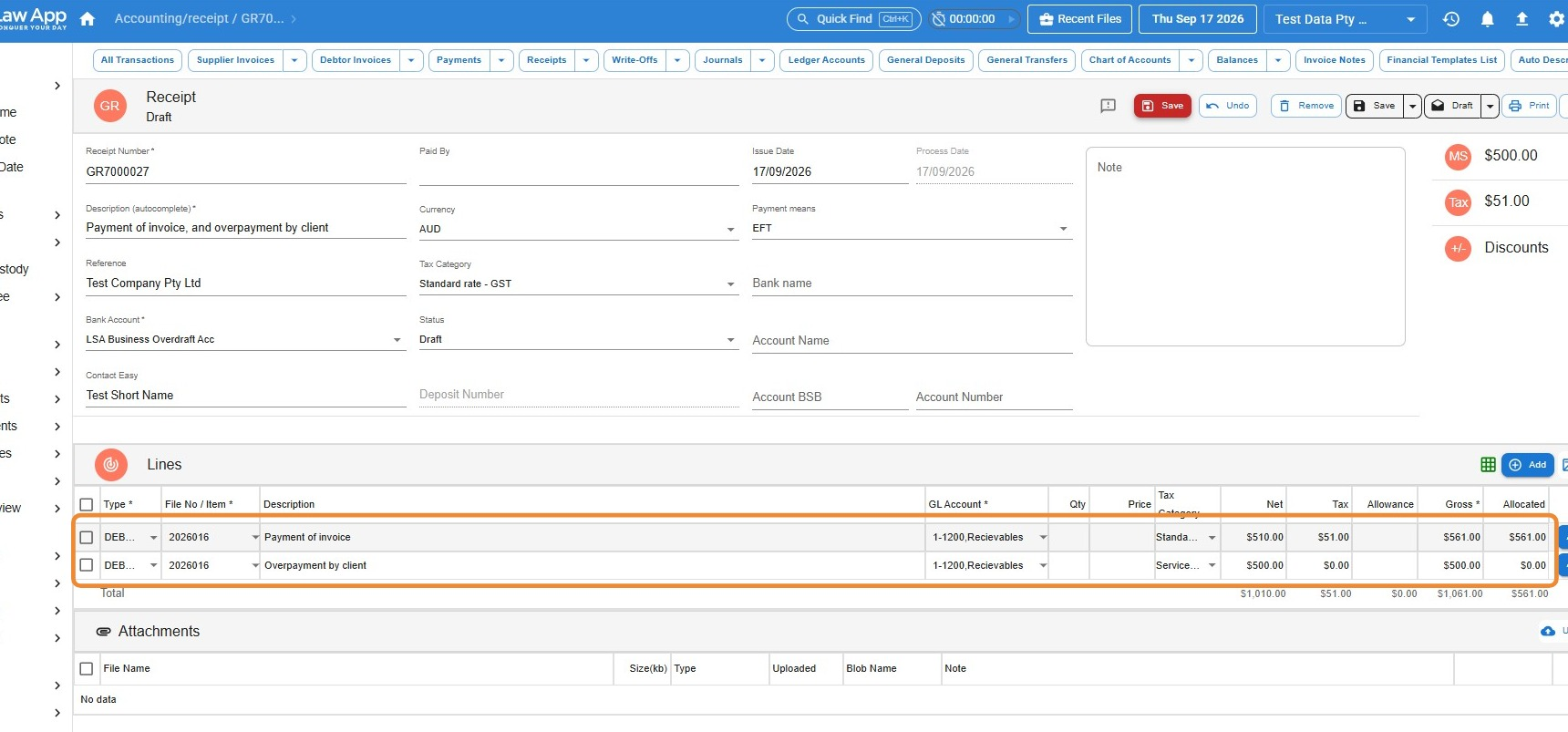
- Receipt the correct amount as a normal debtor receipt.
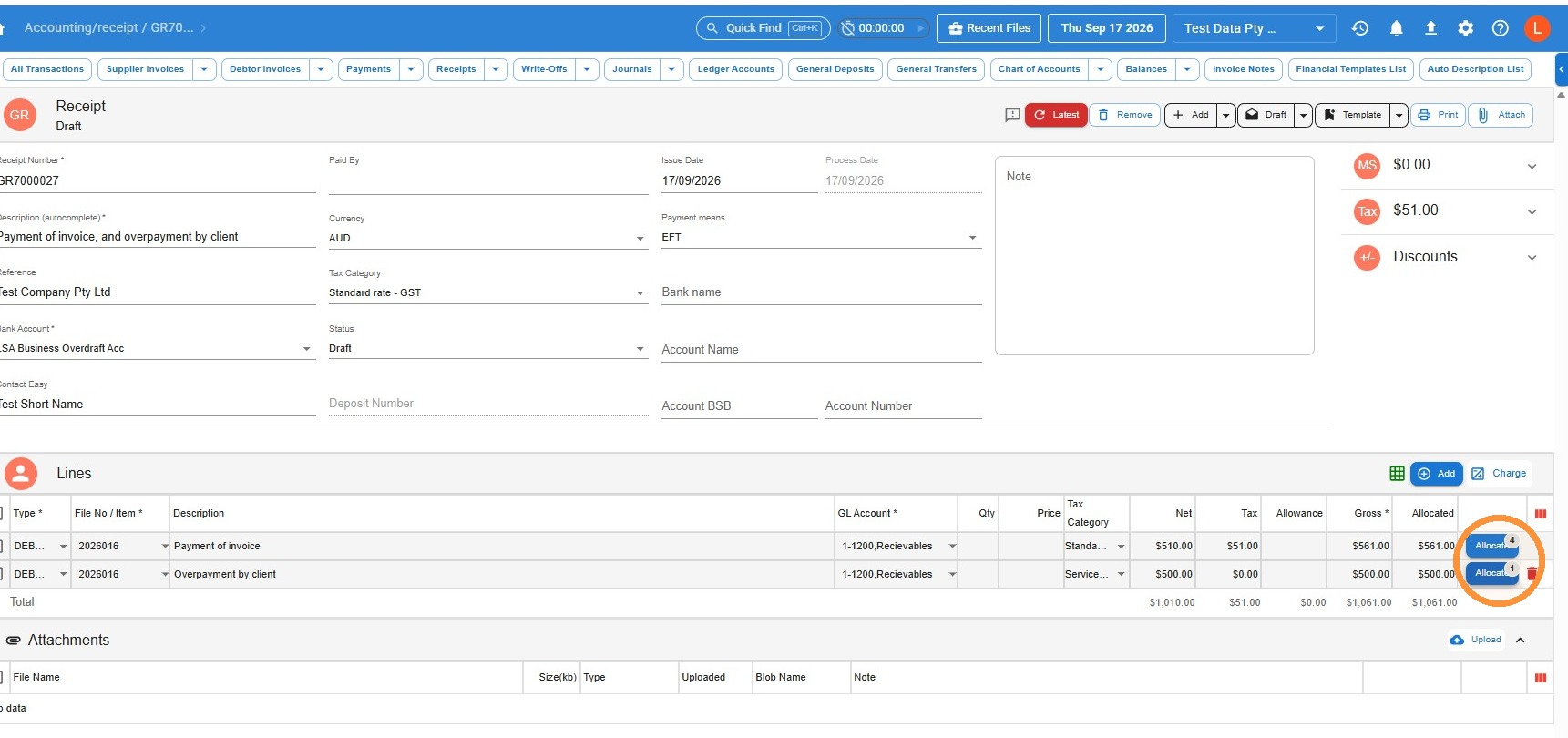
- Receipt the overpaid portion against the file. This records the money coming in on the file side — you’ll allocate it in a later step.
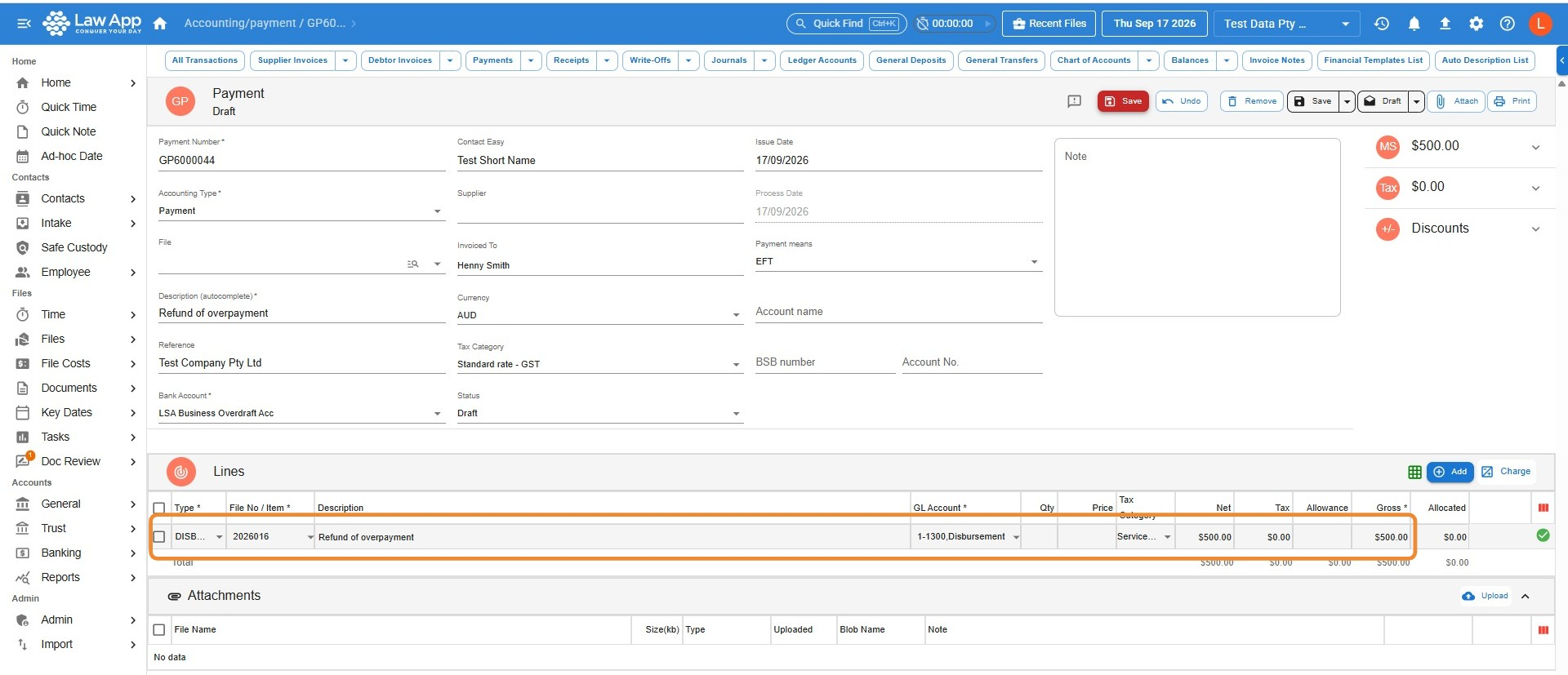
- Create a disbursement general payment out of the file for the same amount, to the client. This records the money leaving the file to go where it belongs.
- Create a bill that bills only the disbursement you’ve just created.
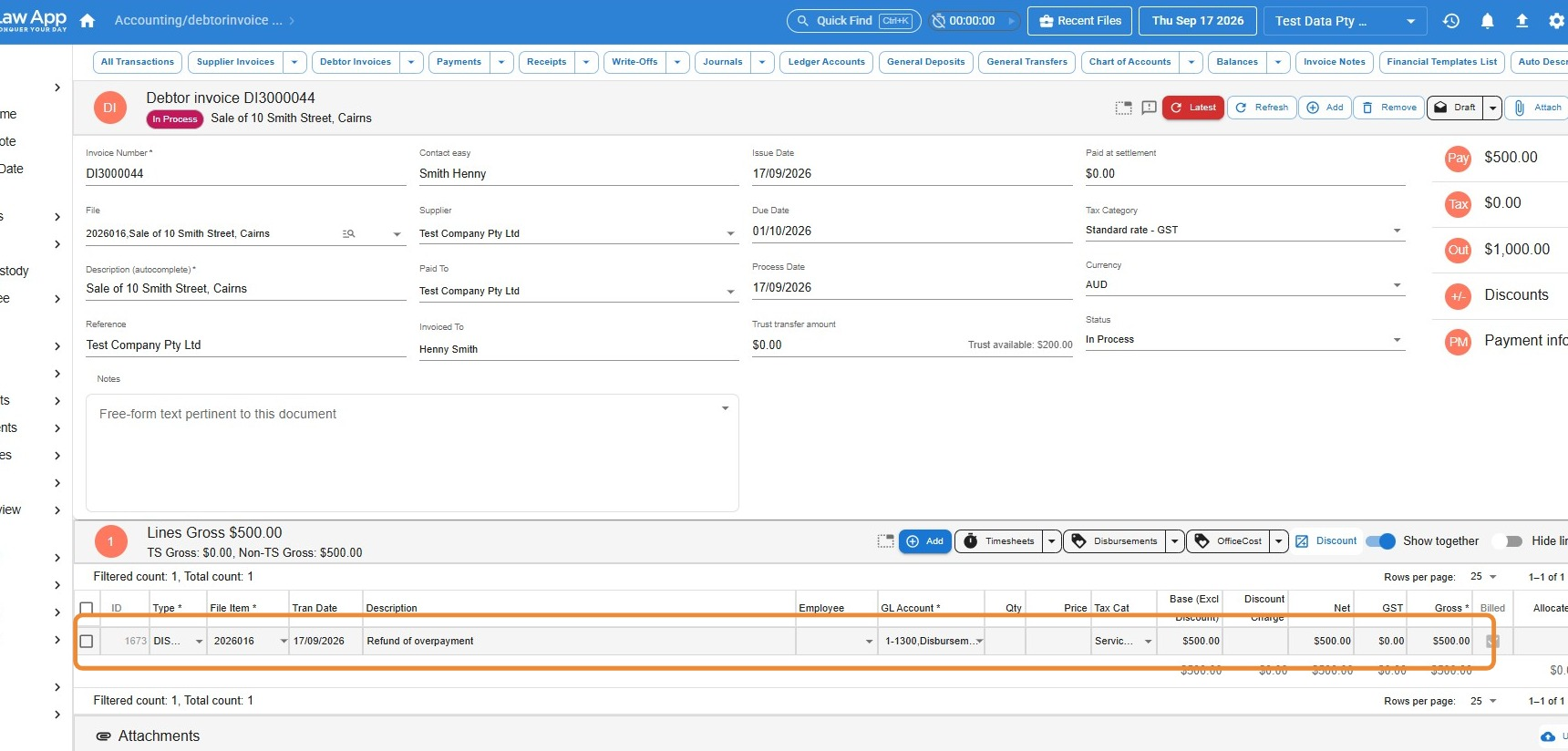
- Go back to the receipt, and allocate it to the bill you’ve just created. That clears the entry cleanly and keeps it off the disbursement outstanding report.
Refund of overcharged disbursements
This applies when an external authority or supplier has overcharged a disbursement — for example, a filing fee — and later refunds the difference.
Option 1 – Simple receipting with suspense (external handling)
- Record the disbursement at the correct amount on the file.
- When the refund is received, receipt the overpaid portion into your suspense account.
- Pay the refund back to the authority or supplier from suspense (via EFT or cheque).
Option 2 – File-based handling (internal handling)
- Create a Disbursement General Payment for the refunded amount, representing the money going back to the supplier.
- Bill the disbursement to generate a new invoice.
- Allocate the refund you received against this new invoice.
Refund of supplier disbursements
This applies when a supplier or authority refunds a disbursement you’d already paid in full — for example, a search fee or court fee that turned out not to be needed.
- Enter a negative disbursement on the file for the refund amount, or adjust the original disbursement to show the reversal.
- Ensure the GST treatment matches the original transaction (taxable or GST-free).
- Reconcile the refund payment (EFT or cheque) against the negative disbursement or adjusted entry.
This way, the file correctly reflects both the original outlay and the refund.
Credit notes against finalised debtor invoices
Sometimes a debtor invoice has already been finalised but needs correcting — say the wrong fee earner rate was applied, or professional fees were overcharged. Because a finalised invoice can’t be edited directly, you’ll need to raise a credit note instead. There are two ways to do this in Law App.
Option 1 – Negative time entries
- Go to the matter file and enter new time entries for the amount to be credited, using a negative amount.
- Bill those negative time entries as you normally would.
- From the invoice list, select the Credit Note layout for the newly created invoice.
- Issue the credit note.
Use this method when the correction relates directly to time-based charges, and you want the credit to flow through as a time entry adjustment.
Option 2 – Add a line to a debtor invoice
- Go to the matter file and add a new debtor invoice.
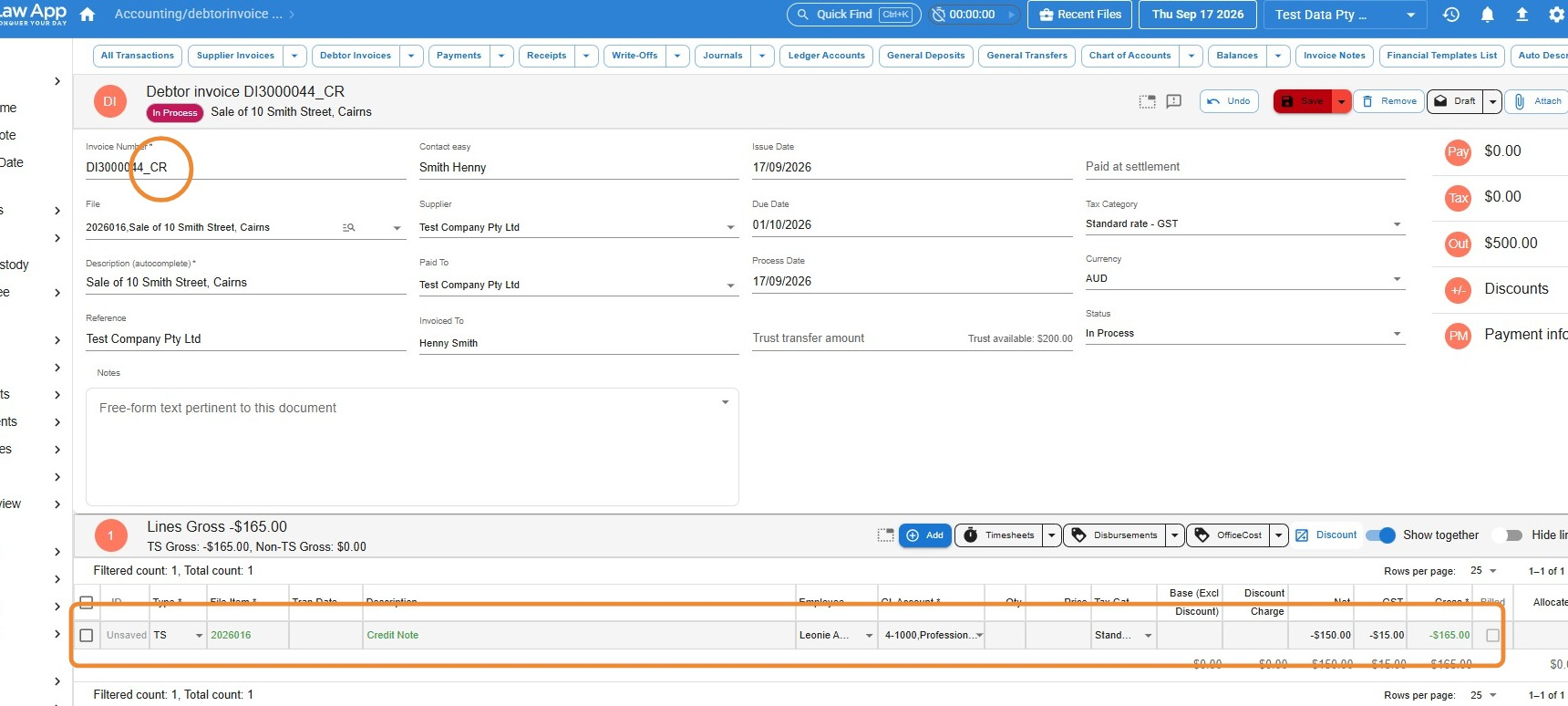
- Press + to add a line to the invoice.
- Set the line type to TS (Time/Service) and the GL code to Professional Fees.
- Enter the relevant fee earner.
- Enter the credit amount as a negative value.
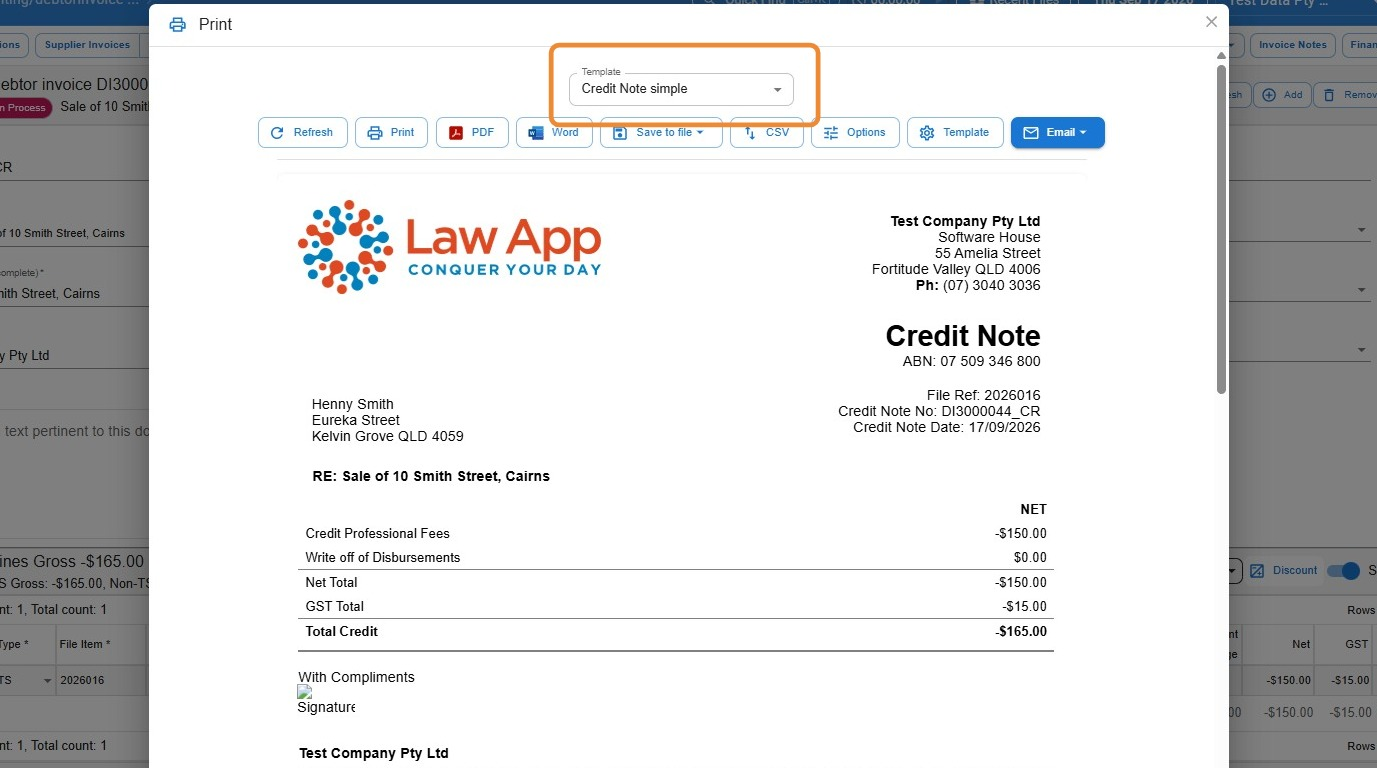
- From the invoice list, select the Credit Note layout for this invoice.
- Issue the credit note.
Use this method when you want to apply the credit directly as an invoice line, without creating separate time entries.
Whichever option you use, the finished credit note carries a negative line and its invoice number automatically gets a “_CR” suffix, so it’s easy to match back to the original invoice.
- Click Print, then choose the Credit Note layout from the template list so the document you send is clearly marked as a credit.
Best practice for overpayments and refunds
- Always confirm whether GST applies — GST-inclusive, GST-exclusive, or GST-free.
- Complete all allocations and adjustments before you generate any GST or compliance reports.
- Treat a suspense account as a temporary holding spot for external refunds only — not a permanent home for the money.
- Record the refund method (EFT, cheque, or adjustment) so there’s a clear audit trail.
- When you issue a credit note, always select the Credit Note layout from the invoice list, so the document is clearly identified as a credit.
Leave a Reply