How To Archive Files In Law App

Contents

    Including Settings for Archive location, and Archive number set up

    1. Step 1: Prepare File for Archiving

    • Navigate to the Accountant area of the file.
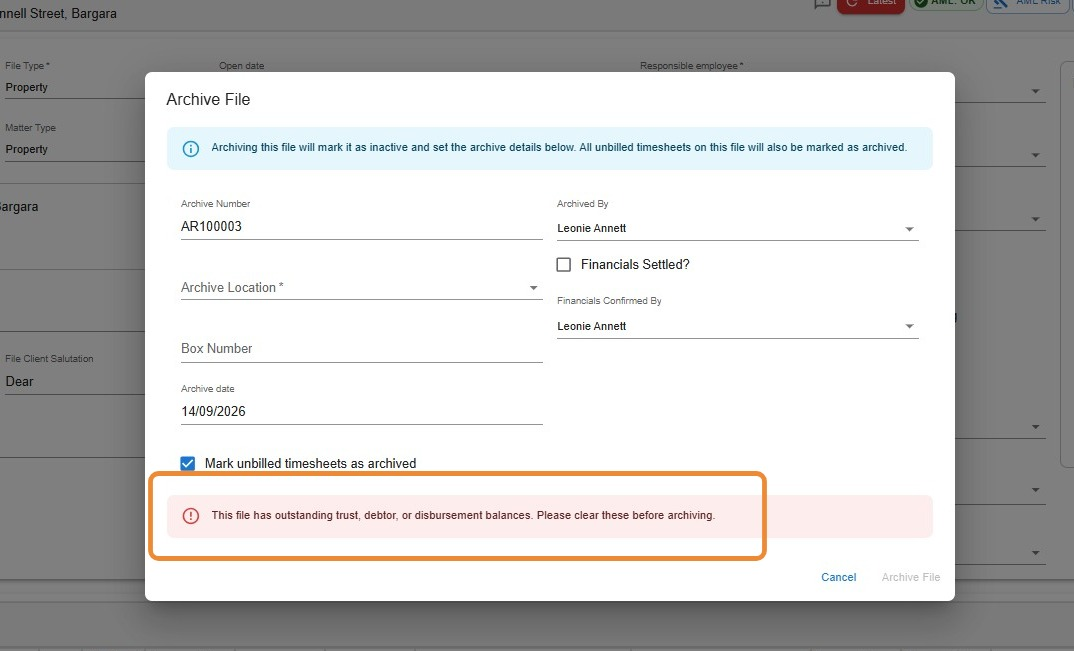
    • Confirm that all financials are at zero:
      • Disbursements: Fully billed, written off, or settled.
      • Outstanding Debtors: Cleared.
      • Trust Balances: Refunded or transferred appropriately.
    • Note: It is the firm’s internal policy to either:
      • Void unbilled time entries, or
      • Delete unbilled office costs.
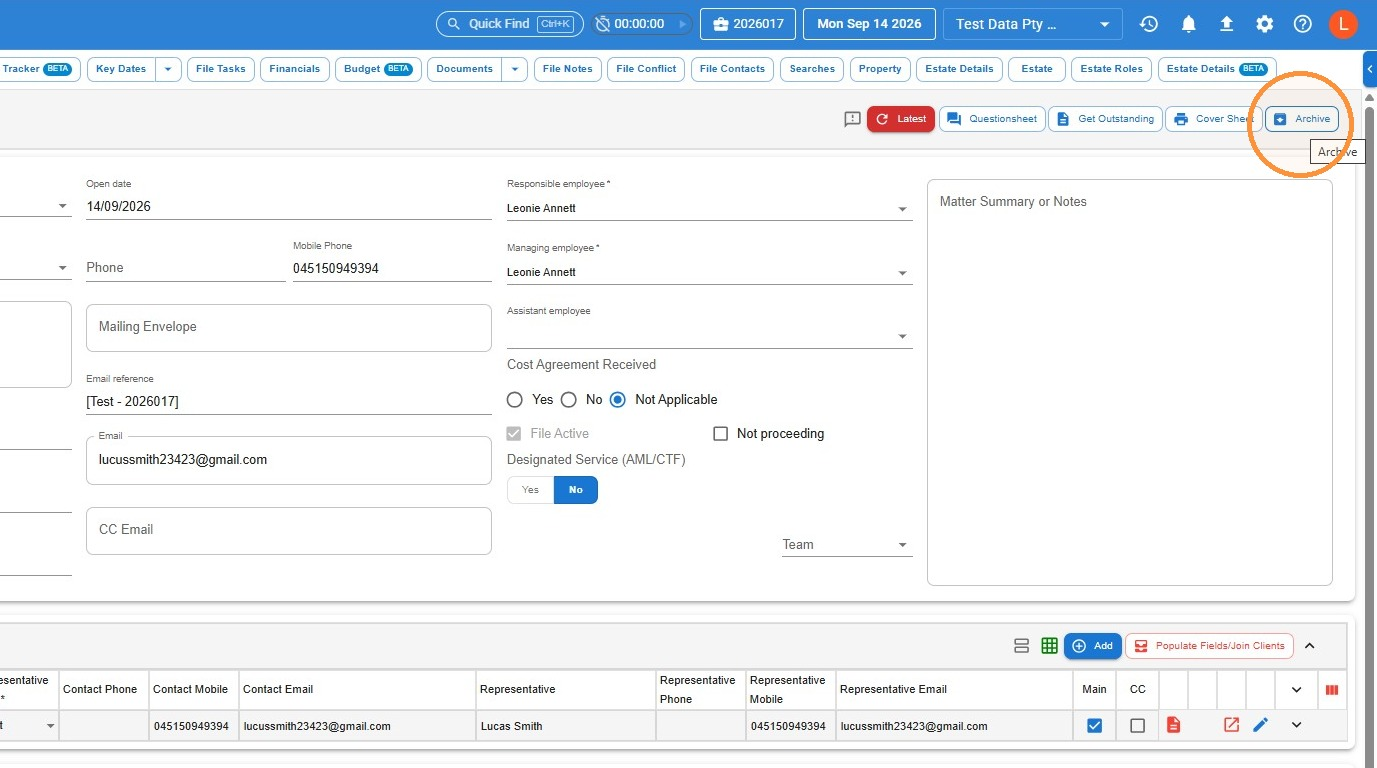
    • Once all financial items have been correctly finalised, go to the file in question and click the Archive button (as shown in the image).

    2. Step 2: Configure Archive File Options

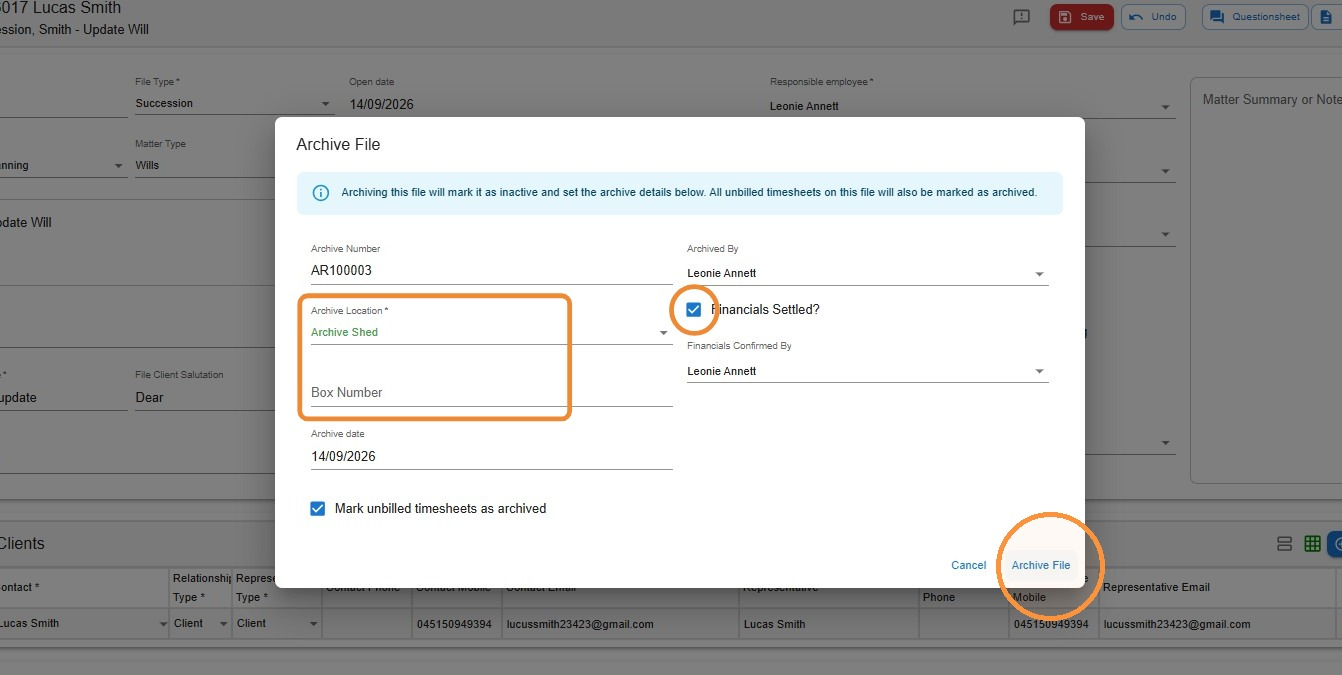
    • After clicking the Archive button, the Archive File Options window will appear.
    • The Archive File Number is automatically generated based on the firm’s settings.
      • This setting can be managed under Admin > Number Sequencing.
      • (Refer to the instructions at the bottom of this help sheet for more details.)
    • You may manually overwrite the generated archive number; however:
      • Doing so will not use the next number in the sequence.
      • The original sequential number will reappear the next time an archive is created.

    3. Step 3: Select Archive Location

    • In the Archive File Options window, choose an Archive Location from the drop-down menu.
    • If no archive location appears:
      • Navigate to Settings > File Settings > File Archive Location to create one.
      • (Instructions for this are provided at the bottom of the help sheet.)

    4. Step 4: Enter Box Number (if applicable)

    • Law firms may use a Box Number to group multiple archived files for easier physical retrieval from storage.
    • If your firm follows this practice:
      • Enter the relevant Box Number in the designated field now.

    5. Step 5: Confirm Financials Are Settled

    • Click the “Financials Settled?” checkbox.
    • Important: Only tick this box after you have confirmed that all financials are fully settled.
    • A log record is created showing the user who:
      • Flags this field, and
      • Archives the file.

    6. Click “Archive File”

    7. Step 6: Unarchiving a File

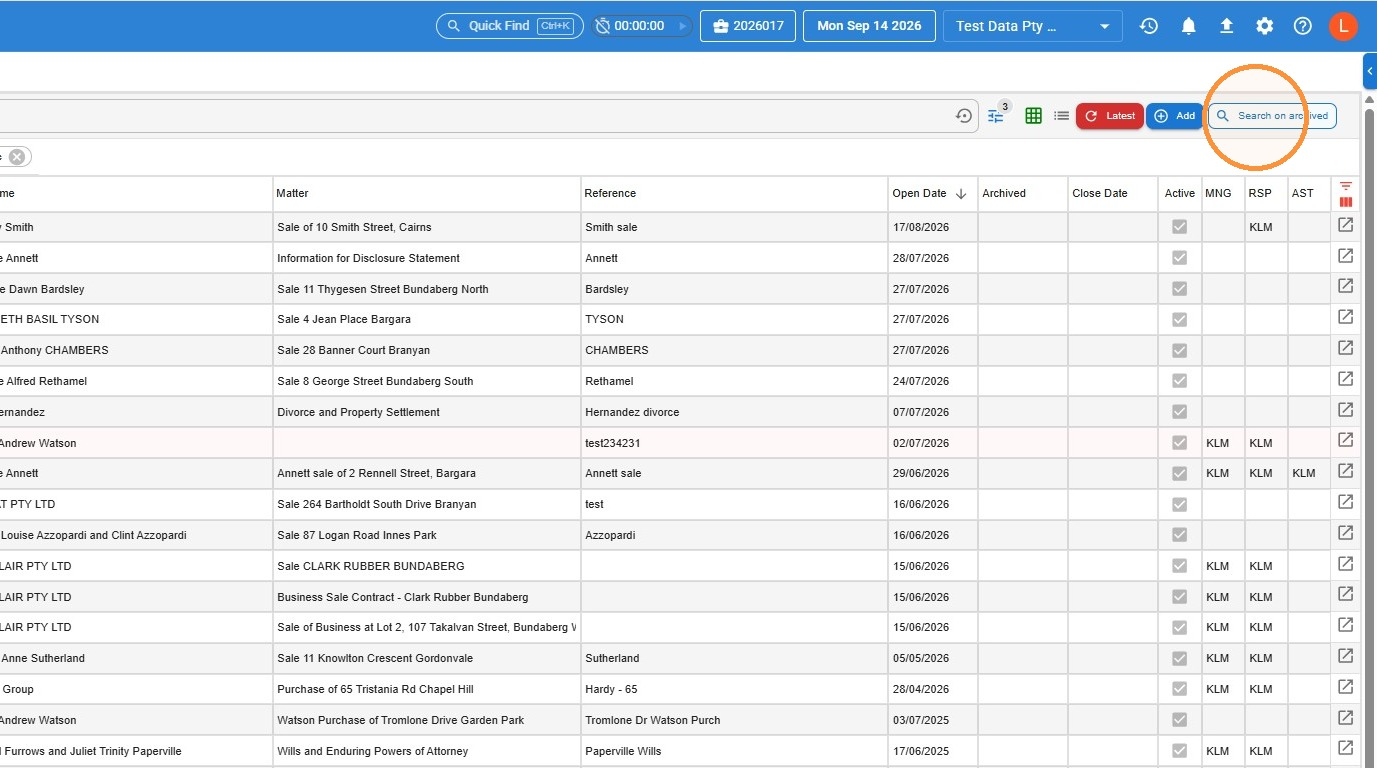
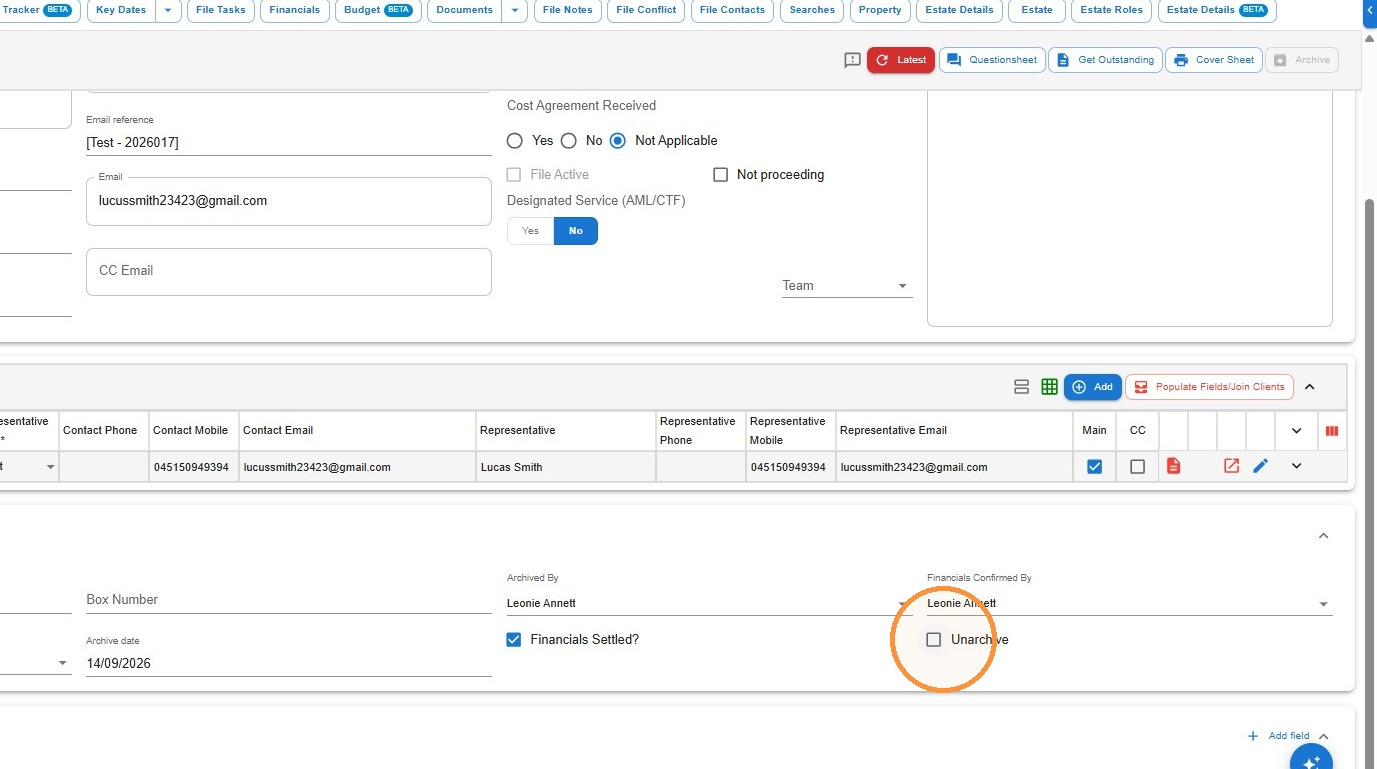
    • To unarchive a file, click the “Unarchive” checkbox.
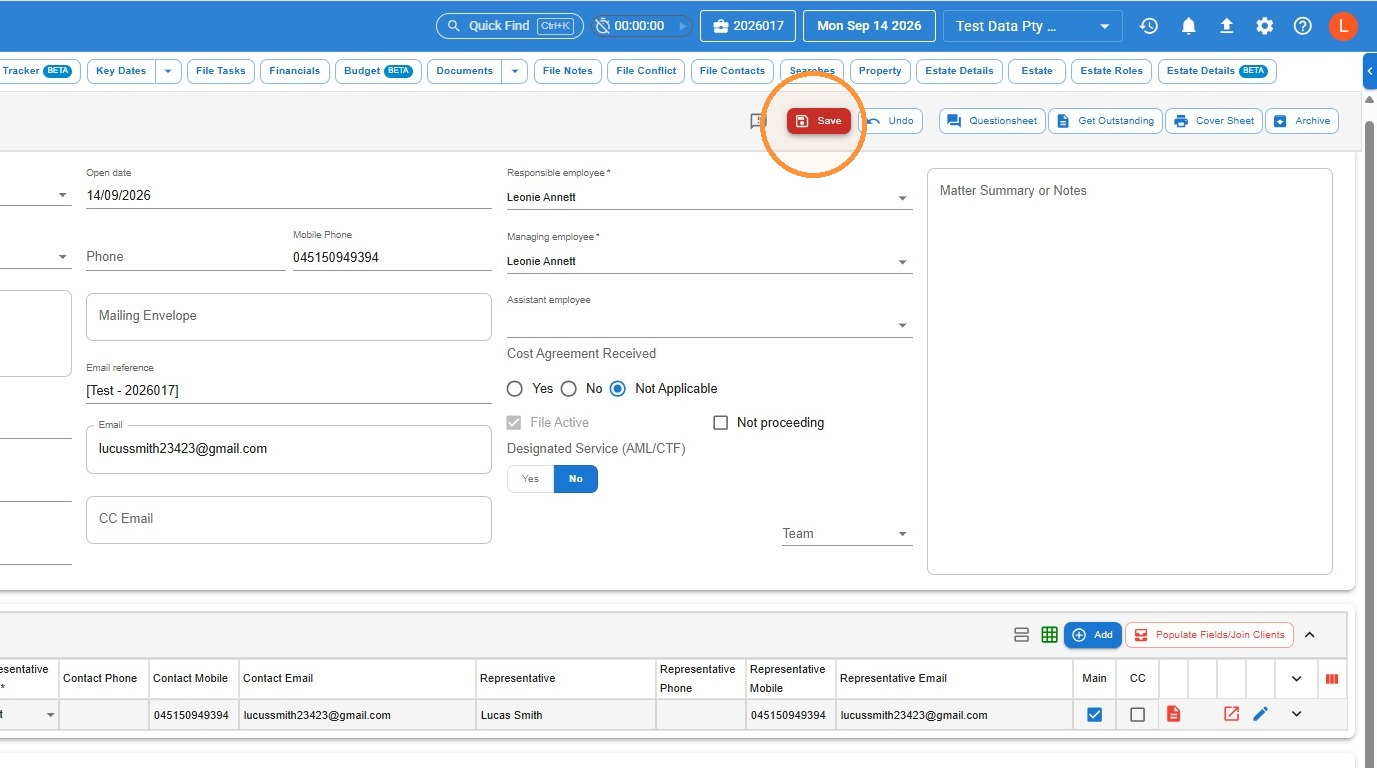
    • After doing so, make sure to click Save to apply the change.
    • Note:
      • Archiving details (e.g., box number, archive location) will be retained unless you manually remove or update them.
      • You may:
        • Leave the original details intact if you plan to rearchive the file and return it to the same location, or
        • Overwrite the details if the file’s storage location has changed.
    • Always ensure the archive details accurately reflect the current physical location of the file.

    8. Step 7: Save Changes

    • After flagging the “Unarchive” checkbox:
      • Either press Tab or click elsewhere on the screen to activate the Save button.
    • Once visible, click “Save” to confirm the change.
    • Important: If you do not save, the file will remain archived.

    9. Step 8: Add an Archive Location

    • To create a new archive location:
      • Go to Settings > File Settings > File Archive Location.
    • From here, you can add and manage archive locations as required.

    10. Step 9: Select Archive Location Settings

    • In the Settings menu:
      • Click on File, then select Archive Location.
    • This will open the area where you can view, add, or edit archive locations.

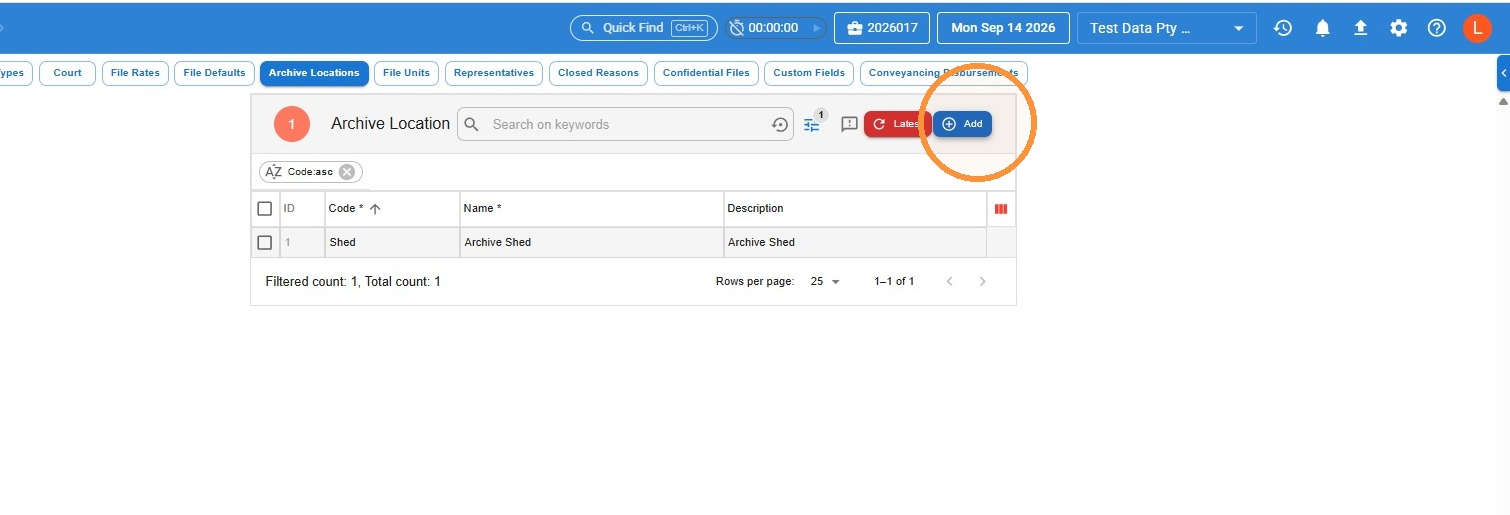
    11. Step 10: Add a New Archive Location

    • Click the Add (+) icon.
    • Enter the details for the new archive location in the fields provided.
    • Save the new entry to make it available in the archive location dropdown.

    12. Step 11: Save the New Archive Location

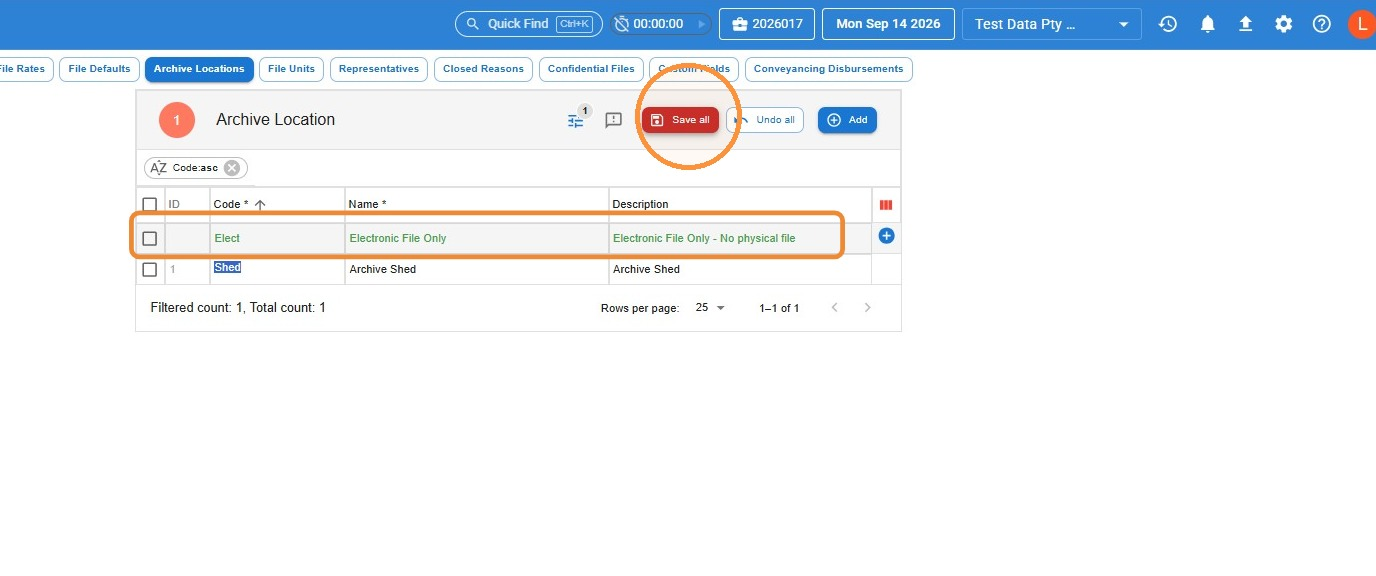
    • After entering the new location details, click “Save All” to apply the changes.
    • Tip: Refer to the sample screen provided for guidance on setting up an “Electronic Copy Only” archive location.

    13. Step 12: Edit the Archive Number System

    • To modify the archive numbering system, please contact an admin on your team.
    • The admin will need to:
      • Go to the Admin section via the left-hand main menu.

    14. Click “Number Sequencer”

    15. Step 13: Add Archive Numbering (if needed)

    • In the Number Sequencing section:
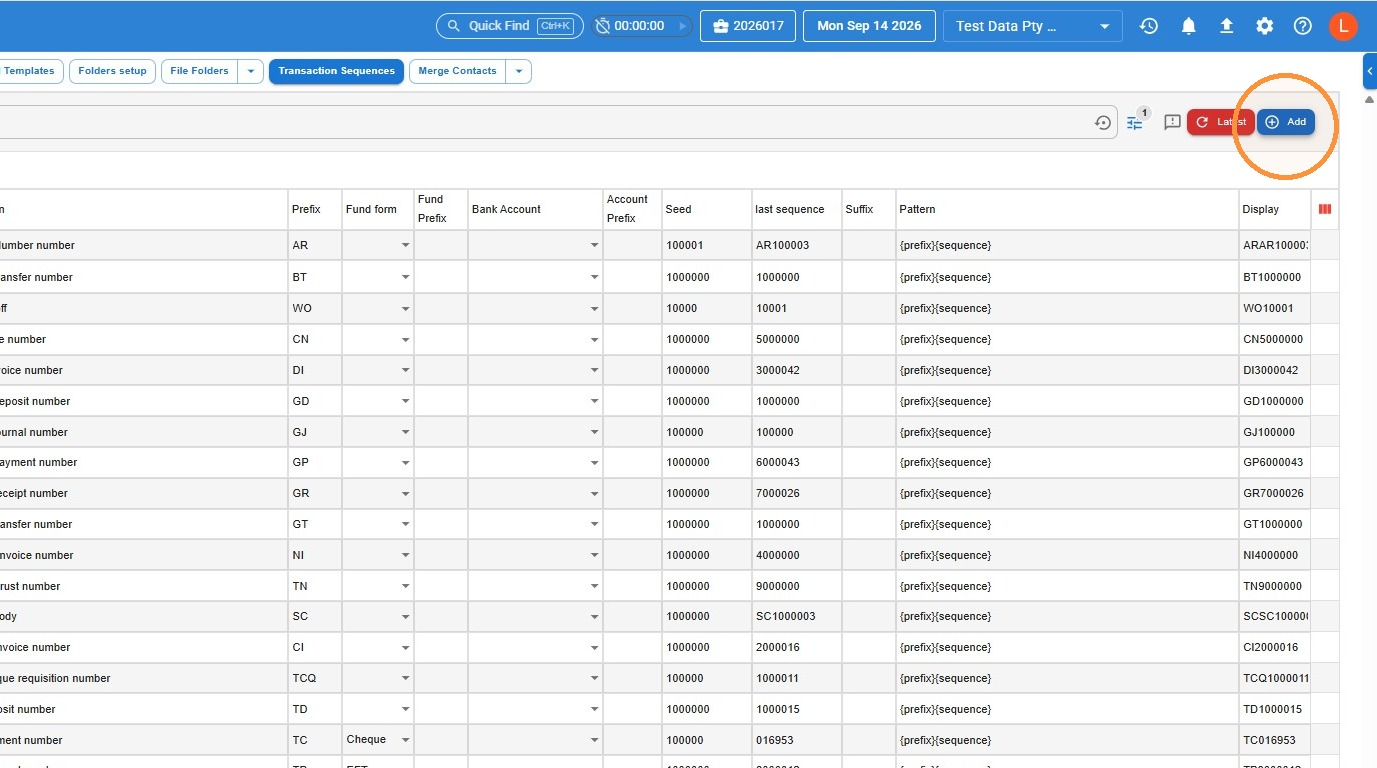
      • If no archive numbering appears in the list, click “Add” to create a new numbering sequence.
      • If an archive numbering sequence is already listed, you can skip this step.

    16. Step 14: Select Archive Number Type

    • When adding a new numbering sequence:
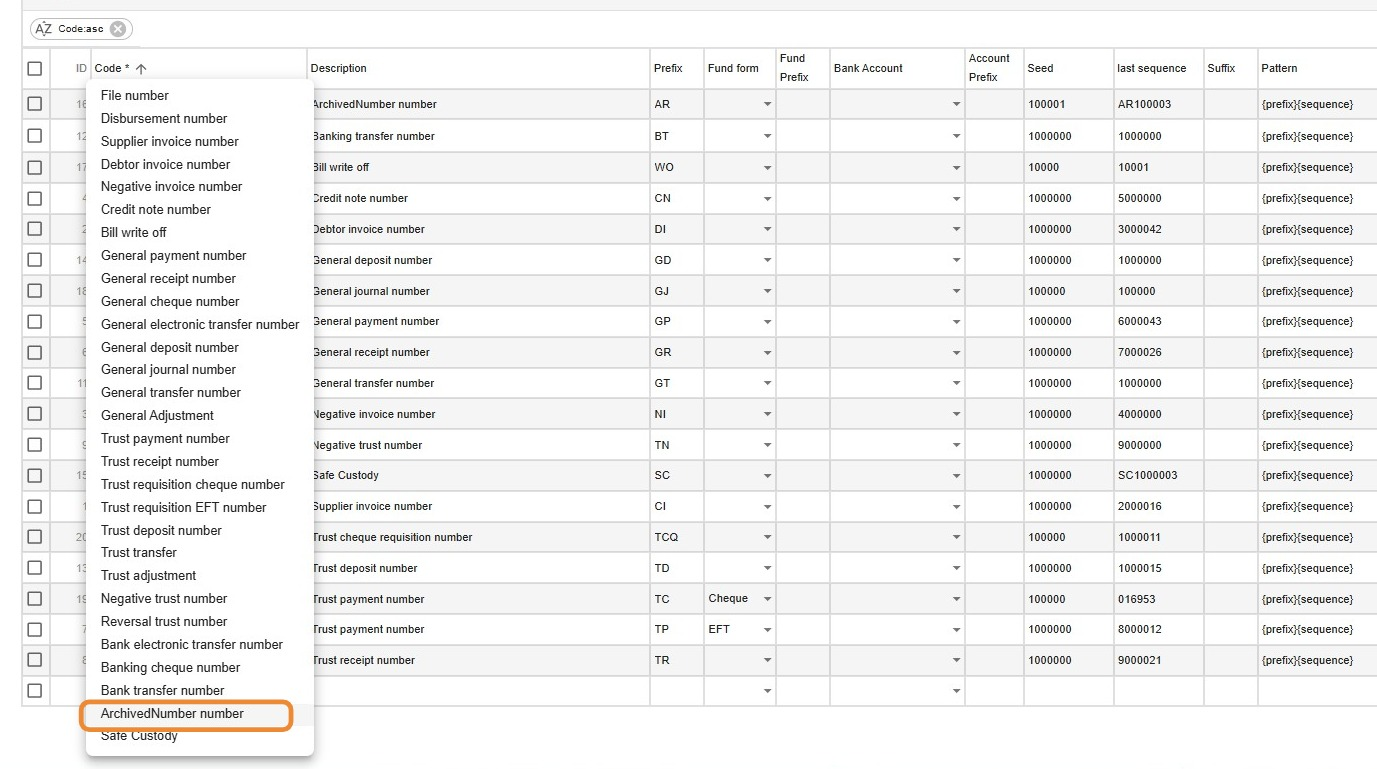
      • Choose “ArchivedNumber” from the Type drop-down menu.
    • Note: Skip this step if an archive numbering sequence is already present.

    17. Click this text field.

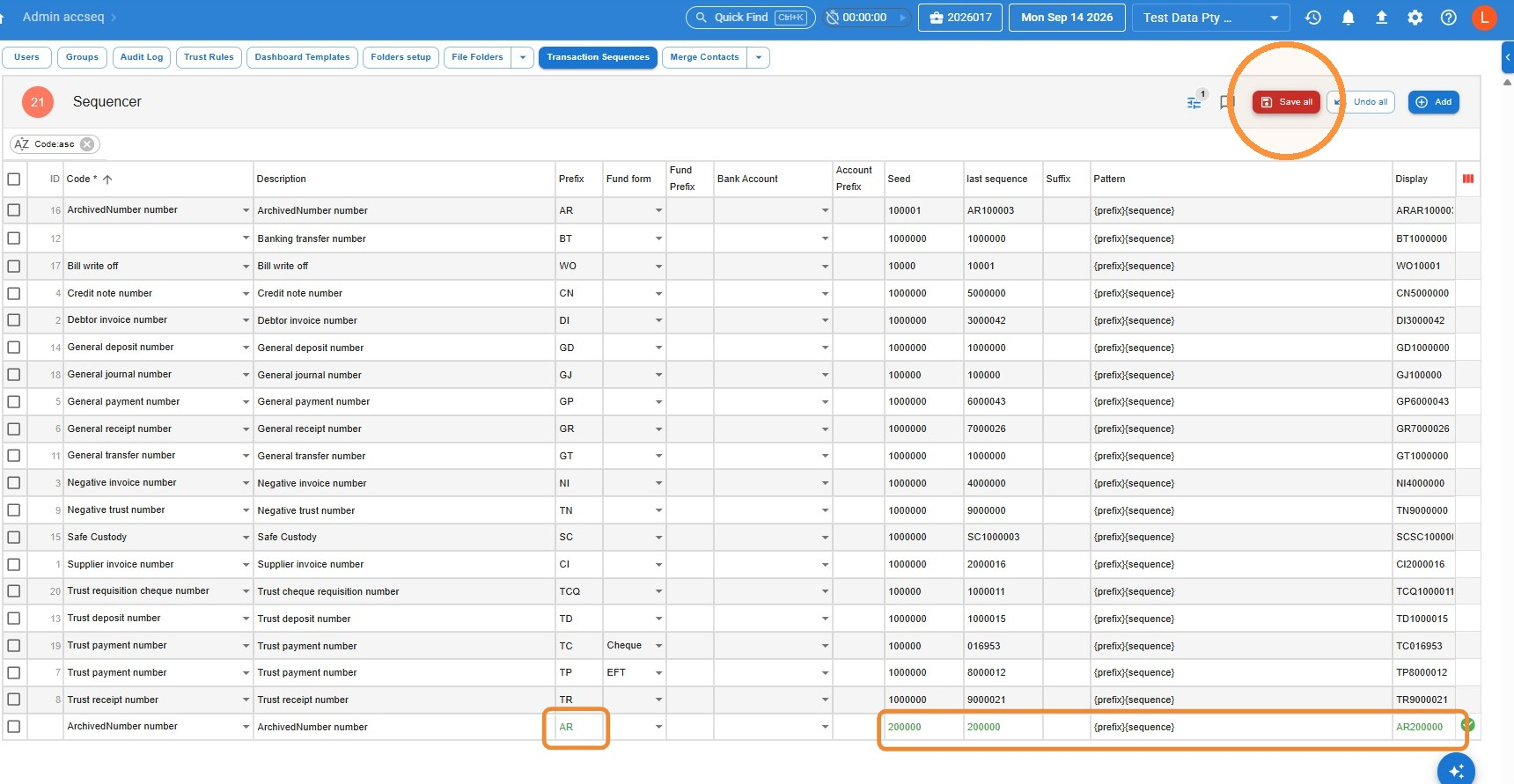
    18. Type a prefix of your choice I have selected AR as a sample and fill in your seed sequence

    19. Step 16: Define the Number Format

    • In the Format field, type or paste: {Prefix}{Sequence}
      • This ensures the archive number will appear in the format AR100001, where:
        • AR is the prefix, and
        • 100001 is the sequence number.

    20. Type “AR100001”

    21. Step 17: Example Format for Archive Number

    • A complete example using the prefix AR and a starting sequence of 100001 will look like this:

      Prefix: AR
      Seed Sequence: 100001
      Format: {Prefix}{Sequence}
      Resulting Archive Number: AR100001

    22. Step 18: Save and Refresh

    • Click “Save All” to apply your changes.
    • Press F5 to refresh the screen before proceeding with any new archiving.
    • Best Practice:
      • If you are setting up the numbering sequence for another user, ask them to also press F5.
      • This ensures all new settings are fully applied, especially if they had the file area open while changes were made.

    Updated on 13 May 2026

    Leave a Reply

    Your email address will not be published. Required fields are marked *