
Reminder templates are the wording of the emails your firm sends when a bill is overdue. Each tier uses a template, and Law App fills in the client’s name, the invoice, the amount and your payment details for every reminder it sends.
Use this sheet to change what your reminders say. To change when each template is used, or which template a tier uses, see Overdue Reminders settings.
How to open the templates
- Click Settings at the bottom of the left menu.
- Under Firm, click Overdue Reminders, then Templates.
You need Accounting edit access to change templates. With view access, you can open and preview them only.
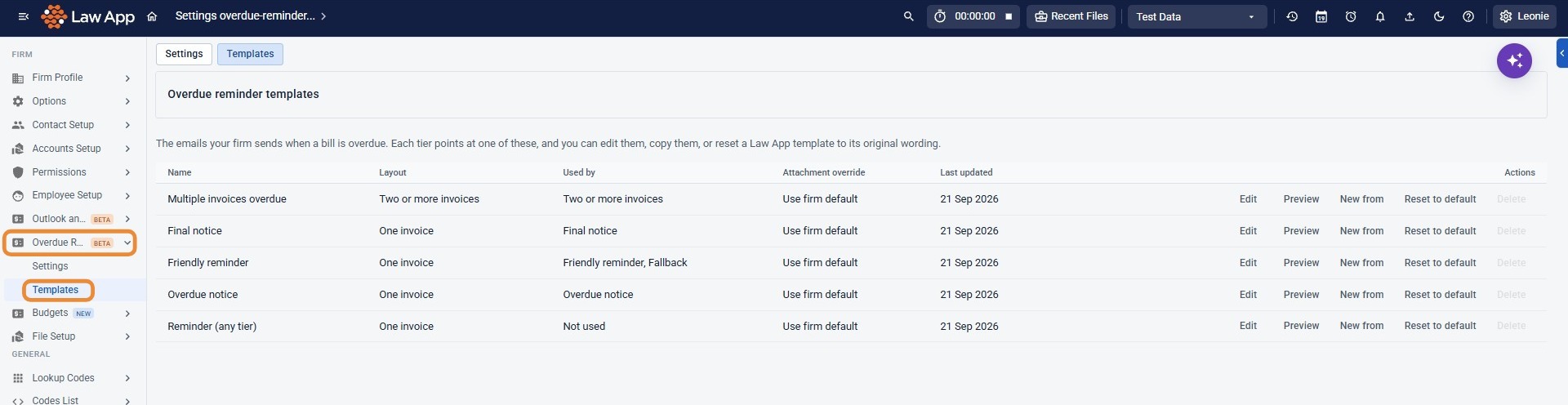
The templates Law App gives you
| Template | Layout | Used for at the start |
|---|---|---|
| Friendly reminder | One invoice | The Friendly reminder tier (30 days). Polite, and asks the client to ignore it if they’ve already paid. |
| Overdue notice | One invoice | The Overdue notice tier (60 days). Firmer, and invites the client to talk about the account. |
| Final notice | One invoice | The Final notice tier (90 days). Asks for payment within 7 days. |
| Multiple invoices overdue | Two or more invoices | Any reminder covering two or more invoices, at any tier. Lists the invoices in a table with a total. |
| Reminder (any tier) | One invoice | A general wording you can use as the fallback template. |
The list
| Column | What it shows |
|---|---|
| Name | The template’s name. You choose it from this name in the settings. |
| Layout | One invoice or Two or more invoices. A one-invoice template can be given to a tier or used as the fallback. A two-or-more template can be used as the template for two or more invoices. |
| Used by | Which tiers use it, or whether it’s the multiple invoices or fallback template. Not used means nothing sends it. |
| Attachment override | What this template attaches, or Use firm default. |
| Last updated | When the template was last saved. |
| Button | What it does |
|---|---|
| Edit | Opens the template to change it. Shows View if you can’t edit. |
| Preview | Opens the template on its Preview tab, filled in with real data. |
| New from | Makes a new template starting with this one’s wording and layout. Give it a name and press Create. This is how you add a template of your own. |
| Reset to default | Puts back Law App’s original wording straight away, with no confirm step, so copy any wording you want to keep first. Only on the templates Law App gives you. |
| Delete | Deletes a template of your own. Greyed out while a tier or setting still uses it (hover to see what), and for the templates Law App gives you. |
How to change a template’s wording
- Press Edit on the template.
- Change the Subject and the Body. To add a detail such as the invoice number, find it in the Fields panel on the right, press its copy button, and paste it where you want it.
- Press Preview at the bottom to see it filled in, on the Preview tab.
- Press Save. If something is wrong, a message says what and nothing is saved.
| Field | Notes |
|---|---|
| Name | Must be different from your other templates. |
| Subject | The email subject line. Required. Fields can be used here too. |
| Body | The email itself, written as HTML (the code that formats an email). Required. Keep the existing tags, such as <p> for each paragraph, and change the words between them. If you’re not comfortable with HTML, use New from on a template and change only the words. |
| Attachment override | Use firm default, Statement of account, Original bill(s), Both or Nothing. Lets one template attach something different from the firm setting. For example, attach the original bill with the Final notice only. |
While you type, Law App warns you about anything it can’t fill in:
- … is not a field you can use. The name between the braces isn’t in the Fields panel. Check the spelling, including capitals and underscores.
- … must be written with two braces, not three. Only Payment_Details and Firm_Signature use three braces.
- Messages about
{{#each OverdueItems}}: see Templates for two or more invoices.
The preview
The preview fills the template with one of your firm’s real overdue invoices, and the line underneath names the client it used. If your firm has no overdue invoices yet, it uses sample data and says so. The preview is only on your screen; nothing is sent.
Fields
A field is a detail Law App fills in for each reminder. Write it as its name between two curly braces, for example {{Client_Salutation}}. The names must be exact.
| Field | What it shows |
|---|---|
| Firm_Name | Your firm’s name, from the firm profile. |
| Firm_Contact_Name | The contact name from the reminder settings. |
| Firm_Phone | The phone number from the reminder settings. |
| Firm_Email | The email address from the reminder settings. |
| Payment_Details | Your payment details, with their formatting. Write with three braces: {{{Payment_Details}}}. |
| Firm_Signature | Your email signature and logo, with their formatting. Write with three braces: {{{Firm_Signature}}}. |
| Client_Name | The client’s name. |
| Client_Salutation | How to address the client (for example “Andrew”), or the client’s name if there’s no salutation. |
| Matter_Description | The matter. For a reminder covering several matters, a summary phrase. |
| Matter_Reference | The file code. |
| Invoice_Number | The invoice number. For several invoices, the oldest one. |
| Invoice_Date | The invoice date, written like 14 Jul 2026. |
| Due_Date | The date payment was due, written like 28 Jul 2026. |
| Days_Overdue | How many days overdue. For several invoices, the largest. |
| Amount_Outstanding | The amount owing on the invoice. |
| Total_Outstanding | The total owing across every invoice in the reminder. |
| Invoice_Count | How many invoices the reminder covers. |
| Tier_Label | The name of the tier, such as Final notice. |
| Attachment_Sentence | A sentence saying what is attached, such as “A statement of account is attached.” Law App writes it to match what actually goes, so it is always right. |
| Today | Today’s date, in your firm’s time zone. |
| OverdueItems | The list of invoices, for templates for two or more invoices only. See below. |
Payment details can use fields too. For example, in the settings you can write “Please quote {{Matter_Reference}} as your reference”, and each client sees their own file code.
Templates for two or more invoices
A template with the Two or more invoices layout lists each invoice using a repeating block. Everything between the start and end markers is written once for every invoice:
Inside the block you can use Matter_Description, Matter_Reference, Invoice_Number, Invoice_Date, Due_Date, Days_Overdue and Amount_Outstanding. A two-or-more template must have exactly one block, and a one-invoice template can’t have one.
The Multiple invoices overdue template puts the block inside a table with a total row. The easiest way to change it is to change only the words around the table.
Tips for good wording
- Don’t say a previous reminder was sent. An invoice gets the tier it qualifies for today, so a very old invoice can get the Final notice as its first reminder.
- Use {{Attachment_Sentence}} for attachments. If you write “please find attached your statement” yourself and nothing is attached, the email is incorrect.
- Keep {{{Payment_Details}}} and {{{Firm_Signature}}} in every template, so clients can see how to pay and who the email is from.
- Preview before you save. Check the email reads well with a real client’s details.
Common questions
| Question | Answer |
|---|---|
| The list is empty | The templates are created the first time someone opens Settings, Overdue Reminders, Settings. Open that page once, then come back. |
| How do I make a new template? | Press New from on the template closest to what you want, give it a name, and edit the copy. |
| How do I make a tier use my new template? | In Settings, Overdue Reminders, Settings, choose it in the tier’s Single-bill email template, then Save settings. |
| I can’t delete a template | It’s in use (hover over Delete to see where), or it’s one Law App gives you. Point the tier at another template first. |
| I changed the wording and want the original back | Press Reset to default. This only works on the templates Law App gives you. |
Leave a Reply