
Scenario: File not selectable or email won’t save
If the Email Add-in opens but doesn’t allow you to select a file, or saving the email doesn’t work as expected, the following steps usually resolve the issue:
1. Sign Out and Back Into LawApp
This refreshes your session and usually restores functionality.
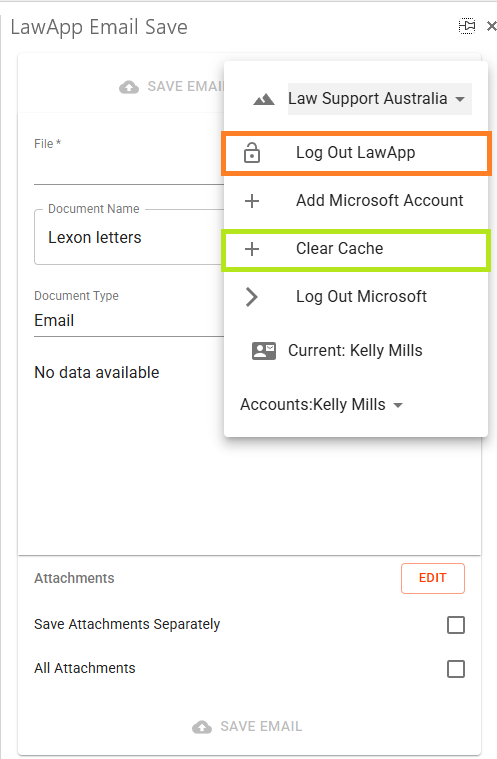
- Open the dropdown in the top right of the add-in sidebar.
- Select Log Out LawApp.
- Then log back in from the same sidebar.
2. Refresh the Add-in
To clear any display issues or load delays:
- Click inside the sidebar panel.
- Press Ctrl + F5 to force a refresh.
3. Reset Microsoft Login (if needed)
If the above steps don’t resolve it:
- In the same dropdown, click Log Out Microsoft.
- Then select Clear Cache.
- Log back into Microsoft via the sidebar.
1. Sign Out and Back Into LawApp
This refreshes your session and usually restores functionality.
- Open the dropdown in the top right of the add-in sidebar.
- Select Log Out LawApp.
- Then log back in from the same sidebar.
2. Refresh the Add-in
To clear any display issues or load delays:
- Click inside the sidebar panel.
- Press Ctrl + F5 to force a refresh.
3. Reset Microsoft Login (if needed)
If the above steps don’t resolve it:
- In the same dropdown, click Log Out Microsoft.
- Then select Clear Cache.
- Log back into Microsoft via the sidebar.
These steps address the majority of display and session issues with the LawApp Outlook Add-in.
