
Bank feeds let Law App pull transactions directly from your bank, so you’re not manually importing statements. The connection is handled through Fiskil, a secure open banking provider. Once connected, transactions sync automatically every hour.
Before you start
Check that you have the following ready before beginning:
- Access to your firm’s online business banking — you’ll need to log in during the connection process. Personal banking credentials won’t work for a business account.
- The email address registered to your business bank account.
- Your bank may require an authorised signatory to approve the connection. If you’re not sure, check with your bank before starting.
Connect your bank
Navigate to Settings in the bottom-left menu, then select Banking Setup, then Bank Sync.
Click Configure Fiskil. This opens the Fiskil authorisation flow in your browser. From here:
- Click Continue to authorise the connection.
- Select your bank from the institution list.
- Enter the email address registered to your business banking account and request a verification code.
- Enter the code when it arrives.
- Select which accounts you want to sync — you can select multiple.
- Click Confirm and share to complete the authorisation.
Once confirmed, you’ll be returned to Law App automatically. Click Check Fiskil Status — this verifies that the authorisation has registered correctly. Your status should show as Connected before you proceed. If it doesn’t, wait a moment and try again.
Map your accounts and set the sync date
Once connected, the Bank Sync screen shows each of your Law App bank accounts. Each account needs to be mapped to the corresponding Fiskil account and given a sync start date before it will begin importing transactions.
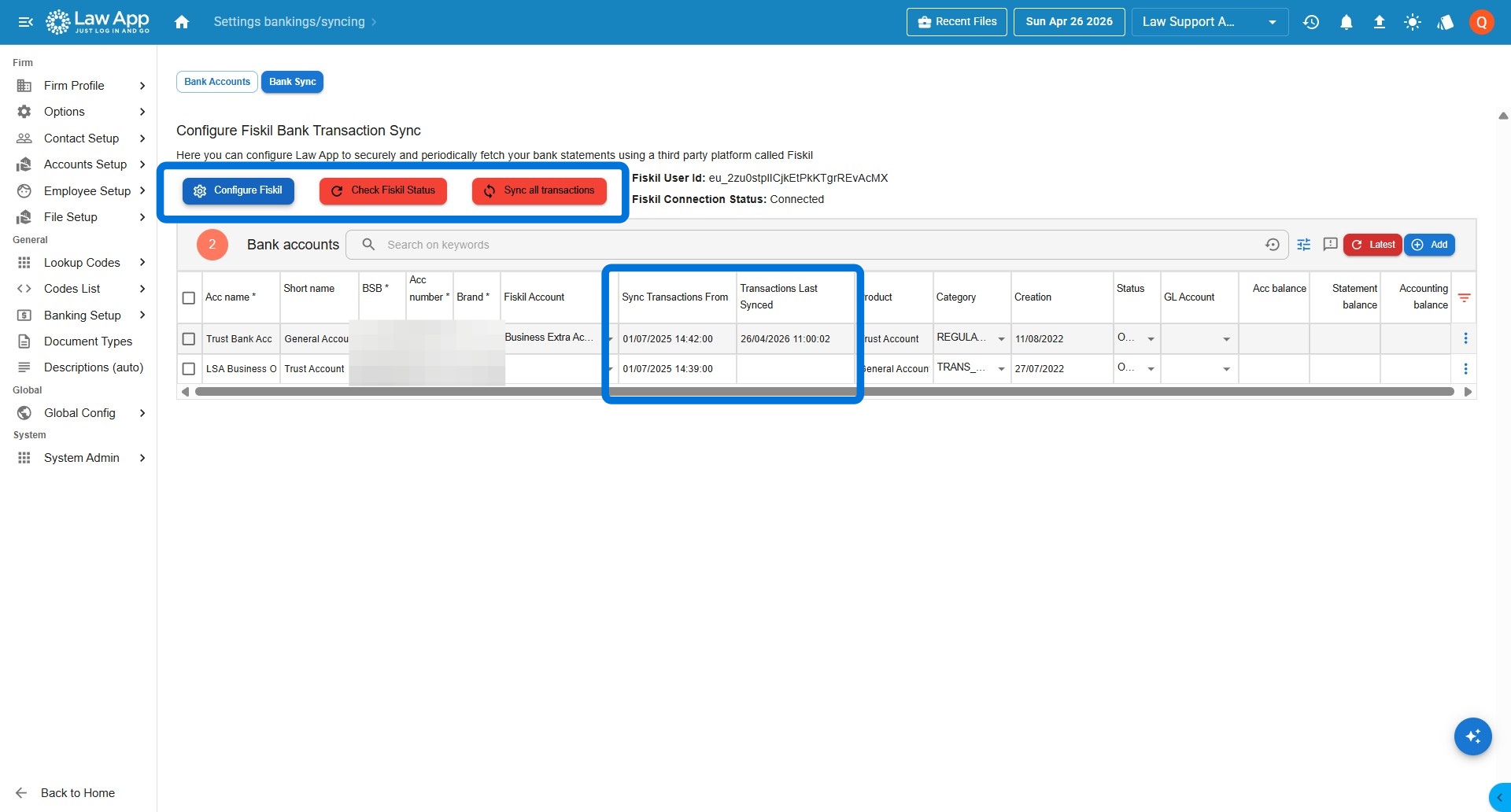 The screenshot above shows what this looks like in practice. The general account (first row) has been fully mapped and configured — you can see the bank account name, the sync date, and that it is actively syncing. The trust account (second row) has not yet been mapped — it shows no bank details and no sync date. Each account needs to be configured separately before it will sync.
For each account:
- Select the matching Fiskil bank account from the dropdown next to each Law App account.
- Set the Sync Transactions From date — this controls how far back Law App will retrieve transactions.
- Click Save all when all accounts are configured.
Run your first sync
Click Sync all transactions. Law App will retrieve all transactions for each account from your chosen start date. A confirmation message will tell you how many transactions were found and imported.
From this point, Law App syncs automatically every hour. You don’t need to do anything to keep it running.
Syncing and resyncing
The Sync all transactions button is useful any time you want to push a sync immediately rather than waiting for the automatic hourly run. There are also individual Sync buttons per account if you only need to refresh one account.
Each sync retrieves transactions from the Sync Transactions From date forward — it won’t go back further than that date, which is why setting it correctly matters.
Verify your imported transactions
To check what came in, go to Banking in the main menu and select Bank Transactions. You’ll see each account listed with the transactions imported from your sync date.
If transactions still aren’t appearing after a resync, see Missing bank feed transactions for further troubleshooting steps.
Leave a Reply