
You can import a bank statement CSV file into Law App when bank feeds and OFX files aren’t available from your bank, or when you need to add a specific transaction the bank feed missed. It’s the manual fallback, so use it only when you need to.
What is a CSV file?
CSV stands for comma-separated values. It’s a plain spreadsheet format: a table of data saved as a text file, with each column separated by a comma. Most banks let you export statements as CSV, and you can open and edit the file in Microsoft Excel or Google Sheets like any other spreadsheet.
When you save your changes, make sure you save as CSV, not as an Excel .xlsx file. Law App only reads the plain CSV format.
How to import a bank statement CSV file
Open the import screen
- From the left-hand menu, click Banking, then Import Statement.
- Select the account you’re importing for.
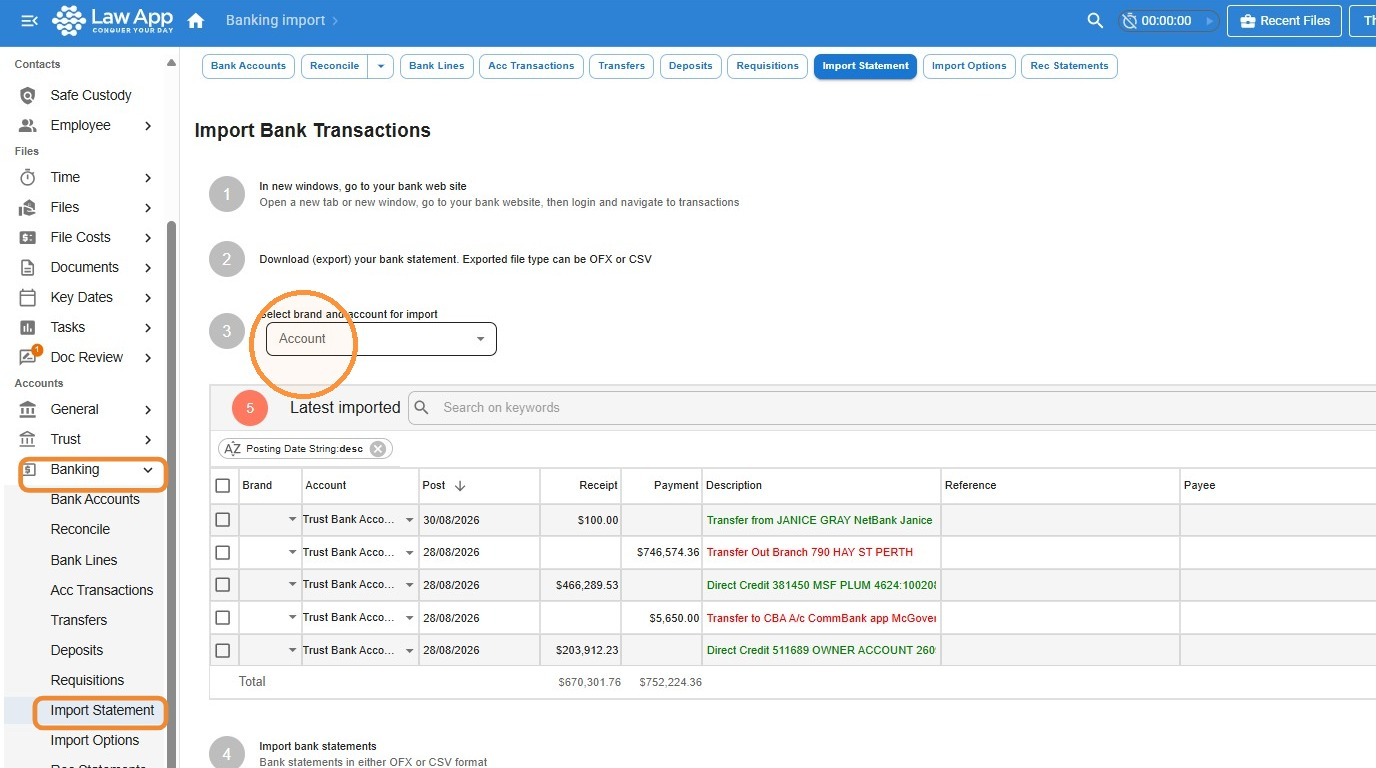
Download your bank statement
- In a separate browser tab, log in to your internet banking.
- Download a statement for the account you want to import, choosing CSV as the export format. If you’re importing more than one account, download a separate file for each.
How to prepare your CSV file
Bank-exported CSV files rarely match what Law App expects straight away. Open your file in Excel or Google Sheets and check each of the following before you upload.
Required columns
Your CSV must include these column headers, spelled exactly as shown:
| Field | Required | Notes |
|---|---|---|
| Date | Yes | DD/MM/YYYY or MM/DD/YYYY format. |
| Amount | Yes | Income as positive, expenses as negative. One column only — see the formatting rules below. |
| Description | Yes | The transaction description as you want it to appear in Law App. |
| Reference | Optional | Additional reference detail for the transaction. |
| Payee | Recommended | If the payee is an existing contact in Law App, the name must match exactly. |
Amount formatting
Amount formatting is the most common cause of import errors. Before uploading, check your Amount column carefully:
- Remove dollar signs. Amounts must be plain numbers, so $1,250.00 becomes 1250.00.
- Remove thousand separators. CSV uses commas to separate columns, so a comma inside a number breaks the import. 1,250.00 becomes 1250.00.
- Use two decimal places. Format every amount to exactly two decimal places — 1250.00, not 1250 or 1250.5.
- Use one Amount column only. If your bank exports separate debit and credit columns, combine them into one, with positive numbers for income and negative numbers for expenses.
Description formatting
Check your Description column for commas inside the text. A payee name like Smith, Jones & Associates contains a comma, which can shift the columns when Law App reads the file. Either remove the comma or make sure the field is wrapped in quotes in your CSV.
Cleaning up the file
- Rename the column headers to match the field names above exactly.
- Remove any columns Law App doesn’t use, such as Balance, Cheque Number, or running totals.
- Delete any summary or total rows at the bottom of the file.
- Check dates are in DD/MM/YYYY or MM/DD/YYYY format.
- Save the file as .csv.
How to upload and save the CSV file
Upload the file
- On the Import Statement screen, click the Import CSV File tab.
- Click Import, browse to your prepared CSV file and select it.
- Law App reads the file and displays the transactions in the table below.
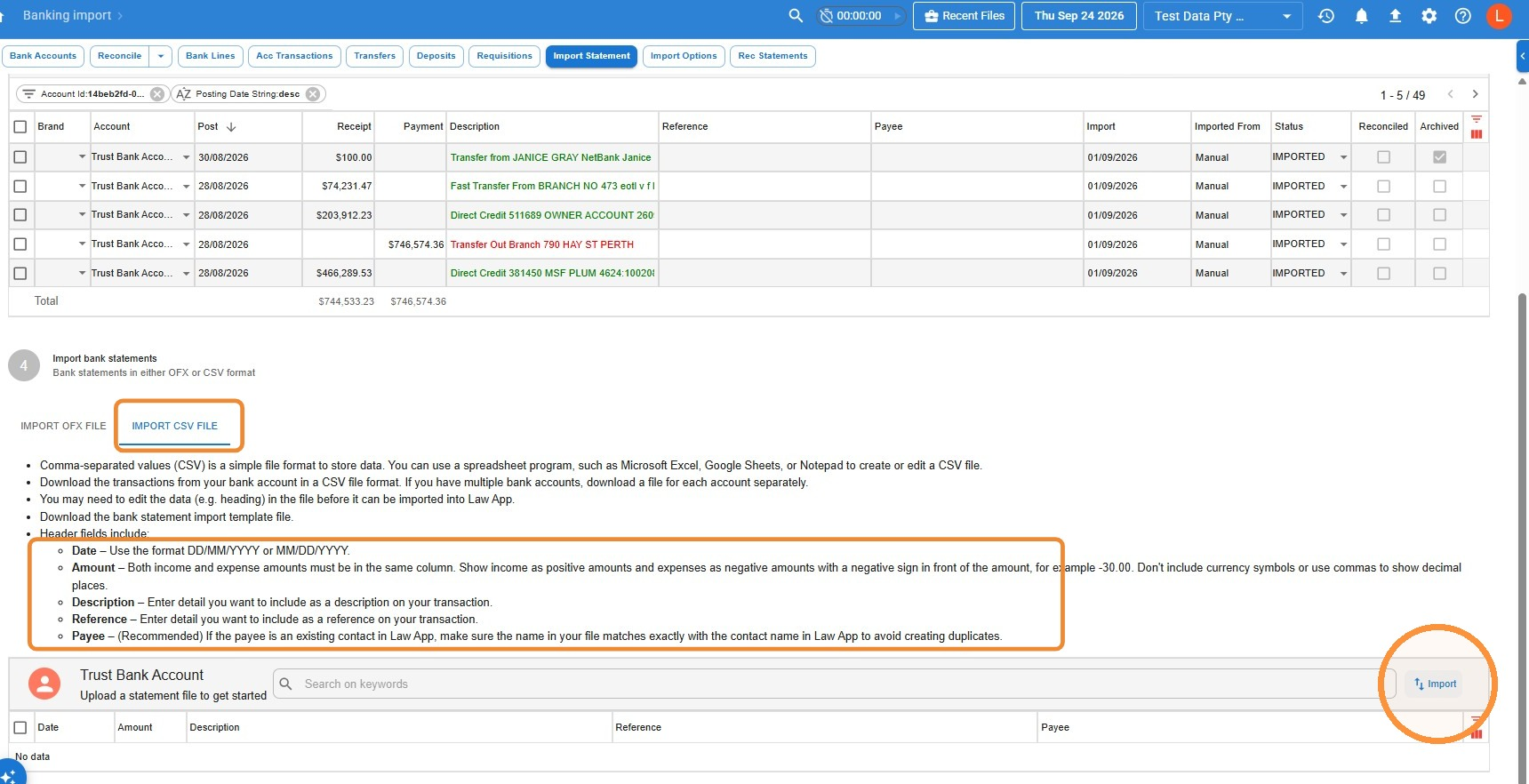 If Law App can’t read the file, go back and check your column headers and amount formatting, and confirm the file is saved as CSV rather than XLSX.
Review and save
Once uploaded, your transactions appear in the Latest imported list. Before saving, check that:
- Dates fall within the expected range.
- Receipt and payment amounts are in the correct columns and look right.
- Descriptions and references look right.
- The total row at the bottom matches your bank statement.
When you’re happy, click Save All. If something doesn’t look right, click Undo All to discard the import and start again.
Next steps after importing
After saving, the imported transactions appear in your Bank Transactions list. Go to Banking > Reconciliation to start matching them against your records in Law App.
Leave a Reply