
Clearance & Timing
These settings control how long the system waits for funds to clear before they can be used.
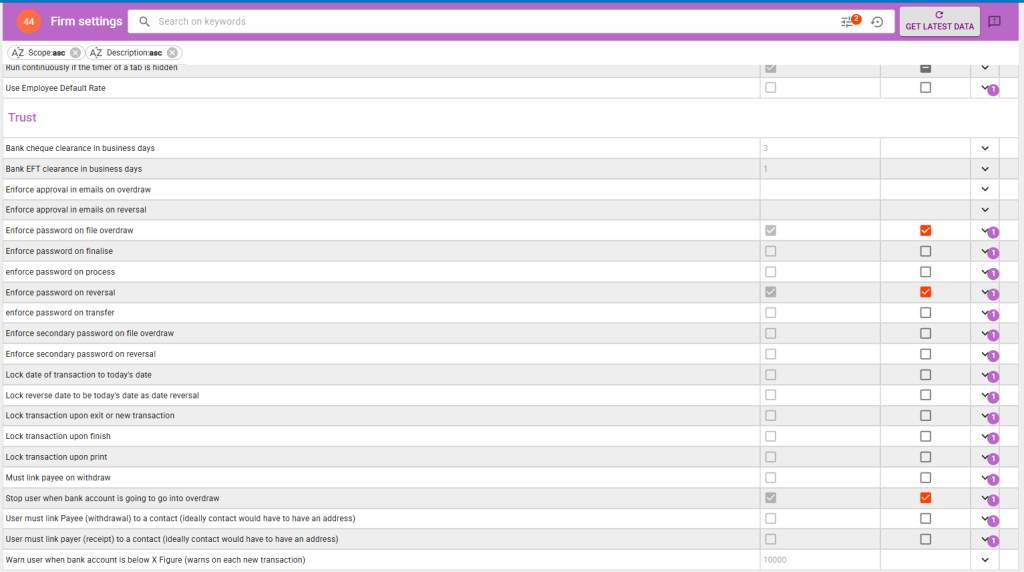
Sets the number of business days the system waits before treating a cheque deposit as cleared funds. During this period, the funds will show as uncleared and cannot be used for payments or transfers.
The standard value is 3 business days, which aligns with typical Australian bank clearing times for cheques.
Sets the number of business days the system waits before treating an EFT (electronic funds transfer) deposit as cleared. During this period, the funds will show as uncleared.
The standard value is 1 business day. Most Australian banks clear EFTs overnight.
Approval & Email Controls
Require email-based approval workflows before certain trust actions can proceed.
When enabled, if a trust transaction would cause a file to go into overdraw (i.e. paying out more than the file holds in trust), the system will require an approval via email before the transaction can proceed.
This adds a second layer of oversight on top of any password enforcement, ensuring a nominated person reviews and approves the overdraw before it is committed.
When enabled, reversing a trust transaction will trigger an email approval request. The reversal cannot be completed until the nominated approver responds.
This is useful for firms where reversals are uncommon and should be reviewed by a principal or trust account manager before they take effect.
Password Enforcement
Require a supervisor or administrator password before sensitive trust actions can be performed. These settings add a layer of authorisation to protect against accidental or unauthorised transactions.
Requires a supervisor password before a trust payment can be made that would cause a file’s trust balance to go into overdraw (negative balance).
This is a critical compliance setting. In most Australian jurisdictions, paying out more than a file holds in trust is a breach of trust accounting regulations. This setting ensures that overdraw situations require explicit authorisation.
Requires a supervisor password before a trust transaction can be finalised. Finalising a transaction marks it as complete and (depending on other lock settings) may prevent further editing.
Enable this if you want an extra approval step before transactions are committed as final.
Requires a supervisor password before a trust transaction can be processed. Processing is the step where the transaction is executed and posted to the trust ledger.
This is a broad control — it applies to the processing step of all trust transactions.
Requires a supervisor password before a trust transaction can be reversed. Reversals undo a previously completed transaction and create a corresponding reversal entry in the trust ledger.
Because reversals directly affect trust records that may have already been reconciled or reported, they should be tightly controlled.
Requires a supervisor password before a trust-to-trust transfer can be made between files. Transfers move funds from one file’s trust ledger to another.
Enable this if transfers between files should require explicit authorisation, which is good practice in firms where only senior staff should initiate inter-file movements.
Requires a second, separate password in addition to the primary password before a trust overdraw can proceed. This provides dual authorisation — two different people must approve the overdraw.
This is the highest level of protection for overdraw situations and is useful for firms that require two-person sign-off on any trust file going into a negative balance.
Requires a second, separate password in addition to the primary password before a trust reversal can proceed. This provides dual authorisation for reversals.
Enable this for firms that require two-person approval before any trust transaction can be undone.
Transaction Locking
These settings control when a trust transaction becomes locked (read-only). Once locked, a transaction cannot be edited — it can only be reversed. During the crossover phase when migrating from another system, these are typically left off. They should be turned on once the crossover is complete.
Forces the transaction date to always be today’s date. When enabled, users cannot manually change the date on a trust receipt, payment, or transfer.
This prevents backdating, which is a core compliance requirement. It should be left off during the crossover phase when importing legacy transactions that need their original dates, then turned on once the crossover is complete.
Ensures that when a transaction is reversed, the reversal date is always today’s date. Users cannot backdate a reversal.
This keeps your trust records in proper chronological order. Without this, staff could accidentally or deliberately create reversals with a past date, which would disrupt reconciliation and reporting.
Locks a trust transaction as soon as the user exits the transaction screen or begins entering a new transaction. Once locked, the transaction becomes read-only.
This prevents accidental changes to transactions that have already been entered. Without this, a user could navigate back to a previously entered transaction and modify it.
Locks the transaction once it is marked as finished. A finished transaction is one that has been fully completed by the user.
Once a trust transaction is complete, it should not be editable — any corrections should be made via a reversal and re-entry. This setting enforces that principle automatically.
Locks the transaction once it has been printed. If a receipt or payment has been printed and provided to a client or placed on file, the underlying record should not change.
This ensures that the printed document always matches the system record. Without this, someone could print a receipt, then edit the transaction, creating a mismatch between paper and system.
Payee & Contact Linking
These settings control whether users must associate a contact record with trust transactions. Linking payees and payers to contacts improves reporting accuracy and audit trails.
Requires that every trust withdrawal (payment) has a payee linked to a contact in the system. The user cannot complete the payment without selecting who the payment is going to.
This ensures your trust ledger always records who funds were paid to, which is essential for compliance reporting and auditing.
Requires that the payee on a trust withdrawal is linked to a contact record in Law App. The contact should ideally have an address on file.
This is similar to “Must link payee on withdraw” but specifically ensures the payee is a proper contact record (not just a free-text name), which improves data quality for reporting and compliance.
Requires that the payer on a trust receipt is linked to a contact record in Law App. The contact should ideally have an address on file.
This ensures that when funds come in, you always have a proper record of who deposited them — which is important for compliance, AML (anti-money laundering) obligations, and auditing.
Overdraw Protection & Warnings
These settings provide safeguards around trust account balances to prevent compliance breaches and alert staff to low balances.
Prevents any trust transaction that would cause the overall trust bank account to go into a negative balance. This is different from the file-level overdraw settings — this protects the bank account itself.
If the total of all trust funds across all files would drop below zero as a result of a transaction, the system will block it entirely.
Displays a warning each time a new trust transaction is started if the overall trust bank account balance is below the specified amount. This does not block the transaction — it simply alerts the user.
The default value is $10,000. You can adjust this based on your firm’s typical trust balance and comfort level.
Leave a Reply