
Learn how to generate, download, and email payslips in Law App using either a date range or an individual pay run. This guide covers selecting employees, choosing output options, and our recommended best practice.
1. Go to Reports → select Payroll Reports
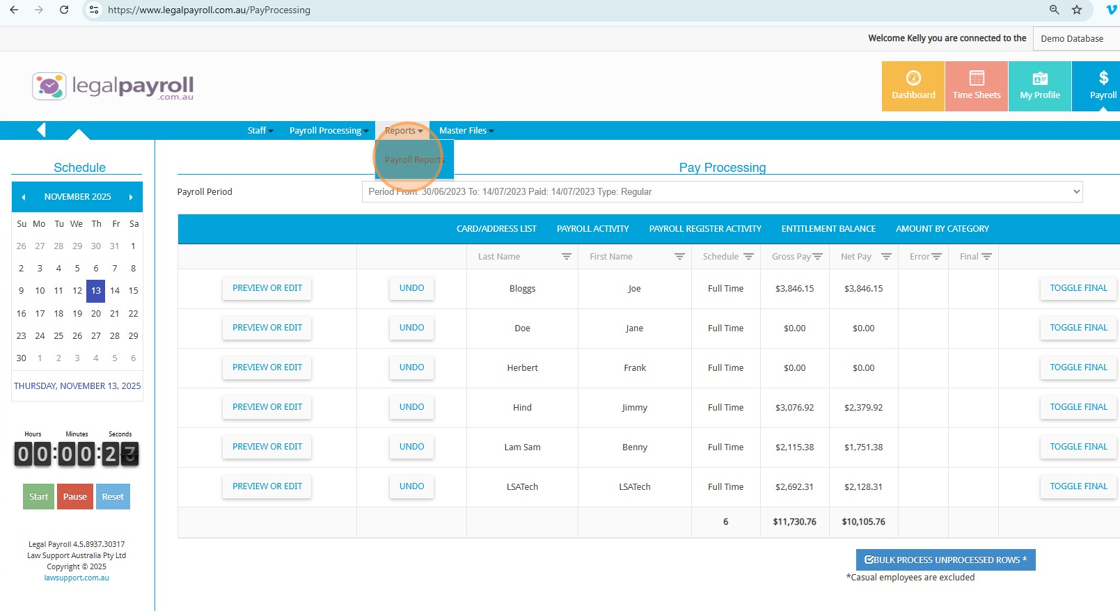
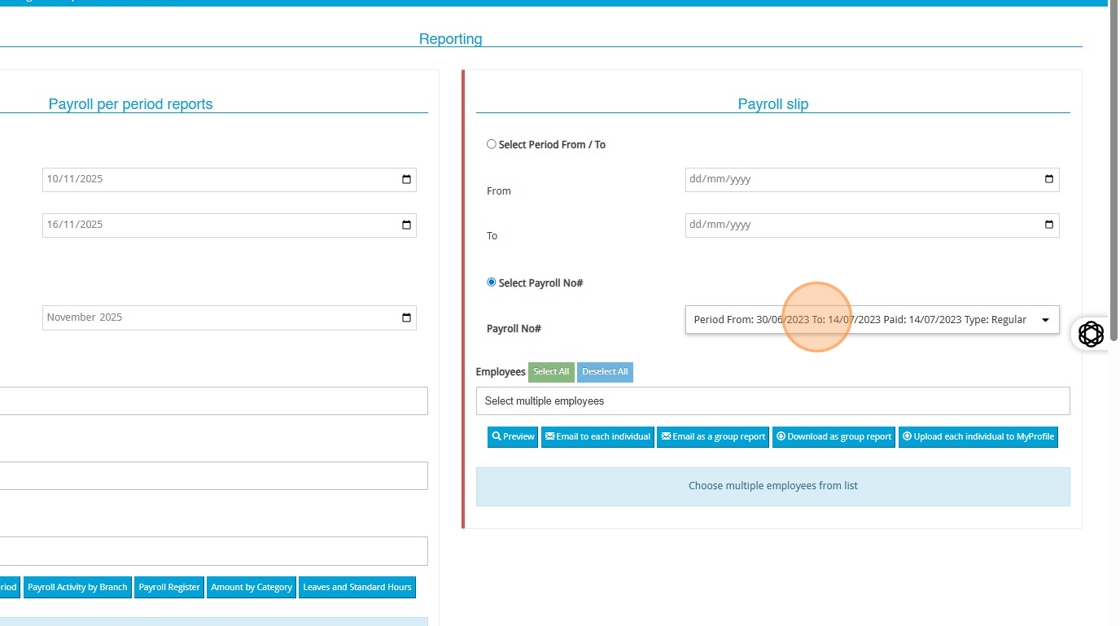
2. In the top-right section, you’ll see Payslips.
You can run payslips in two ways:
- By date range — enter From and To dates, or
- By individual pay run — choose the specific pay run you want
Once you’ve selected the pay period or the individual pay run, go to the Employees list and click Select All.
3. ## Deliver or Save the Payslips
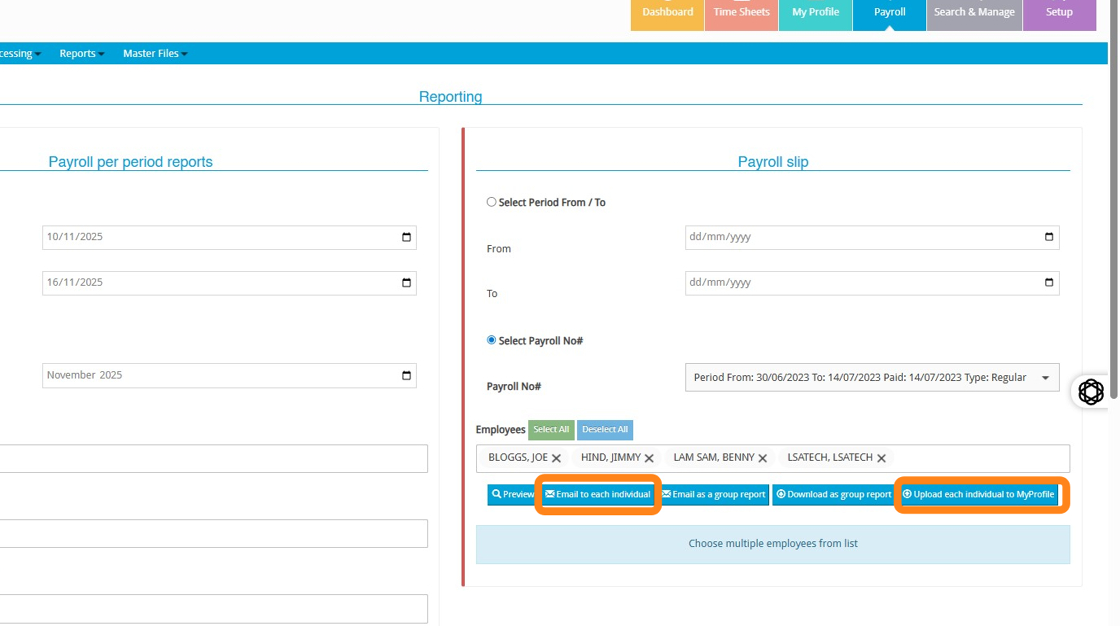
Once the payroll period and employees are selected, you can choose how to output the payslips:
- Email — sends each employee their payslip directly to their registered email address.
- Download — saves all payslips for that payroll period to your device as a batch PDF.
- Or do both — this is our recommended option, ensuring employees receive their payslips and you retain a local copy for your records.
Leave a Reply