
If you can’t use automatic bank feeds through Law App’s Banking API integration, you can import an OFX bank statement instead. OFX (Open Financial Exchange) is a standard file format that most banks offer as a download option.
Because OFX files always follow the same fixed structure, you don’t need to edit them or adjust any columns before importing — which is why OFX is the recommended format wherever your bank offers it.
Open the Import Statement screen
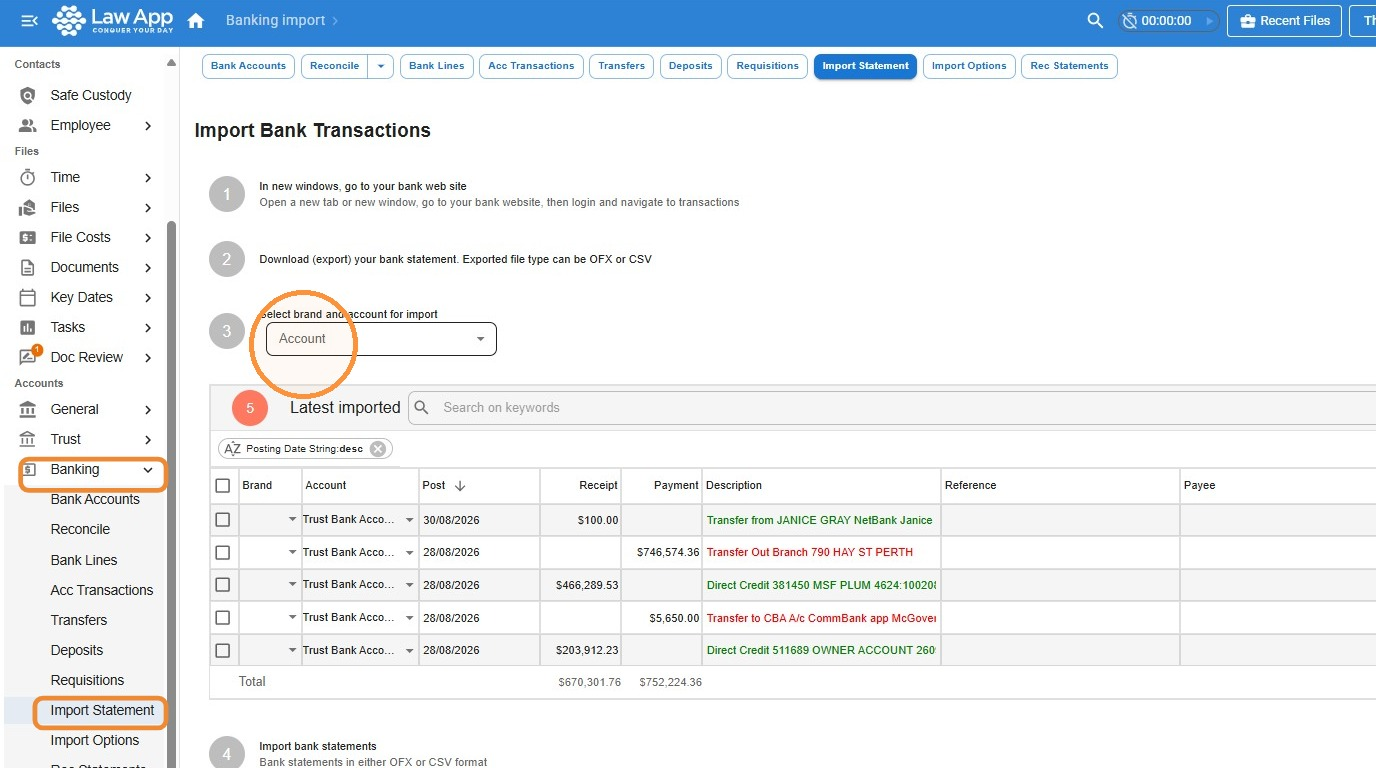
- From the left-hand menu, click Banking, then click Import Statement.
- Select the bank account you’re importing for.
Download your OFX bank statement
Steps 1 and 2 on the Import screen walk you through this:
- Open a new browser tab and log in to your internet banking.
- Go to the account you want to import and download the bank statement in OFX format. Depending on your bank, this may be labelled QFX or Microsoft Money.
- Importing more than one bank account? Download a separate OFX file for each account.
What is an OFX file?
An OFX file is a text or HTML file that holds financial data in a standard format. A few things to know when importing one into Law App:
- If your online banking lets you download statements in OFX format, this is the recommended format to use.
- Law App recognises duplicate transactions (matching date, amount and description) that were already imported from other OFX files, and automatically leaves them out.
- Empty lines and transactions with a zero amount are excluded during import.
How to import an OFX bank statement
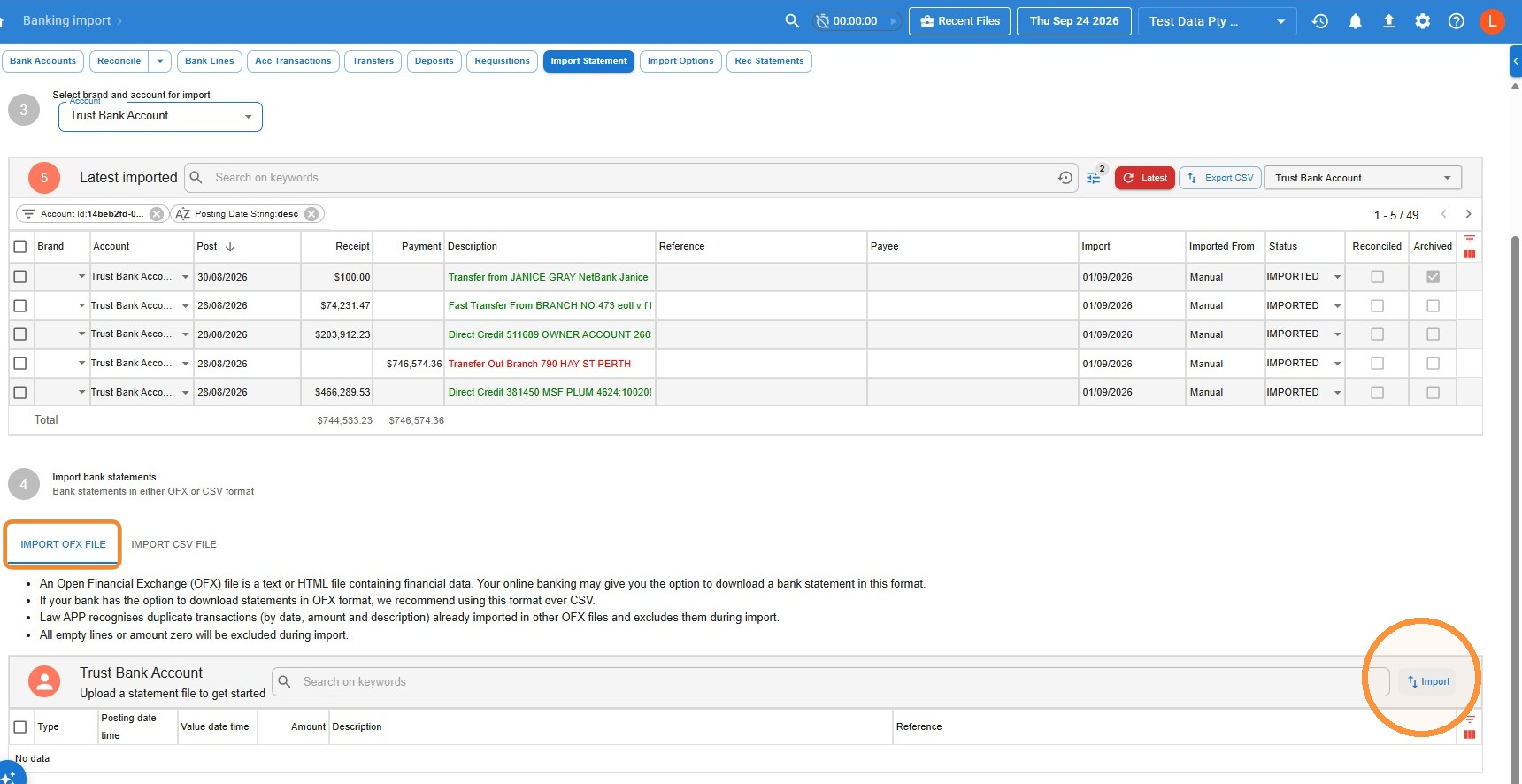
On the Import screen you’ll see two tabs: Import OFX File and Import CSV File. Import OFX File is selected by default.
- Click Import, then browse to and select your OFX file.
- Law App reads the file and shows the transactions in the table below.
- Click Save.
Next steps: reconcile your imported transactions
Once saved, the imported transactions appear in your Bank Transactions list. Go to Banking > Reconciliation to start matching them against your records in Law App.
Leave a Reply