How do I make sure I don’t miss billing a disbursement?
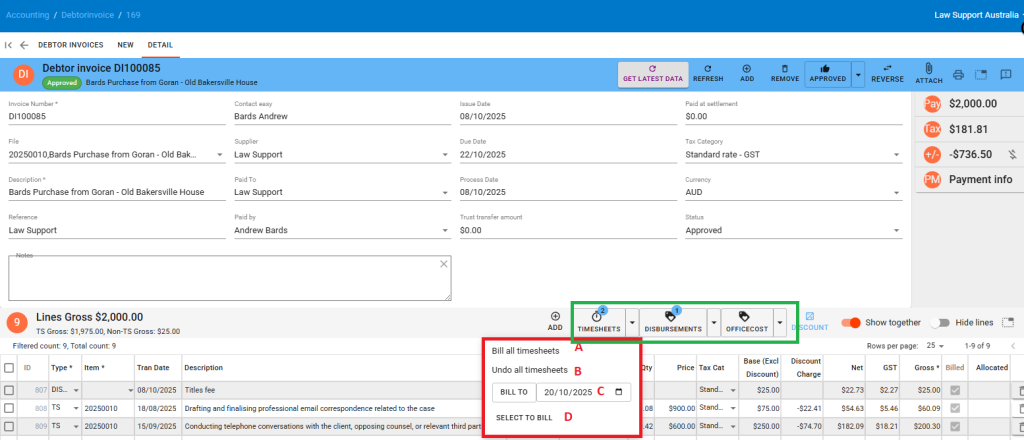
LawApp automatically flags all unbilled entries that are ready for billing when you open or create a debtor invoice.
When you press Bill All, the system will automatically include:
- Unbilled disbursements
- Supplier invoices
- Pending payments (where applicable)
This helps ensure no recoverable outlays are missed.
Additional Billing Options
From within the invoice screen, you can also:
- Select specific items to bill manually
- Bill to a specific date using the “Bill To” calendar option
- Choose to undo or adjust any item before finalising
These controls help you customise what’s included in each invoice, while maintaining confidence that all eligible disbursements and time entries are available for review.